AI Video Generator

Start with a prompt, a reference image, or a start-and-end frame pair. Send the setup to VisionStory and continue creating polished AI video clips in the main generator.

  • Switch between Image to Video and Generate Video starts
  • Use a start frame and optional end frame for visual direction
  • Continue in the full VisionStory AI video generator
Generate video
Start frameOptional
End frameOptional
Textto video
Imageto video
3aspect ratios
Freeto try

Start from text or guide the video with images

Pick the input style that matches your production stage: raw concept, product visual, character frame or storyboard transition.

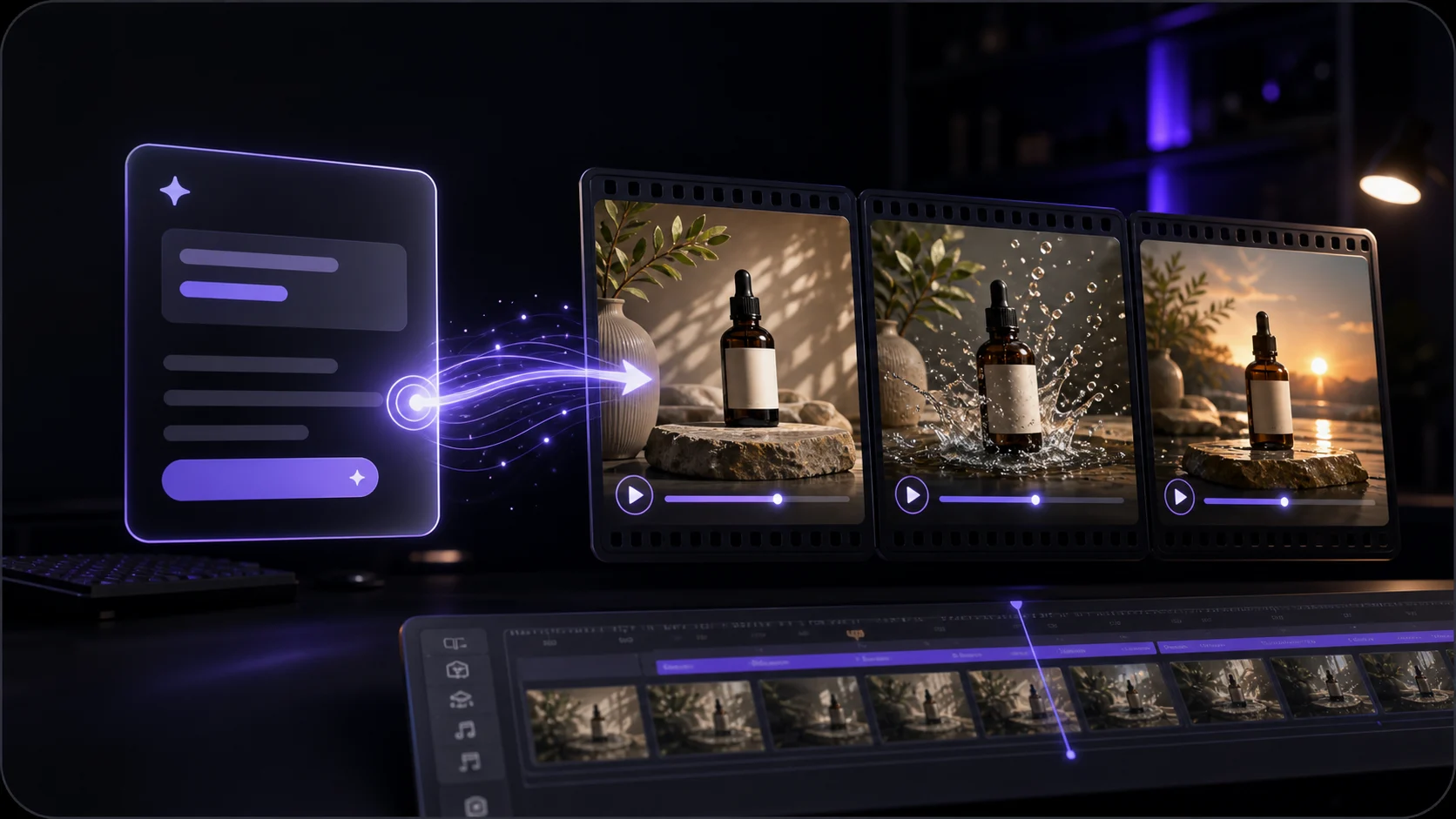
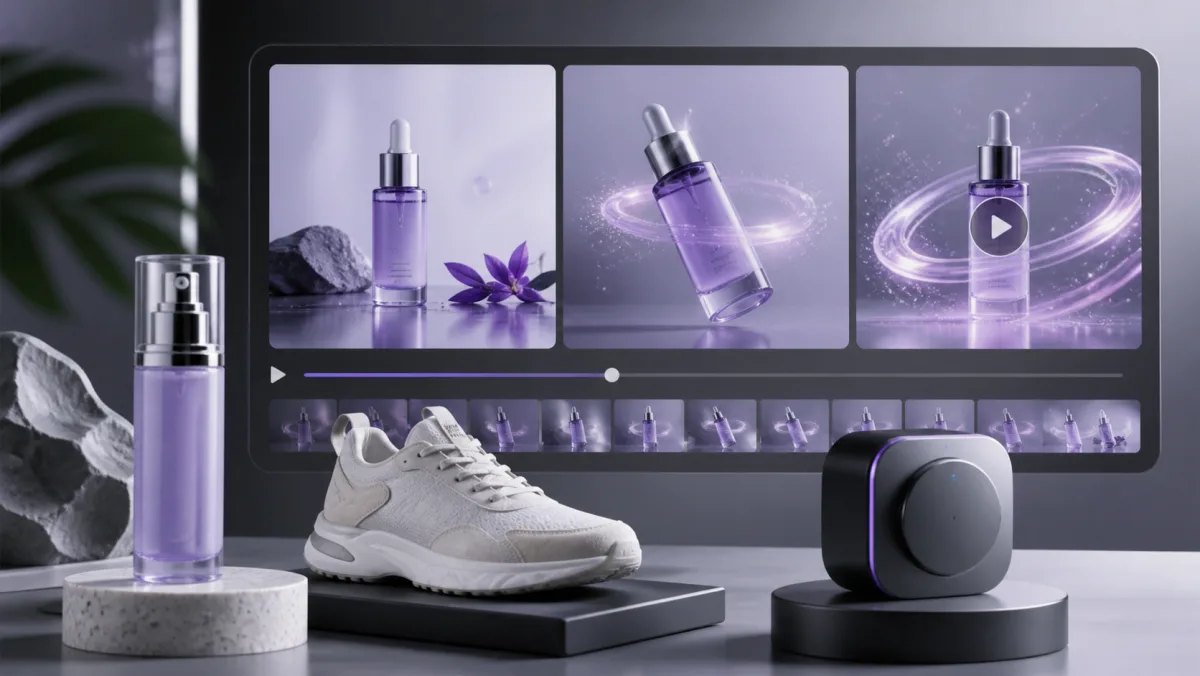
AI video generator interface concept

Generate Video

Describe a scene and turn it into a short AI-generated video clip.

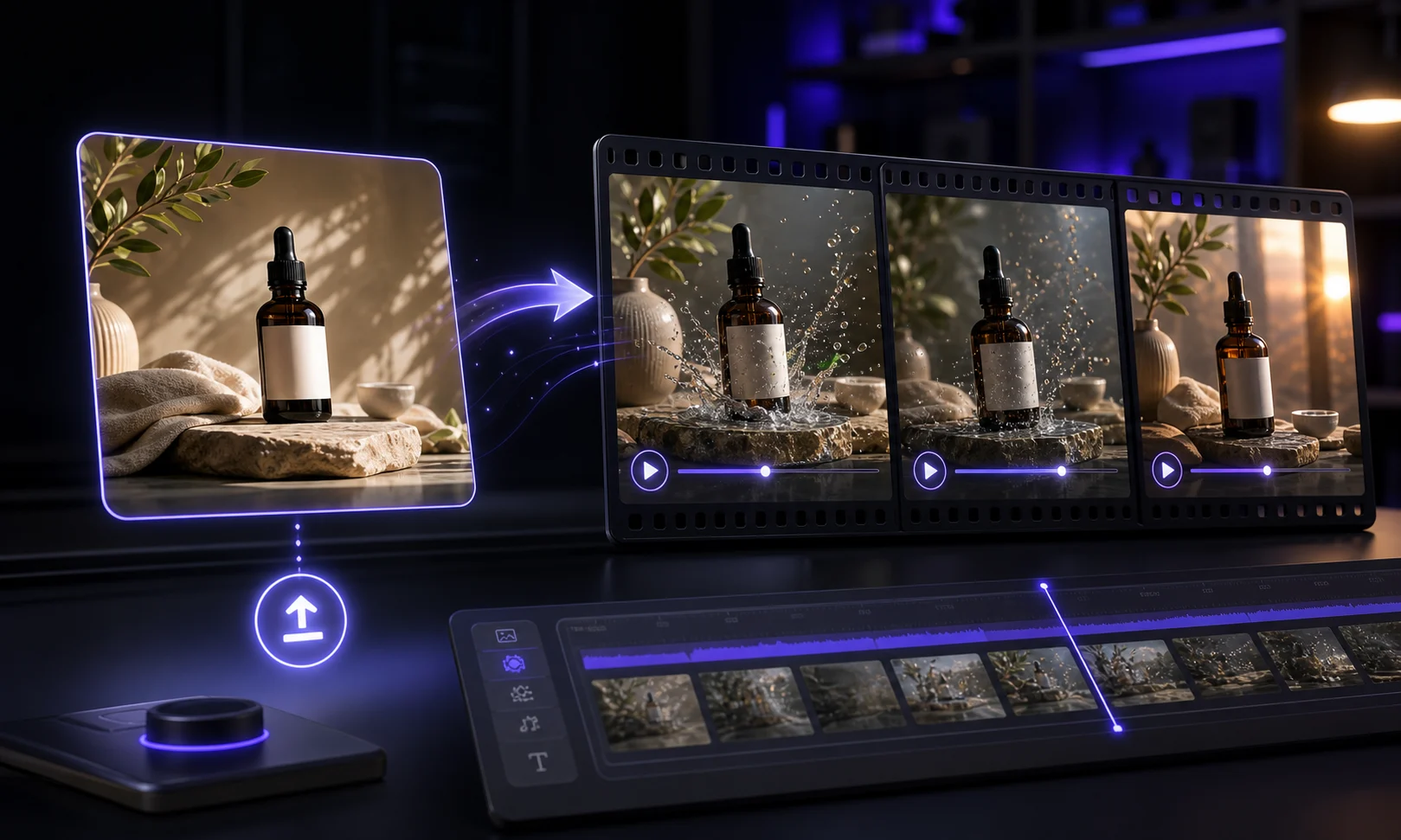
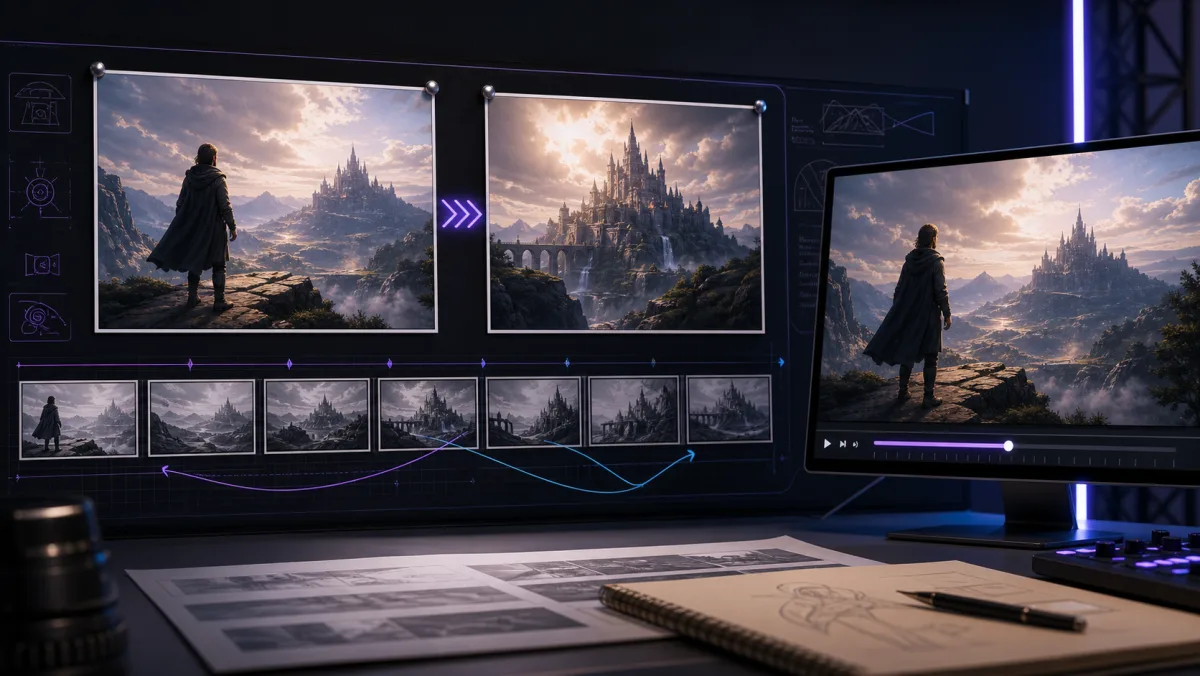
AI storyboard frame for image to video

Image to video

Upload a visual reference and describe how it should move or transform.

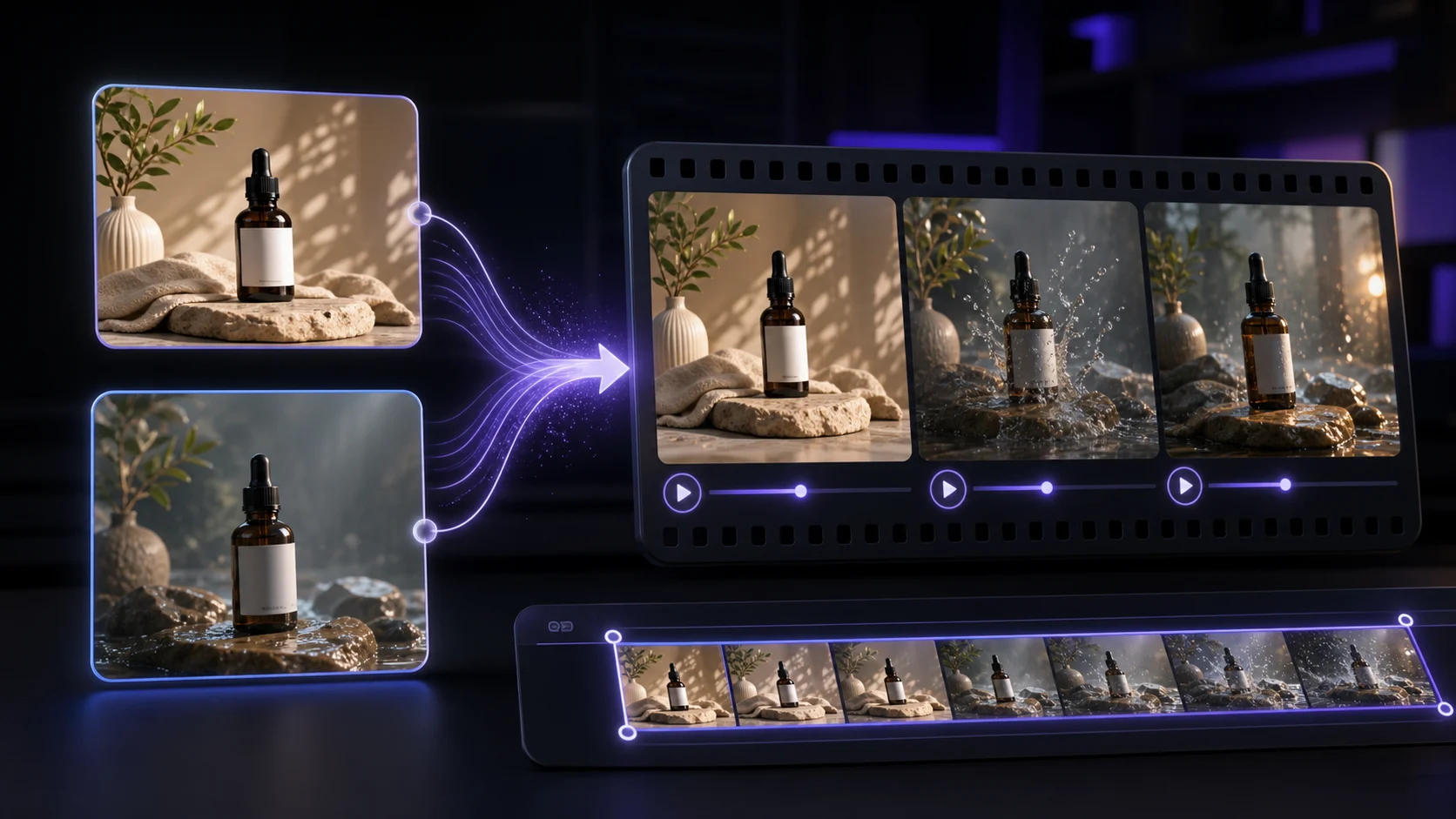
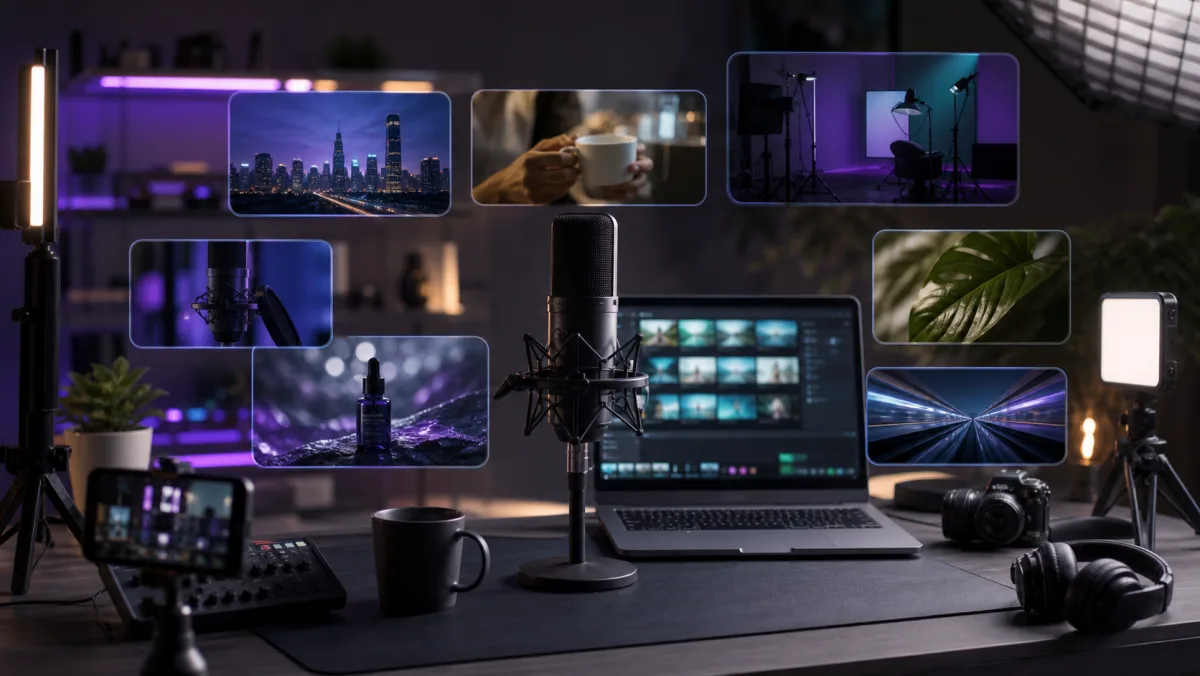
AI ad video storyboard frame

Start and end frames

Use two frames when the clip needs a clearer transition or final pose.

Generate AI video clips for the next creative step

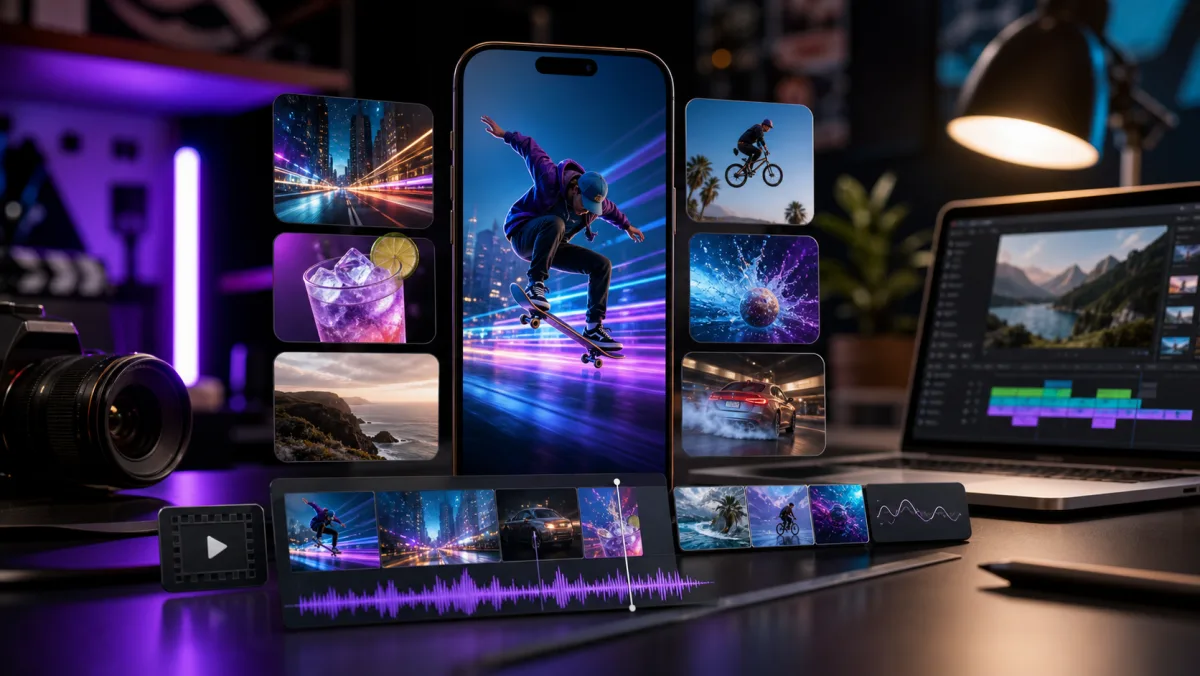
Use short AI video clips as ad concepts, product demos, social posts, storyboards or visual b-roll before moving into editing.

Where AI-generated clips fit your workflow

Use generated video to test ideas quickly before spending time on a full edit or campaign build.

  • Where AI-generated clips fit your workflow

    Social hooks

    Generate short clips for TikTok, Reels, Shorts and campaign openers.

  • Where AI-generated clips fit your workflow

    Product demos

    Turn a product image or prompt into a quick visual concept for testing.

  • Where AI-generated clips fit your workflow

    Storyboards

    Preview camera movement, setting and visual mood before production.

  • Where AI-generated clips fit your workflow

    Creator b-roll

    Produce supplementary footage that supports avatar, podcast or ad videos.

How it works

How to Create AI Videos with VisionStory

Choose the fastest starting point for the idea: generate from a prompt or guide the model with reference frames.

Step 1

Choose a starting mode

Use Generate Video for new scenes, or Image to Video when you already have a product image, character, poster or storyboard frame.

Step 2

Add visual direction

Describe the action, camera movement, lighting, pacing and mood so the generated clip follows the creative intent.

Step 3

Continue in VisionStory

Send the setup to the full generator, adjust model settings, generate the clip, and keep the result with your VisionStory projects.

Frequently asked questions

  • What can I make with the AI video generator?

    You can create short AI-generated clips from text prompts or reference images. It is useful for social posts, ads, product demos, visual storyboards and supplementary footage for larger video projects.

  • Can I start from an image?

  • Can I generate video from text only?

  • Do I generate the final video here?