What goes in and what comes out

Who it is for

Production companies and post teams

Editors, colorists, and post supervisors at video production companies and in-house content studios, working with footage they didn't shoot and usually can't shoot again.

What you start with

Client assets and a delivery spec

The rushes, archive tapes, interviews, and screen recordings the client handed over, plus the resolution, runtime, caption format, and language every delivery destination expects.

What you get

Repaired clips, layers, and masters

Cleaned dialogue, restored and upscaled shots, a keyable presenter layer, and a higher-resolution master, returned as files. VisionStory doesn't pull a key, doesn't grade, and never enters your timeline, and any likeness or voice replacement needs a signed release before it's rendered.

What post can fix, and what it can't

Most of the pressure in post comes from a gap the client never sees: what was captured versus what was promised. The bid assumed a controlled shoot, and the drive contains a phone clip, a room with a hard echo, and a logo card at 720. Closing that gap is a triage job. Part of it gets repaired, part of it gets rebuilt as a new layer, and part of it ends with a call asking for a reshoot, and knowing which is which in the first week is what protects the delivery date.

The drive arrives worse than the bid assumed

The client's assets land on Monday: forty minutes of ceremony filmed vertically on a guest's phone, a founder interview shot in a glass meeting room where every sentence has a second sentence bouncing behind it, and a 720 export of a logo animation whose project file left with the previous supplier. The brief still says premium brand film, and the shoot budget was spent before your studio was hired.

Triage is what turns that drive into a schedule. Noise reduction pulls the room out of the dialogue while keeping the voice intelligible, restoration clears blur, grain, and compression damage without touching timing or audio, and upscaling raises a low-resolution shot toward the delivery format. Each pass returns a file you conform in your own timeline, so the clips that come back usable get cut and the ones that don't get flagged in the first days, while there's still time to ask for a reshoot rather than at the client review.

Rescue the shot instead of rebooking the shoot

A reshoot is rarely one day of camera work. It's the client's legal team clearing the location a second time, the executive who has since moved to another company, the venue that only exists during the trade show, and three calendars that last aligned by accident. By the time everyone agrees on a date, the campaign the footage was meant to support has already run.

Repair costs an afternoon and one person. A cleanup pass on dialog, a restoration pass on picture, and a resolution lift can all run while the assistant editor keeps cutting—and by the end of the day you know which shots survived. That doesn’t make every reshoot avoidable. It makes the reshoot list short and specific, so the conversation with the client is about four shots and a half day rather than a lost week.

A presenter layer your compositor still owns

The corporate film needs a host: someone to bridge three case studies, deliver the numbers the client approved last week, and appear again at the end. Booking a presenter means a rate, a half-day in the studio, and a rebook every time the legal team edits a sentence. The third round of copy changes usually arrives after the talent has gone home, and the pickup day costs more than the segment is worth.

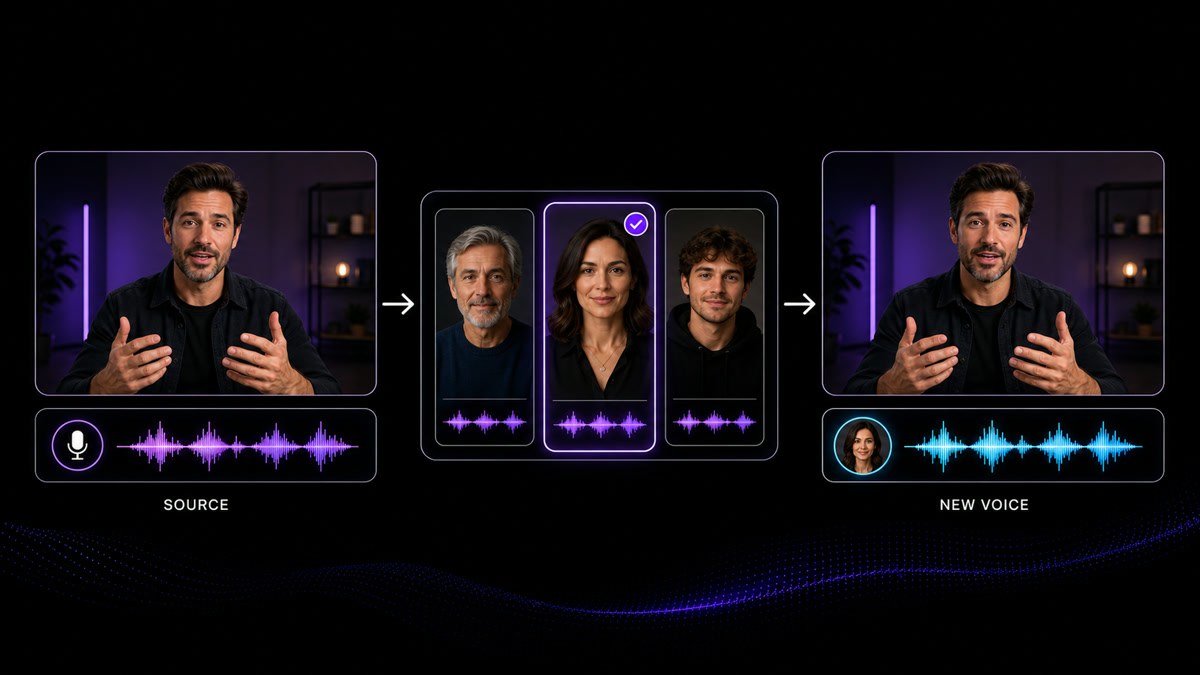
Generating that host as a keyable layer keeps the job inside your suite. VisionStory renders a presenter against a flat green background from your script and a chosen voice; your compositor keys it, tracks it, sizes it, matches the grade, and decides whether it sits in a lower third, on a set extension, or full frame. VisionStory doesn’t screen record, doesn’t build the composite, and doesn’t color the shot—so the look of the finished film stays a decision your team makes rather than an output you receive.

Be honest about what a 4K master really is

The delivery spec says 4K. The source is a 1080 interview, and one insert is a 720 screen capture from a laptop that has since been wiped. Somewhere between the producer and the client, a number was agreed to that the footage on the drive can’t support—and it becomes a post problem two days before the deadline.

Upscaling makes real gains and has a real ceiling. Lifting a clean 1080 master toward a 4K deliverable holds up on a large screen; pushing a soft, heavily compressed 720 clip to the same target invents detail that was never recorded, and it shows the moment anyone views it at full size. Look at faces, product labels, and fine texture at 100 percent before you accept a pass, and tell the producer which shots are genuinely finishing at the delivery resolution and which are being carried. A spec you can defend is worth more than a number you can’t.

One approved cut, three delivery specs

The contract described one film. The delivery sheet, when it finally shows up, describes three. The broadcast partner wants captions as a separate sidecar file and audio mixed to its own loudness target; the social cut wants those captions burned into the picture inside a vertical safe area; the client’s own player wants an embedded caption track and a different codec again. None of that was written down when the edit was approved, and one of the three destinations is regularly the one nobody mentioned until the day before delivery.

Ask for the destination list in writing before the online session, not after it, and put caption format, audio target, codec, frame rate, and aspect for each destination on one sheet your assistant can check against. Then treat every version as a conform of the same approved cut: the same repaired clips, the same presenter layer, the same mix—re-wrapped and re-framed per platform. When the sources underneath are already clean and already signed off, a late spec costs a re-export and a fresh QC pass instead of reopening the edit.
How post teams use VisionStory

Work from the assets the client actually delivered and the spec your studio contracted to. Every pass below hands back a source file for your own edit, grade, and mix—and every pass has a failure mode worth knowing before you build a schedule around it.

Before delivery, the post supervisor confirms that picture and sound meet the quality bar written into the contract, that restoration and upscaling introduced no artifacts when viewed at full size, and that signed releases exist for every likeness, voice, and music cue in the cut.

  1. 01

    Build connective material and pitch cuts fast

    Give AI Video Agent the brief, an approved script, or a client PDF and it returns an editable multi-shot draft with a presenter, voiceover, and captions already in place. For a post team, the value is in the connective material rather than the hero film: the bridge between two case studies, an animatic that shows the client the shape before the online, a placeholder version of a segment still waiting on approvals. Pull the parts you keep into your own timeline and let the finished edit stay your decision.

    Feature AI Video Agent
    AI Video Agent
    Turn a prompt, URL, PDF, or script into an editable multi-shot video draft with an avatar, voiceover, and captions.
  2. 02

    Generate the presenter layer and key it yourself

    Green Screen Video renders a presenter against a flat green background from your script and a selected voice, and hands back a clip your compositor keys, tracks, and places. VisionStory produces the layer only: it doesn’t screen record, doesn’t composite it over your footage, and doesn’t grade the result—so framing, scale, edge treatment, and color match stay in the tools your team already uses. Check the key on motion and on hair edges before committing the shot, and match the presenter to the lighting of the plate rather than the other way around.

    Tool Green Screen Video
    Green Screen Video
    Create a presenter layer that can be composited beside a product, screen, or scene.
  3. 03

    Get the dialog out of the room

    Client interviews show up with HVAC, traffic, laptop fans, and harsh room reflections baked into the same track as the voice. Remove Noise brings down that noise floor while keeping speech intelligible—often the difference between using the take and having to subtitle around it. Run it before the mix and audition the result against the original on headphones and on speakers, because an aggressive pass can thin out a voice or leave an unnatural quality under sibilance. If the room has swallowed the performance itself, an ADR session is the honest fix.

    Feature Remove Noise
    Remove Noise
    Reduce background noise while preserving clear, intelligible speech.
  4. 04

    Lift the source toward the delivery master

    AI Video Upscaler lifts low-resolution material toward a cleaner delivery master, up to 4K. Use it when the source is clean and the gap is modest—like a 1080 interview that has to finish to a 4K spec. Judge results on the frames people will actually scrutinize: faces, product labels, and on-screen text at full size, not a browser thumbnail. If a soft, heavily compressed clip can’t truly meet the spec, say so before delivery instead of letting a number in the contract imply detail the camera never captured.

    Tool AI Video Upscaler
    AI Video Upscaler
    Upscale an existing low-resolution video for a sharper delivery master, up to 4K.
  5. 05

    Repair archive and phone footage before you cut it

    AI Video Enhancer clears blur, grain, and compression damage in existing footage without changing the timeline or the audio—which matters when a clip is already synced to dialogue or music. It’s the pass that makes decade-old event tapes, guest phone video, and files re-exported four times usable in a current brand piece. Restore first, then conform, then grade, so your colorist is working from the repaired version instead of fighting artifacts. Footage that’s still unclear after a pass is a reshoot conversation, not a longer render.

    Tool AI Video Enhancer
    AI Video Enhancer
    Restore blur, noise, and compression damage in existing footage without changing its timing or audio.
  6. 06

    Replace a likeness only with a signed release

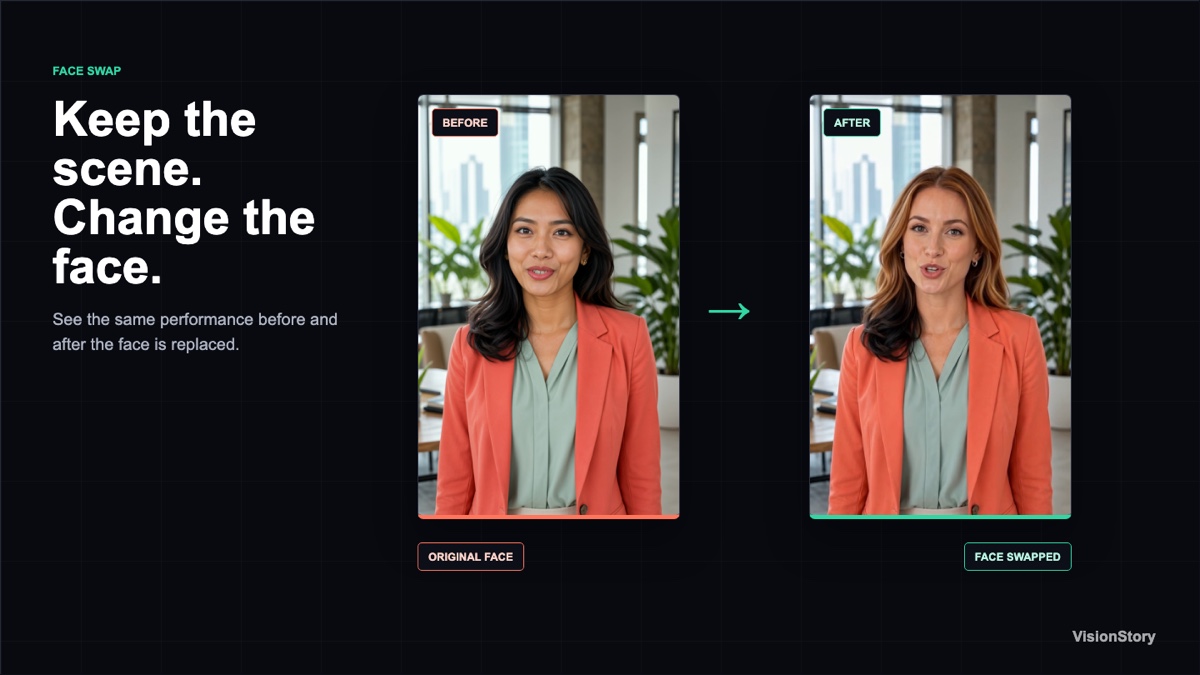
    Video Face Swap replaces a face in an existing clip frame by frame, and Face Swap does the same in a still while preserving the original lighting and framing. Both require written authorization from the person whose likeness is being used, covering the film, the markets, and the agreed term—and that release should live in the project folder right next to your music and footage licenses. Review results in motion, at profile angles, and in low light, where edges and skin detail fail first. Without a release, the request goes back to the client unfulfilled.

    Tool Video Face Swap
    Video Face Swap
    Replace the on-camera face across an existing clip with an authorized likeness, frame by frame.

Frequently asked questions

  • It handles repetitive repair and generation—not judgment. Noise reduction, restoration, upscaling, and generating a keyable presenter layer each return a usable file on their own. Conform, edit, keying, color, mixing, and the order the story is told in stay with your team, because those are the choices a client hires a post house for. Treat every returned file as a source clip coming into your timeline, not a finished deliverable.

Users Love VisionStory

Discover why content creators and marketers trust VisionStory for their AI video needs. From powerful features to an effortless user experience, our community can’t stop raving about the results they achieve with VisionStory.

See all reviews on G2