What goes in and what comes out

Who it’s for

Long-form and faceless channels

Educators, commentary and analysis channels, tutorial makers, and faceless channels that publish on a schedule without an on-camera host.

What you start with

A script, topic, or screen recording

Add an authorized portrait and a clean voice recording only if you want the channel to keep your face or your voice.

What you get

Repeatable widescreen episodes

Narrated explainers and series content you can keep publishing week after week, with every video reviewed and uploaded by you.

What your channel gets out of it

Channels rarely die from one bad video; they die from unsustainable production. Every episode that needs a filming day, a quiet room, and an editing weekend pushes the schedule until it slips. Here’s what changes when the channel runs on this workflow—and which weekly costs disappear.

Keep one recognizable host across every upload

Audiences subscribe to people, then algorithms surface thumbnails and frames. When lighting, framing, and delivery shift from video to video—a new setup here, a borrowed camera there—the channel loses the visual continuity that makes returning viewers click before they read the title.

An approved AI presenter locks in the host permanently: the same look, framing, and delivery in every upload. Tutorials, commentary, and channel updates all carry one identity, and that consistency compounds in the feed the way a logo compounds for a brand.

Publish new episodes in your voice without rerecording

Narration is the invisible production tax on every episode: a quiet room, a good microphone, multiple takes, and rerecords whenever the script changes afterward. For faceless channels and multi-video weeks, it becomes the bottleneck.

One authorized voice asset ends that loop. A new episode needs only an approved script to get narration in the delivery your audience already knows; you check names, pauses, and emphasis instead of reperforming them. The rights stay explicit: the voice is cloned once, from a recording you own, with authorization on record.

Explain what’s on screen without covering it up

Software reviews and tutorials carry a framing conflict: viewers need to see the interface, but a full-screen recording with disembodied narration feels hollow, and a webcam bubble usually sits exactly where the important menu is.

Compositing the presenter beside the recording resolves it. The host keeps explaining context and conclusions while the interface, the evidence, and the step-by-step actions stay the real subject of the frame—sized and placed so nothing important is ever hidden.

Fill in missing intros and b-roll for each episode

Every editor knows the moment: the argument needs a transition shot, the intro needs motion, and the stock library offers the same drone footage every other channel already used.

Generating exactly the shots the current topic needs, from thumbnails, photos, and reference stills you already have, removes the stock-footage ceiling. Push-ins, pans, and concept visuals arrive matched to the episode, so faceless videos and commentary stop leaning on recycled clips.

Turn YouTube automation into a review-first system

YouTube automation, as it’s usually sold—outsource a faceless pipeline and let it post on its own—produces channels that viewers stop trusting and platforms increasingly flag. The promise is volume; the price is credibility.

This workflow keeps automation where it belongs. Drafting, hosting, narration, and b-roll are generated, while facts, source rights, and the final edit pass through you on every episode. You get the output rate of an automated channel with the accountability of an edited one.
Turn a sustainable publishing system into a channel business

A faceless workflow can support platform revenue, sponsorships, affiliate offers, or your own products only when the channel stays original, useful, and consistently reviewed. Use faster production to strengthen your relationship with the audience—not to mass-produce interchangeable uploads.

Explore creator monetization paths

How YouTube creators use VisionStory

Pick the most direct route for the episode in front of you. Each step below maps to a VisionStory capability, what you feed it, and what comes back for you to review.

  1. 01

    Turn a topic, sources, and script into a full YouTube draft

    Give the AI Video Agent a topic, script, URL, or reference document, and it drafts the whole episode: structure, shots, host, voiceover, and captions in one editable widescreen video. You start with a reviewable first cut instead of stitching single-purpose tools together yourself.

    Feature AI Video Agent
    AI Video Agent
    Turn a prompt, URL, PDF, or script into an editable multi-shot video draft with an avatar, voiceover, and captions.
  2. 02

    Create the recurring host your channel is known for

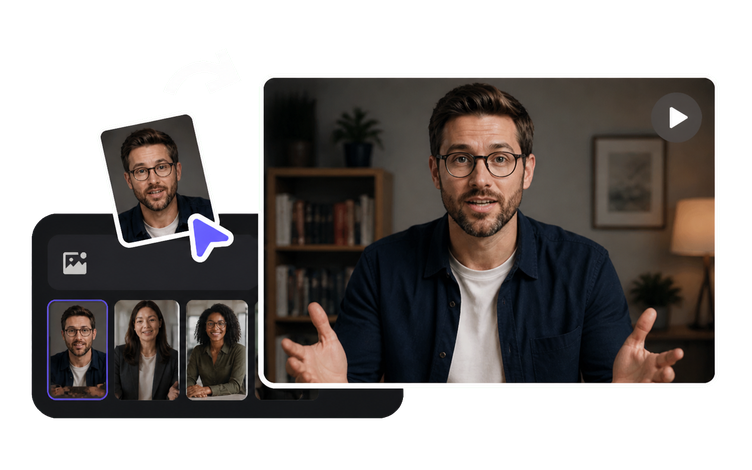
    Choose a public avatar or upload an authorized portrait, paste your approved script, and generate a lip-synced presenter video framed for widescreen YouTube. Save the setup as a series template so commentary, education, and channel updates keep the same face episode after episode.

    Tool AI Avatar
    AI Avatar
    Create a lip-synced presenter video from a selected avatar, script, and voice.
  3. 03

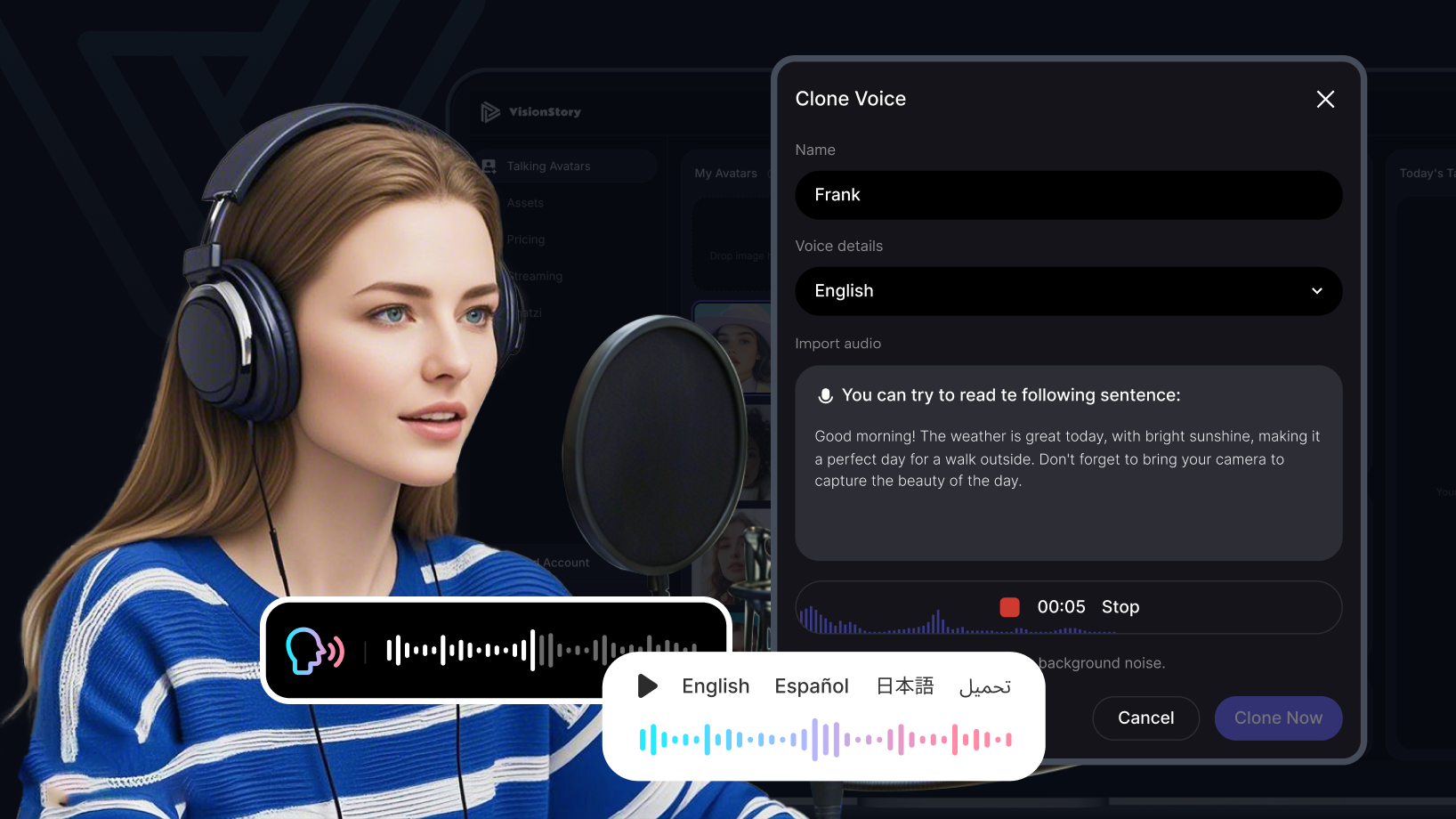
    Clone your channel voice from an authorized recording

    Build one controlled voice asset from a clean recording you have explicit rights to use. From then on, a new episode only needs a script to get narration in the delivery your audience knows. Check names, pauses, and emphasis against how you actually speak before publishing.

    Tool Voice Cloning
    Voice Cloning
    Create one reusable voice from an authorized source recording.
  4. 04

    Put the host beside tutorials, reviews, and evidence

    Generate a presenter layer with a transparent or solid background, then composite it next to screen recordings, tutorial steps, or review footage. Scale and position the host so menus, captions, and the evidence you are discussing stay fully visible.

    Tool Green Screen Video
    Green Screen Video
    Create a presenter layer that can be composited beside a product, screen, or scene.
  5. 05

    Turn thumbnails, photos, and reference stills into b-roll

    Add push-ins, pans, and subtle motion to static reference images to cover the transition shots that faceless videos, explainers, and commentary episodes always need. It fills the gaps a stock-footage library would normally have to cover, using images you already have.

    Tool Image to Video
    Image to Video
    Animate one approved portrait, product, or scene image into a short video clip with controlled motion.
  6. 06

    Upscale archive footage before it enters the episode

    When you quote authorized older uploads, screen recordings, or archive clips, upscale them to a sharper delivery resolution, up to 4K. New and old footage then sit at a consistent quality inside the same episode instead of announcing their age.

    Tool AI Video Upscaler
    AI Video Upscaler
    Upscale an existing low-resolution video for a sharper delivery master, up to 4K.

Frequently asked questions

  • Creators running long-form YouTube channels: educators, commentary and analysis channels, tutorial and review makers, and faceless channels publishing on a recurring schedule. It fits both solo creators and small teams that want a repeatable production system rather than one-off videos.

Users Love VisionStory

Discover why content creators and marketers trust VisionStory for their AI video needs. From powerful features to an effortless user experience, our community can’t stop raving about the results they achieve with VisionStory.

See all reviews on G2