Gain Full Control with VisionStory’s New “Preview Audio” and “Pause” Features
Jan 11, 2025
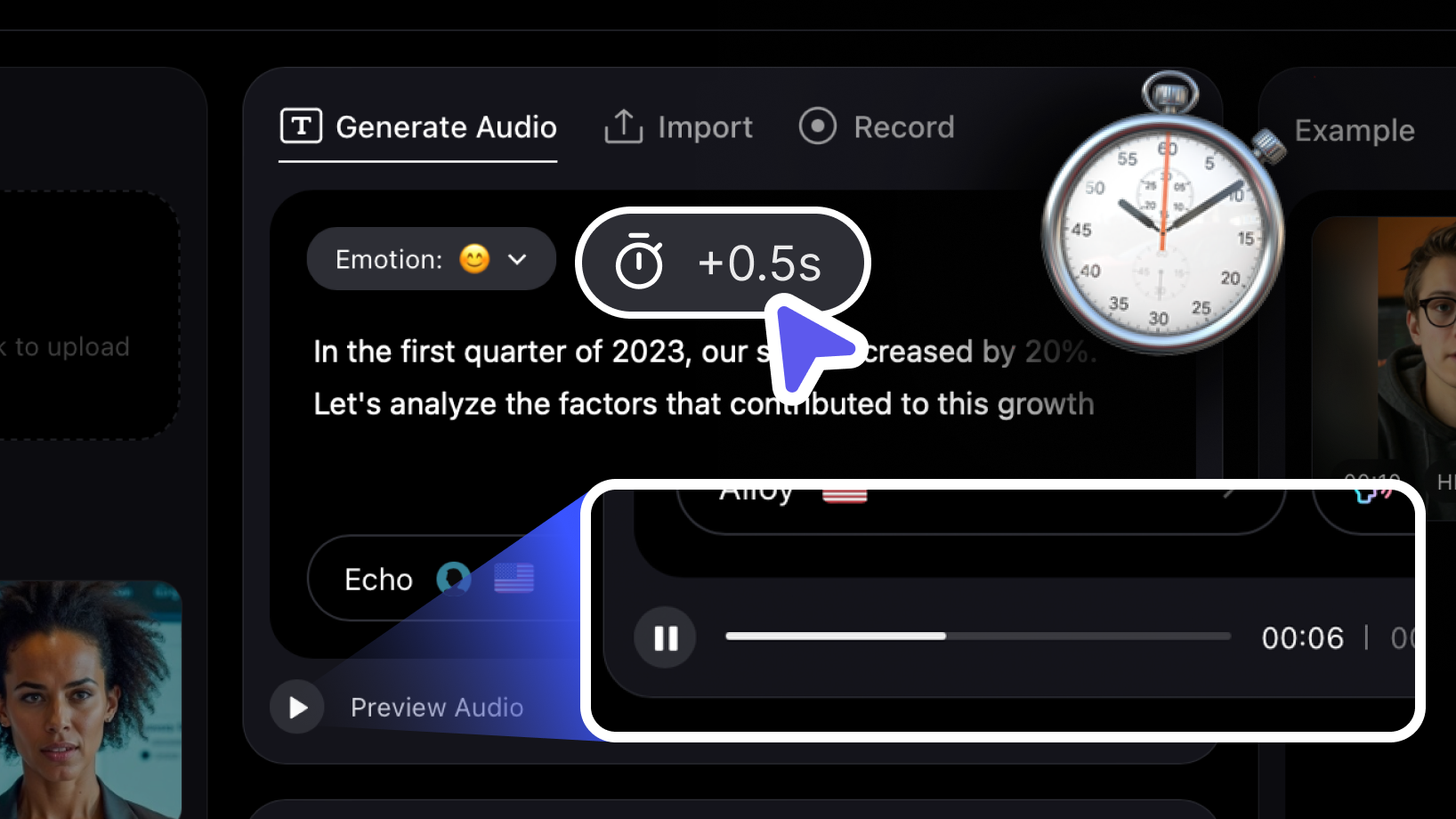
Creating high-quality talking videos often comes down to the details—such as perfect pronunciation or the timing of a dramatic pause. VisionStory now introduces two powerful features—Preview Audio and Pause—giving you unmatched precision and flexibility before you generate your final video.
What is Preview Audio?
Preview Audio is designed for creators who want to ensure their text-to-speech (TTS) narration sounds just right before using credits to generate a video. Previously, you had to generate the full video to hear the narration, which could lead to wasted credits if you spotted a mistake. With Preview Audio, you can:
- Check Pronunciation & Tone
Listen to the entire audio generated from your script and confirm it matches your intended style and clarity. - Save Credits
Identify and fix errors in the narration before generating the video, helping you avoid unnecessary credit usage. - Eliminate Streaming Artifacts
When audio is generated in real-time with video, some AI voices may have slight volume inconsistencies at the start or end. Preview Audio lets you catch and correct these issues for a polished result.
Tips for Best Results: While VisionStory’s TTS is advanced, some scenarios may need extra attention:
- Specialized or Technical Terms: Medical, legal, or scientific words may need added punctuation or phonetic spelling for accurate pronunciation.
- Abbreviations: Double-check that abbreviations are spoken as intended.
- Currencies & Numbers: The AI may read numbers or currency symbols differently than expected.
- Punctuation: Periods, commas, and colons affect intonation and pacing.
If you notice any issues, simply edit your script, use Preview Audio again, and confirm everything is perfect before clicking “Generate Talking Video.”
Introducing the Pause Feature
Sometimes, you need to slow down the narration for dramatic effect, emphasize a phrase, or ensure clarity. The new Pause feature—accessible via the “⏱ +0.5” icon—lets you insert a 0.5-second pause anywhere in your script. For longer pauses, add multiple pause icons. This feature allows you to:
- Improve Clarity: Break up long sentences so your audience can easily follow along.
- Enhance Emphasis: Build anticipation before key statements or punchlines.
- Customize Pacing: Override default TTS pauses to ensure the narration flows exactly as you want.
How to Use Preview Audio and Pause Features Effectively
Preview Audio uses a character-based quota that resets daily, depending on your subscription plan. As a guideline, 1 minute of speech is about 1,000 characters:
- Pro Plan: 10,000 characters per day (~10 minutes of audio)
- Advanced Plan: 50,000 characters per day (~50 minutes of audio)
- Ultra Plan: 100,000 characters per day (~100 minutes of audio)
Tips for Using the Pause (Stopwatch) Feature:
- Each stopwatch icon adds a 0.5-second pause. Use multiple icons for longer pauses, up to a maximum of 3 seconds.
- Note: Avoid using more than two consecutive pauses in a single text segment, as this may cause unexpected sounds or artifacts in the audio.
Real-World Applications & Benefits
- Marketing & Advertising
Craft impactful messages with perfectly timed pauses and preview different deliveries to maximize engagement—without wasting credits. - E-Learning & Instructional Videos
Ensure technical terms and acronyms are pronounced correctly, add pauses for clarity, and help learners follow along with ease. - Storytelling & Narration
Achieve dramatic pacing and emotional nuance with precise control over pauses and narration flow. - Professional Presentations
Avoid mispronounced names or numbers in business videos. Preview and adjust narration for a polished, professional result.
Get Started with VisionStory
VisionStory’s Preview Audio and Pause features are available to all subscribers. These tools help you perfect your talking videos, save credits, and deliver professional-quality results every time. Learn more in our Help Center or start creating your video now.