Remove Background

Create clean cutouts from images so people, products and creative assets can be placed into thumbnails, adverts, social posts or video scenes.

  • Clean image cutouts
  • Transparent assets for adverts and thumbnails
  • Reuse subjects across campaigns
Get Started for Free

Upload your image

Supported formats: PNG, JPG. You can upload up to 5 images.
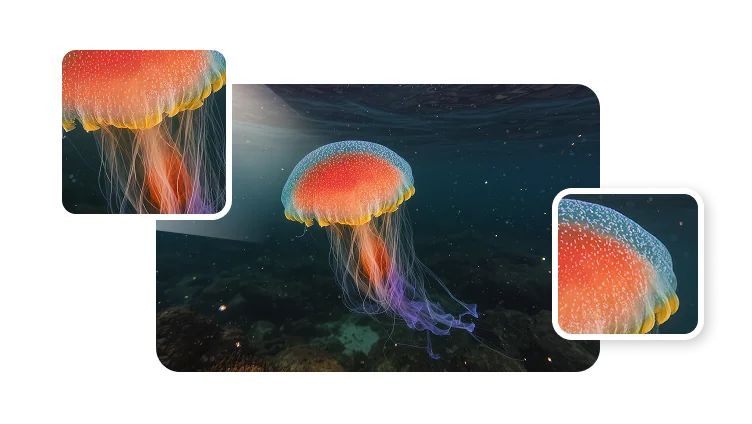
Imagebackground remover
Cleansubject cut-outs
Fastcreative prep
Readyfor video scenes

Where clean cut-outs help production

Use background removal when the subject needs to move into a cleaner layout, a branded visual, or a later video workflow.

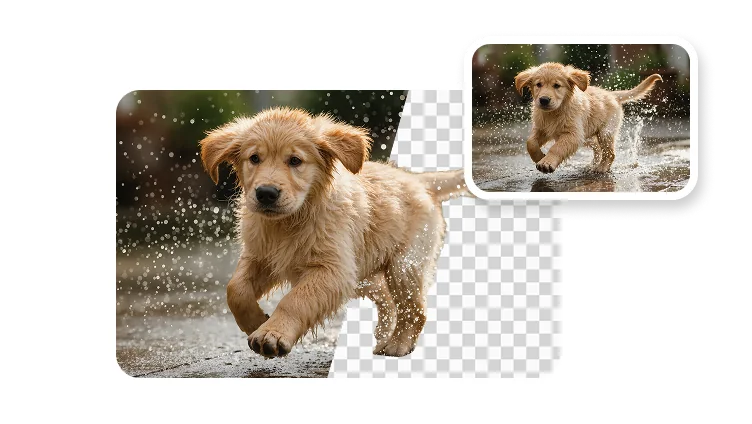
AI background removal for a portrait cut-out

Portrait and avatar cut-outs

Remove the scene behind a person so the subject can sit cleanly in profile images, thumbnails and avatar concepts.

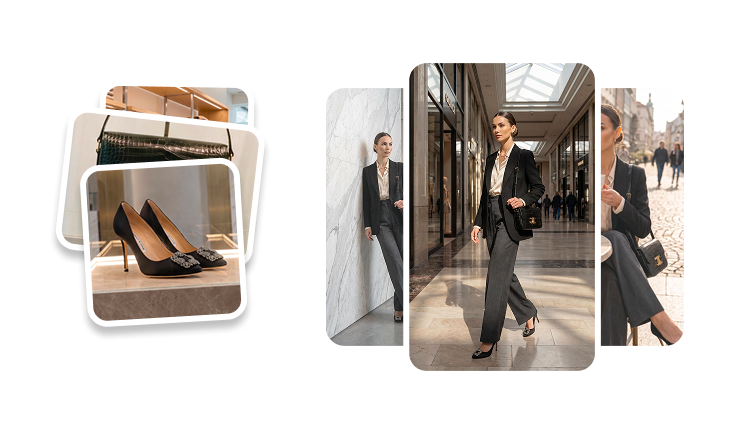
AI image cut-out prepared for campaign design

Campaign image prep

Prepare product or creator assets before building adverts, social visuals, landing page images or presentation graphics.

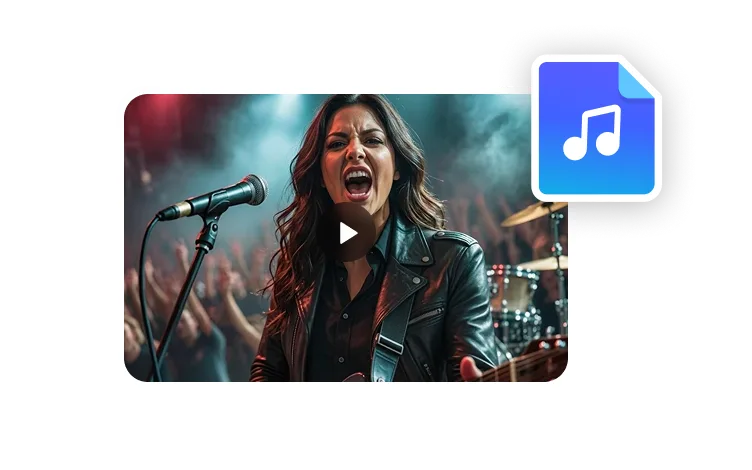
Background removed subject placed into a video scene

Scene compositing

Move a subject from the original image into a branded background, video scene or post-production layout.

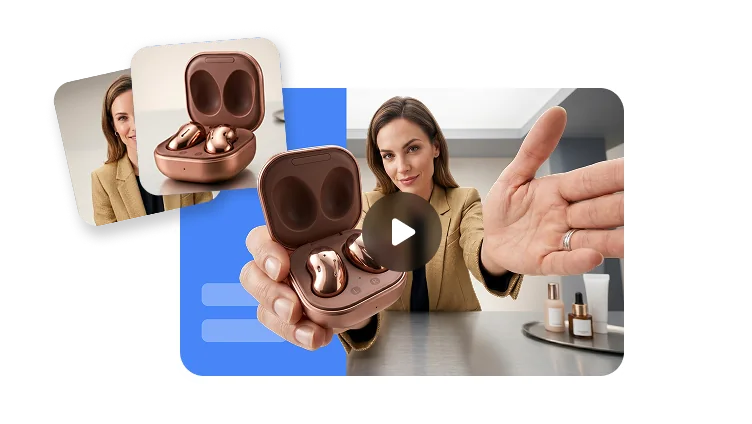
Preview a background removal workflow

Start with a subject photo, remove the surrounding scene, then reuse the clean cut-out wherever the creative needs to go next.

Preview a background removal workflow

Asset clean-up

Make image assets easier to reuse

Background removal is a production step: it gives designers and creators a cleaner subject to place into the next format.

PNG

Transparent-ready output

Use cut-outs in design tools, social posts, thumbnails and video layouts.

Edge

Cleaner subject focus

Remove visual clutter so the person, product or object becomes the primary focus.

Reuse

One subject, many scenes

Drop the same cut-out into multiple backgrounds, campaigns and aspect ratios.

Production flow

From source image to reusable cut-out

Use background removal as the first step before designing thumbnails, campaign images or video-ready assets.

01

Choose a clear source image

Use a photo where the subject is visible and separated enough for a clean cut-out.

02

Remove the background

Isolate the person, product or object from the original scene.

03

Place the cut-out

Move the subject into a branded layout, thumbnail, product visual or video scene.

04

Publish or continue editing

Use the cleaned asset directly or combine it with image generation, avatars and video production.

Frequently asked questions

  • What is an AI background remover?

    An AI background remover detects the main subject in an image and separates it from the original background so the subject can be reused in another design, scene or creative workflow.

  • What images work best for background removal?

  • Can I use cutouts in video projects?

  • How is this different from green screen video?