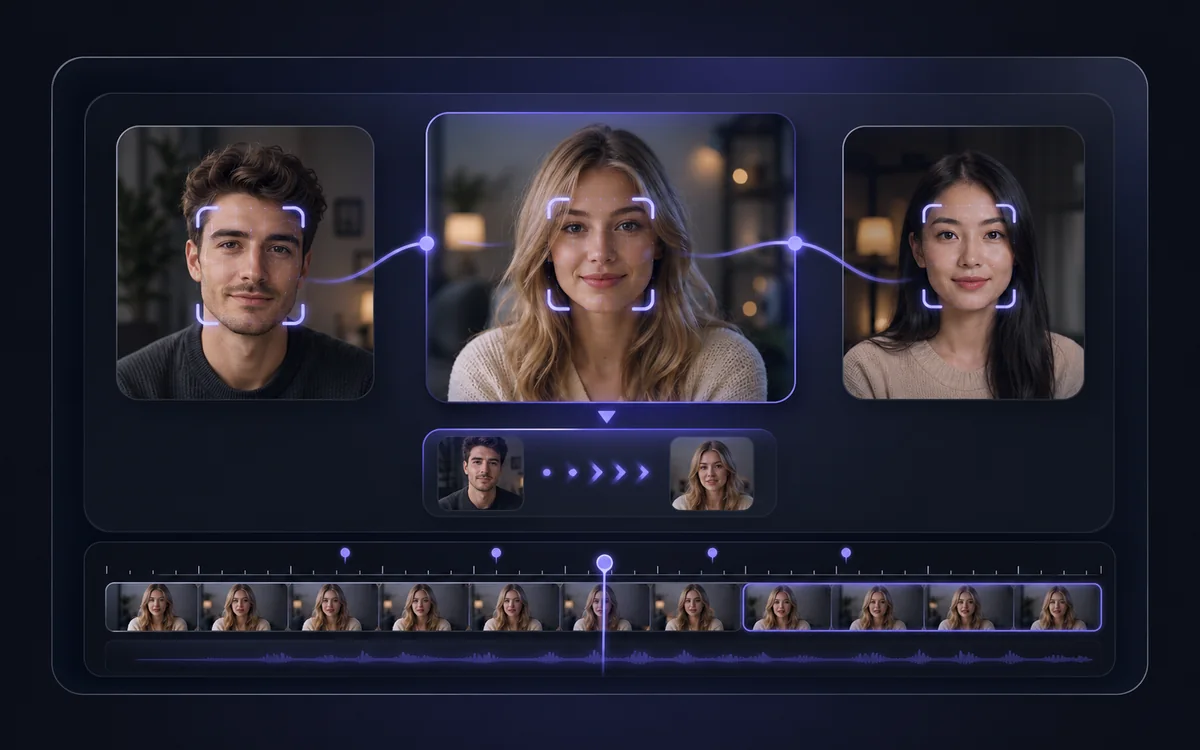
AI Video Generator

Start with a prompt, a reference image, or a start-and-end frame pair. Send the setup to VisionStory and continue creating polished AI video clips in the main generator.

  • Generate from text or reference images
  • Guide motion with start and end frames
  • Continue in VisionStory for 4K output
Generate video
Textto video
Imageto video
3aspect ratios
4KResolution

Input controls

Carry the right creative setup into the generator

Build the prompt, reference frames, model choice, resolution, duration, aspect ratio, and native-audio preference before continuing in VisionStory.

Text

Prompt-first generation

Start with a written scene when you want the model to create the composition from scratch.

Frames

Start and end image guidance

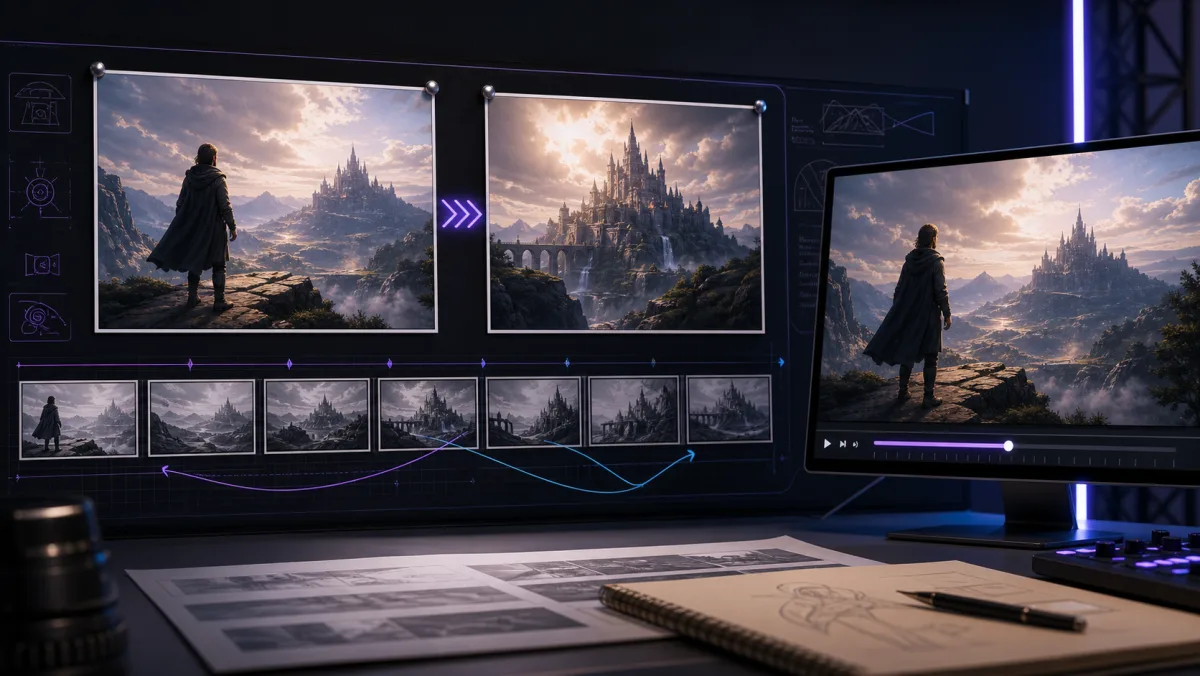
Use a start frame, and add an optional end frame when the motion needs a clearer destination.

Model

Provider and model settings

Choose from the available AI video models pulled from the live VisionStory system configuration.

Output

Resolution, duration, and ratio

Set the basic output controls on the SEO page so the same setup can be consumed in the main generator.

Start from text or guide the video with images

Pick the input style that matches your production stage: raw concept, product visual, character frame, or storyboard transition.

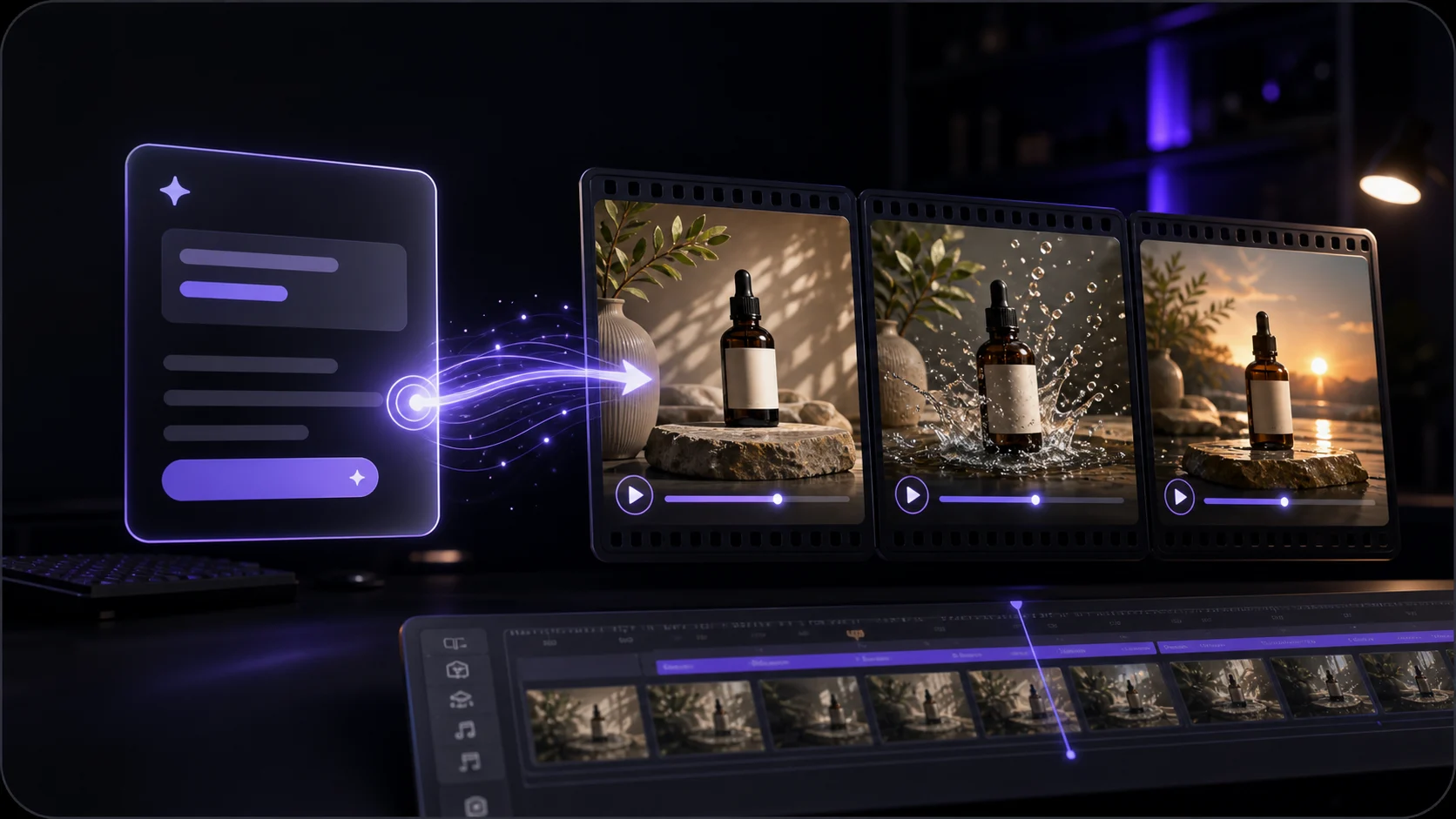
AI video generator interface concept

Generate Video

Describe a scene and turn it into a short AI-generated video clip.

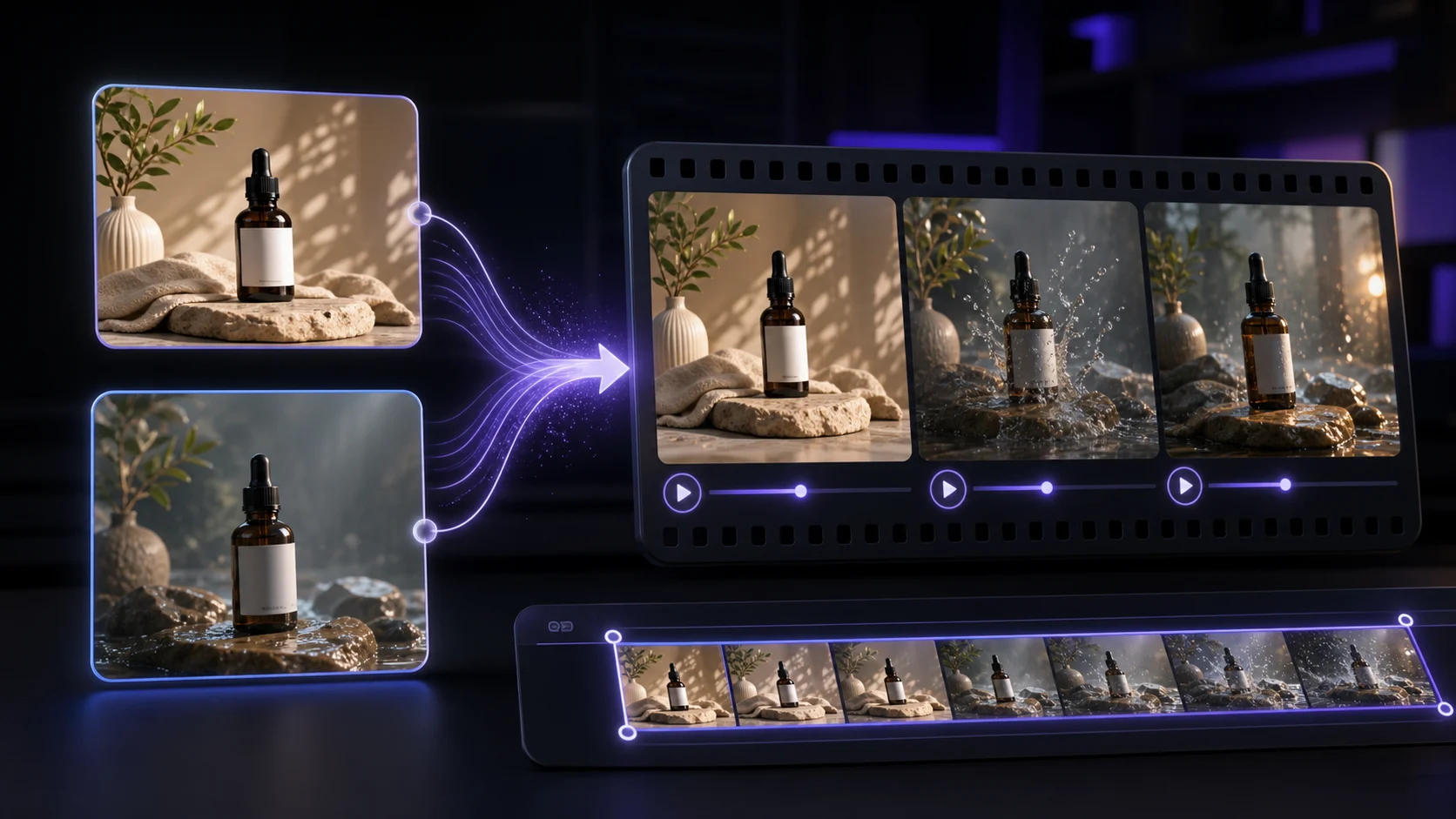
AI storyboard frame for image to video

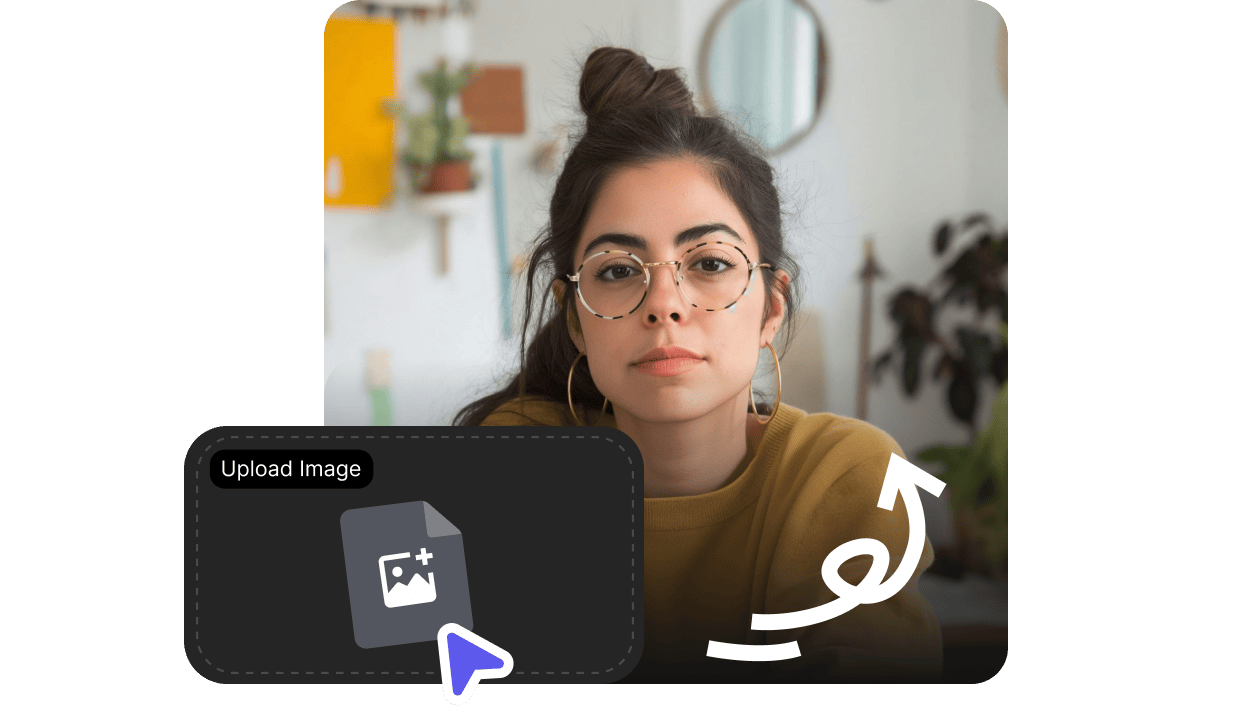
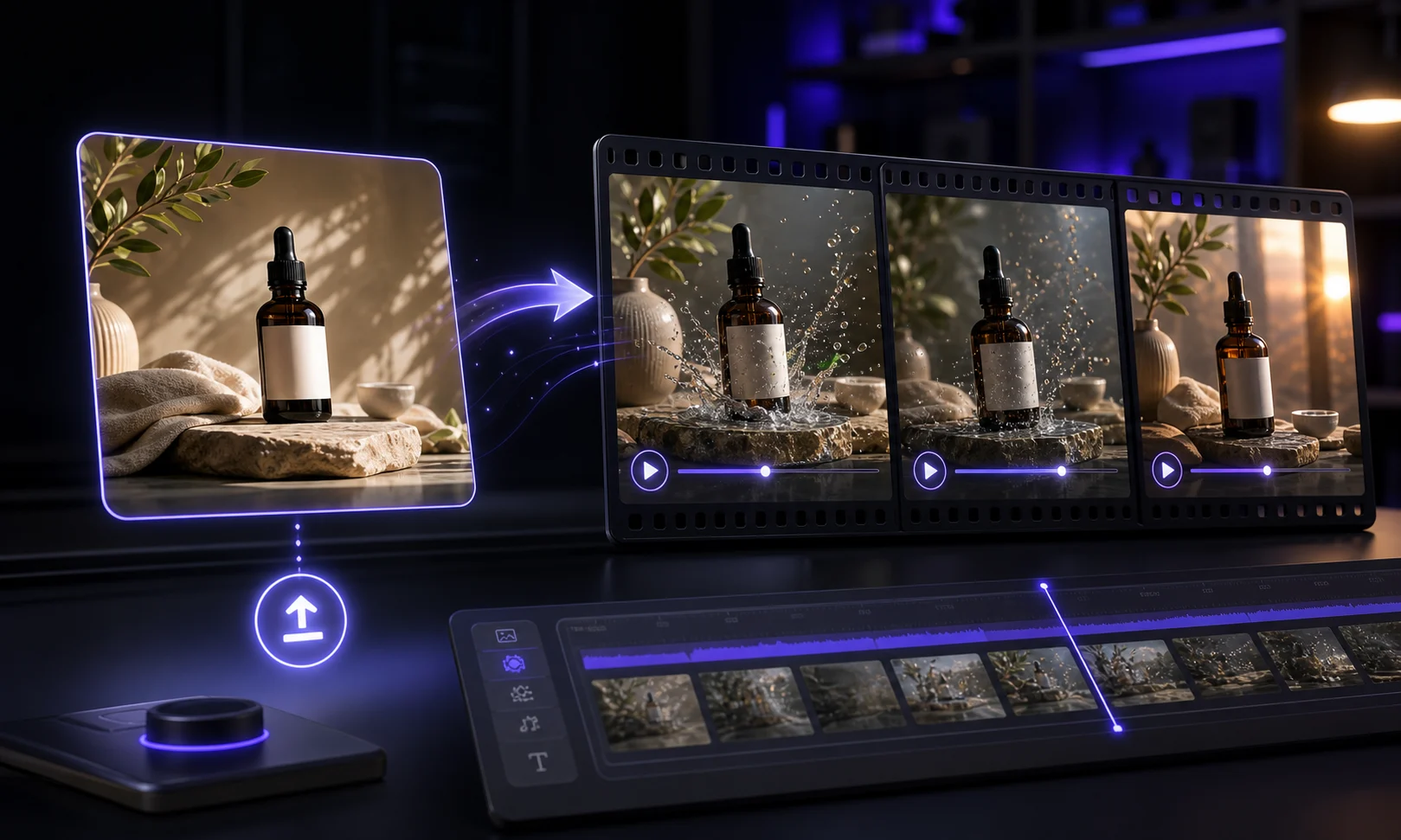
Image to video

Upload a visual reference and describe how it should move or transform.

AI ad video storyboard frame

Start and end frames

Use two frames when the clip needs a clearer transition or final pose.

Creative outputs

Generate AI video clips for the next creative step

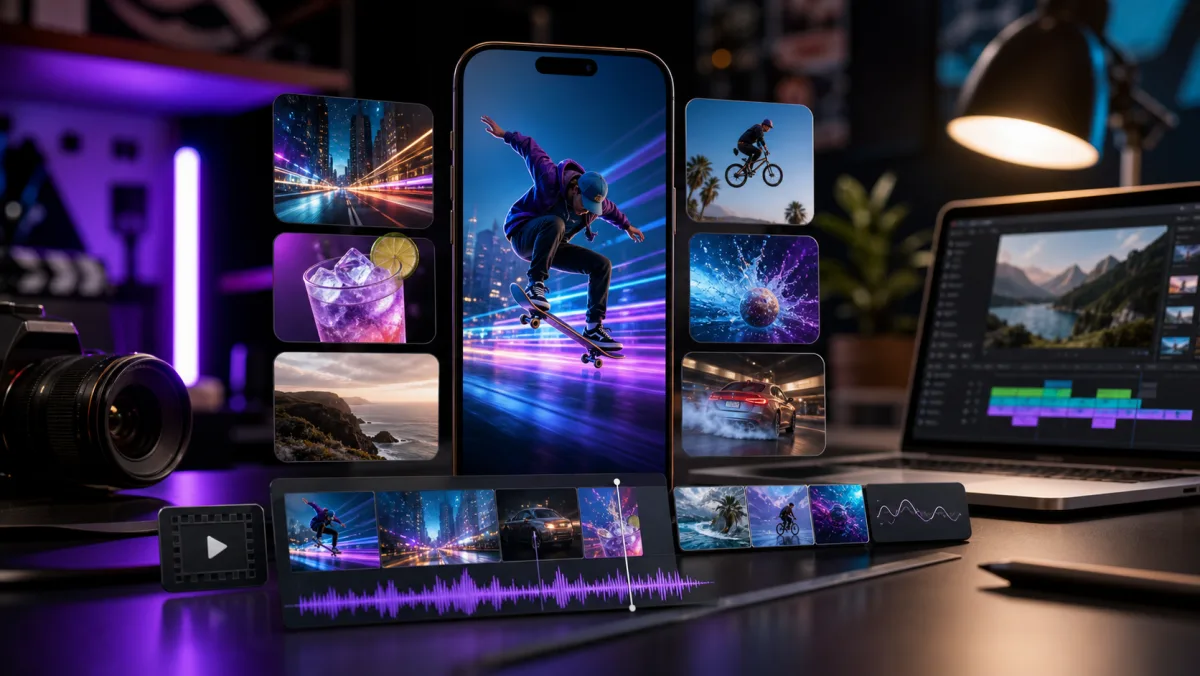
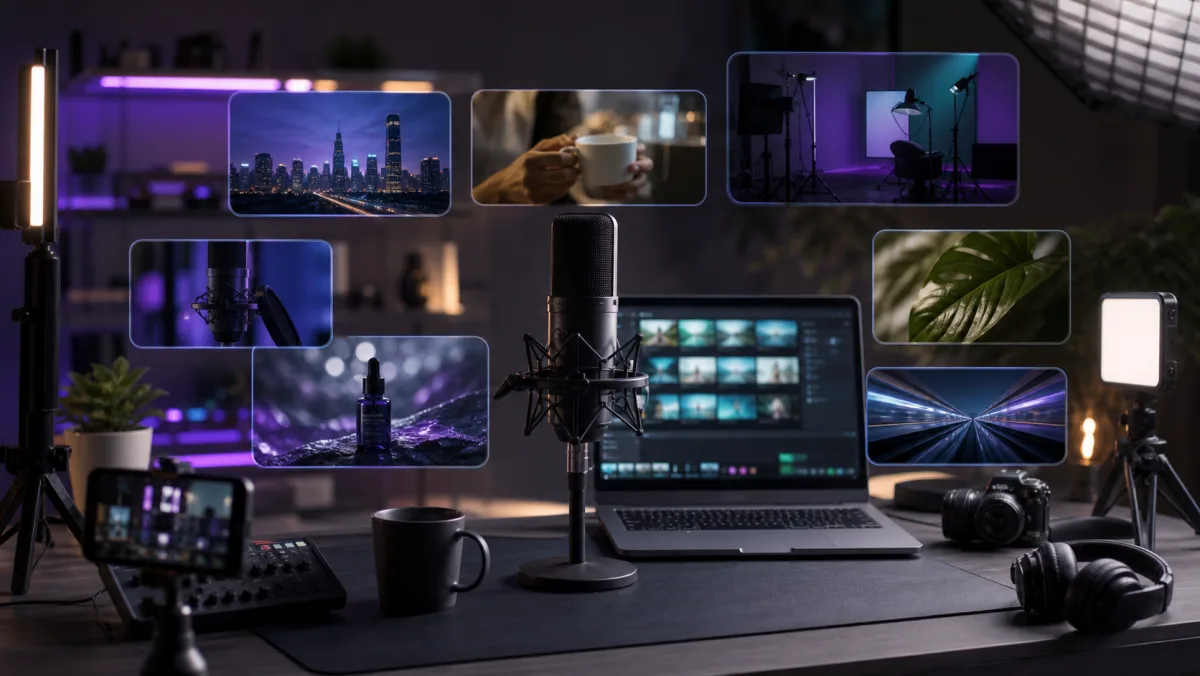
Use short AI video clips as ad concepts, product demos, social posts, storyboards, or visual b-roll before moving into editing.

AI video social hook example

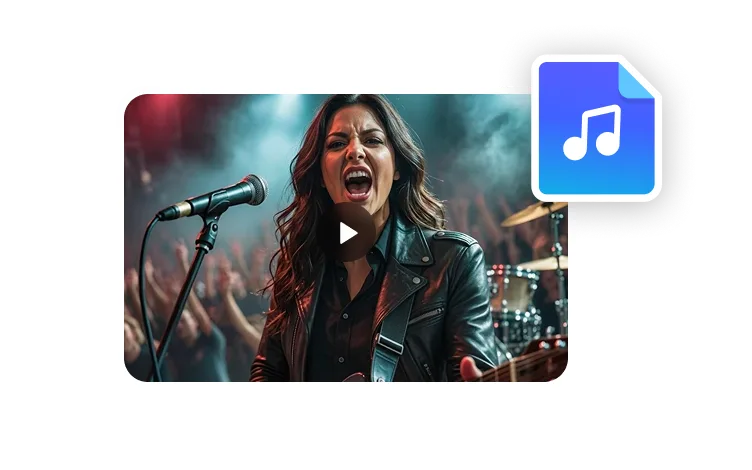
Social hooks

Generate short clips for TikTok, Reels, Shorts, and campaign openers.

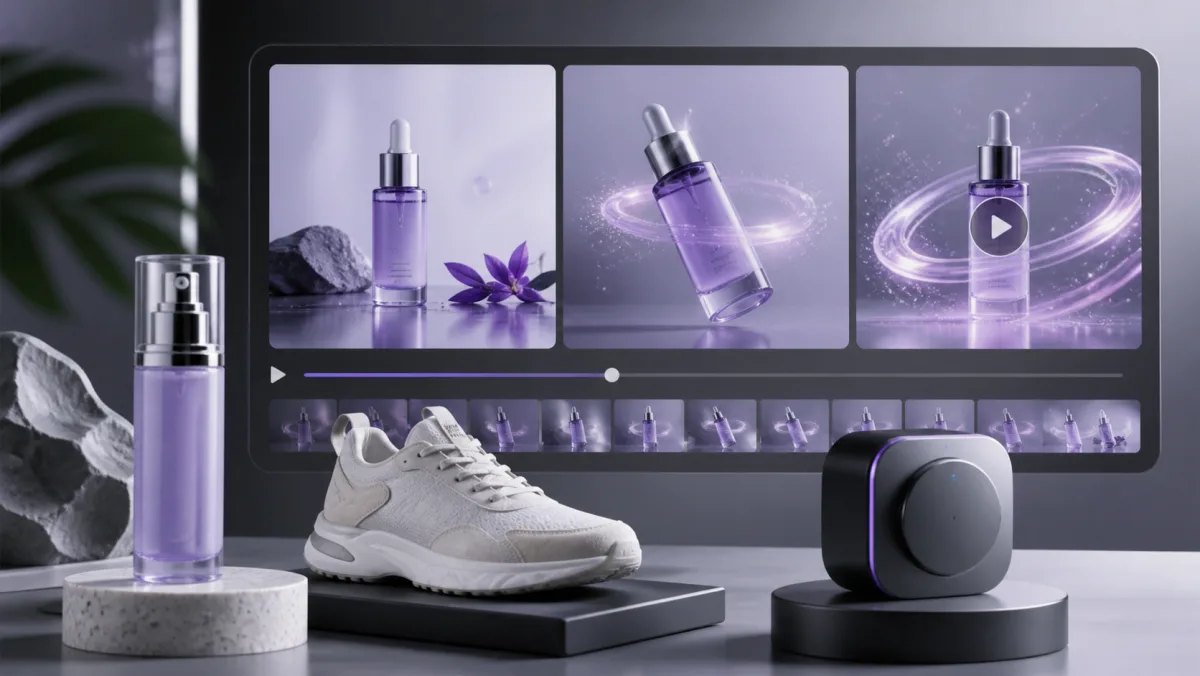
AI product demo video example

Product demos

Turn a product image or prompt into a quick visual concept for testing.

AI storyboard video example

Storyboards

Preview camera movement, setting, and visual mood before production.

AI creator b-roll video example

Creator b-roll

Produce supplementary footage that supports avatar, podcast, or ad videos.

Generation handoff

From SEO page setup to full video generation

The page collects lightweight intent, then passes it to the official VisionStory AI video generator where generation and result management happen.

1

Prepare the brief

Enter the scene prompt, upload frame guidance when needed, and choose the current model settings.

2

Continue in VisionStory

The setup is saved as a prefill token and opened in the official AI video generator.

3

Generate and iterate

Review the consumed settings, generate the video, then keep refining the result inside your VisionStory workspace.

How it works

How to Create AI Videos with VisionStory

Choose the fastest starting point for the idea: generate from a prompt or guide the model with reference frames.

Step 1

Choose a starting mode

Use Generate Video for new scenes, or Image to Video when you already have a product image, character, poster, or storyboard frame.

Step 2

Add visual direction

Describe the action, camera movement, lighting, pacing, and mood so the generated clip follows the creative intent.

Step 3

Continue in VisionStory

Send the setup to the full generator, adjust model settings, generate the clip, and keep the result with your VisionStory projects.

Frequently asked questions

  • What can I make with the AI video generator?

    You can create short AI-generated clips from text prompts or reference images. It is useful for social posts, ads, product demos, visual storyboards, and supplementary footage for larger video projects.

  • Can I start from an image?

  • Can I generate video from text only?

  • Do I generate the final video here?