Convert PowerPoint to Video with AI Voice and Avatars

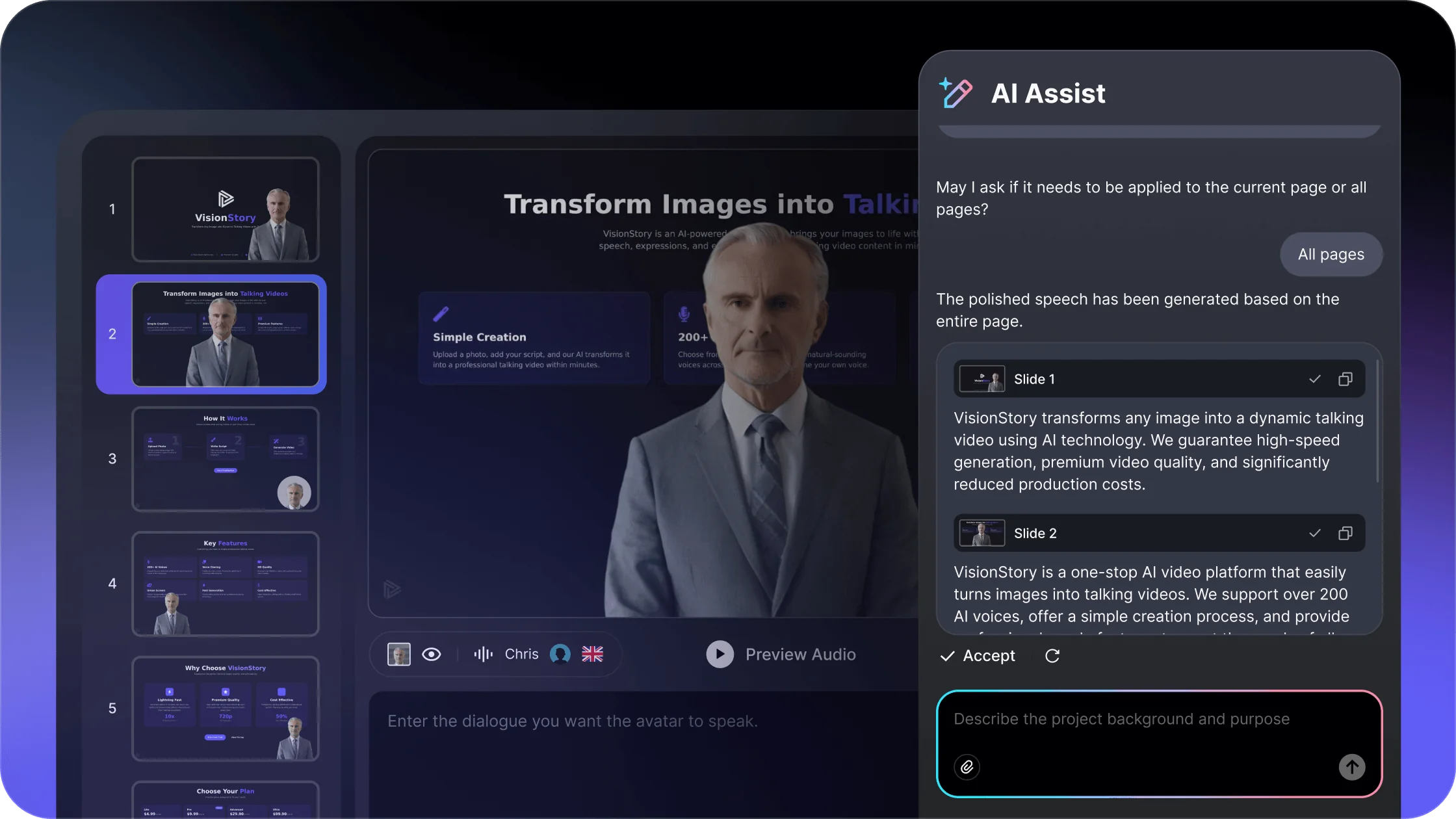
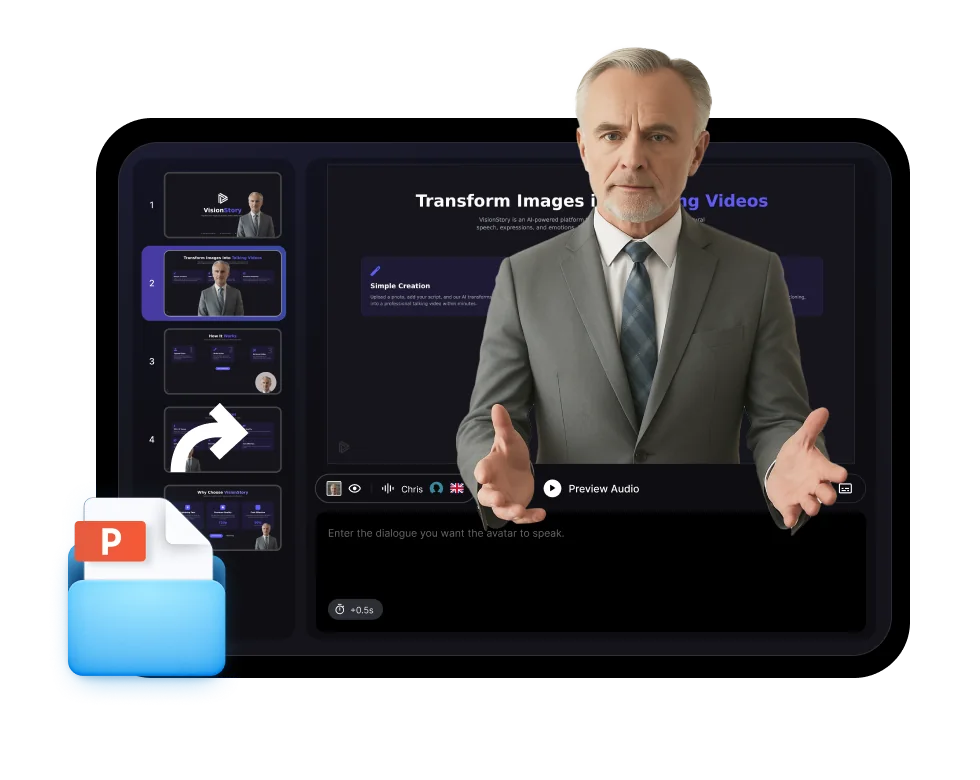
Upload a PowerPoint or PDF deck, add instructions for the narration, and choose an AI presenter. Continue in VisionStory to review each slide and create the complete video.

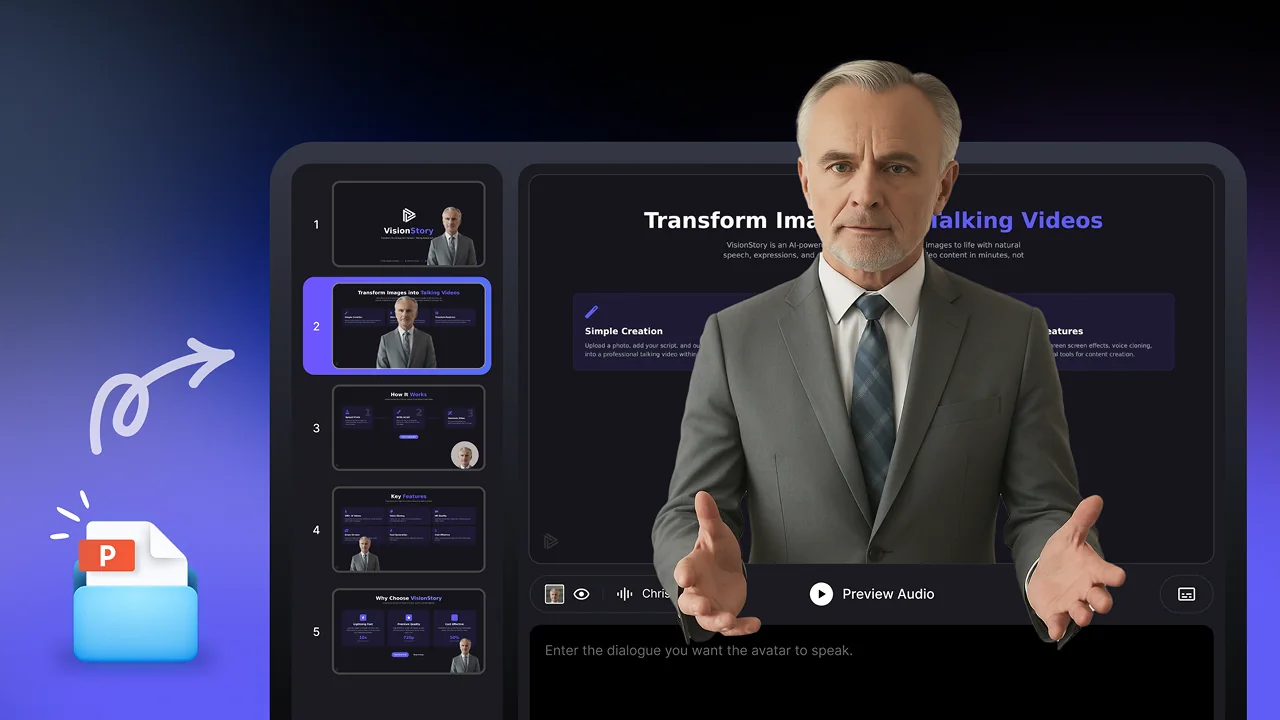
  • Turn PPT, PPTX, or PDF slides into video scenes
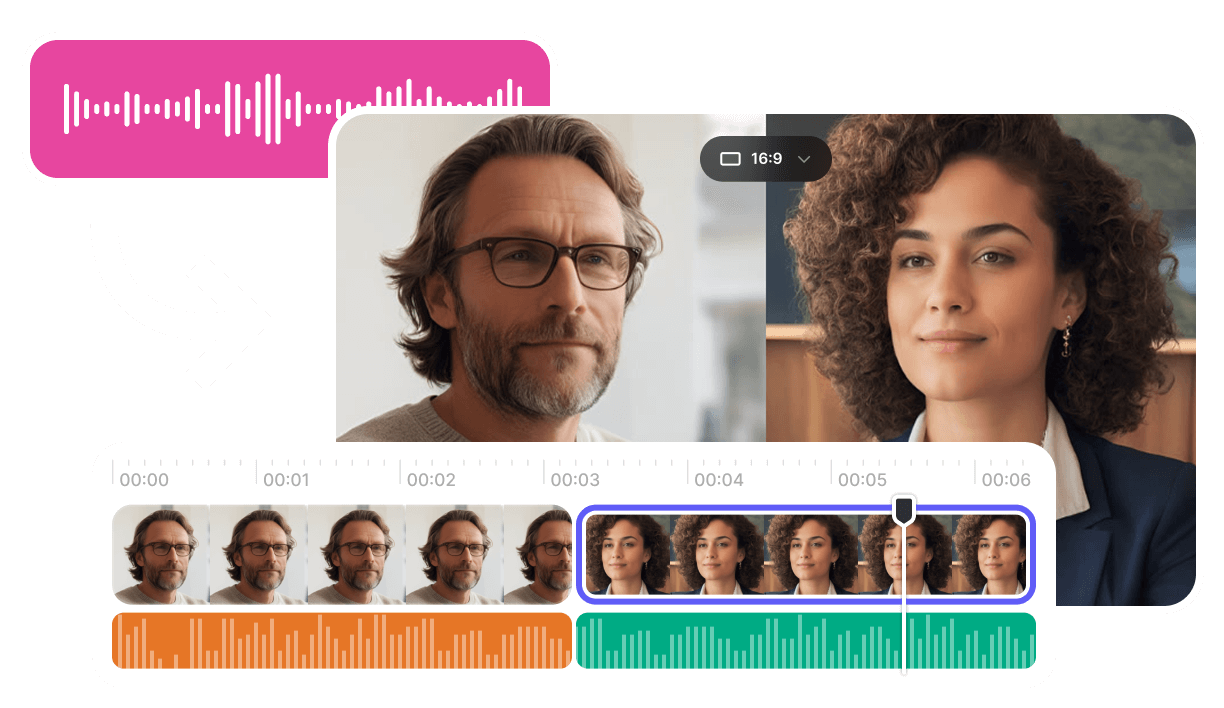
  • Add AI narration and an avatar presenter
  • Create training, course, sales, and update videos
Create presentation video

What should the presenter say?

Upload your slides

Pick your AI presenter

1,000+AI avatars
1,000+voices
100+languages
Freeto try

Deck-to-video workflow

Keep the Slides, Improve the Delivery

Transform an existing deck into a video without rebuilding the presentation from scratch.

01

Add your deck

Upload PowerPoint or PDF slides and provide any speaker notes or context.

02

Review the narration

Edit the script so each slide has the right detail, tone, and pacing.

03

Choose a presenter

Select an avatar and voice that fit the audience and subject.

04

Create and share

Generate the final video and publish it for viewers to watch on demand.

Technical anatomy

Turn Speaker Notes Into Natural Narration

Written slide text often sounds unnatural when read aloud. Review abbreviations, numbers, names, transitions, and pronunciation.

Apply

Turn Speaker Notes Into Natural Narration

Do not claim automatic script generation, pronunciation dictionaries, or note import unless verified.

Confirm

Keep the powerpoint to video contract honest

Confirm the live controls, accepted inputs, and output behavior before turning this powerpoint to video explanation into a product promise.

Inspect

Inspect slide import, narration, presenter, and output directly

Verify slide import, narration, presenter, and output from actual source and output properties.

Decision guide

Map Each Slide to a Video Scene

Treat a slide as the visual foundation of a scene rather than a complete script.

Apply

Map Each Slide to a Video

A deck-to-scene anatomy module should show how slide title, body, speaker notes, narration, voice, presenter, and timing relate.

Confirm

Keep the powerpoint to video contract honest

Turn an existing PPT, PPTX, or PDF deck into a narrated presentation video with an AI voice and optional avatar presenter. Owns existing-deck-to-video intent.

Scope

Keep slide import, narration, presenter, and output within scope

Keep slide import, narration, presenter, and output as the central decision and route neighboring tasks elsewhere.

VisionStory prefill

Carry the prepared deck into a video project

PowerPoint-to-video conversion turns an existing deck into an asynchronous presentation that viewers can watch without a live presenter.

Prefill

Continue with the prepared presentation context

The page starts the deck-to-video setup, then VisionStory provides the editing, voice, presenter, generation, and result-review workspace.

Review

Confirm imported content before generation

Inspect slides, script, notes, media, timing, voice, presenter, and unsupported elements before creating the final presentation video.

Accept

Test the real receiving workflow

Confirm slide import, narration, presenter, and output in the intended destination before approval.

Preview a PowerPoint-to-video result

See how slides, narration, and an avatar presenter work together in a finished presentation video.

Presentation Videos for Real Work

Adapt the same deck-to-video workflow to different audiences and outcomes.

  • Presentation Videos for Real Work

    Training module

    Turn onboarding, policy, and course decks into repeatable lessons.

  • Presentation Videos for Real Work

    Product walkthrough

    Explain a product or process with consistent narration and slide pacing.

  • Presentation Videos for Real Work

    Sales and updates

    Create shareable pitch, report, and stakeholder presentation videos.

Reusable delivery

Present the Same Deck to More Audiences

Create additional language and voice versions in VisionStory without filming the presentation again.

Slides

Keep the source structure

Use the deck as the visual backbone of the video.

Voice

Add narration

Match the speaking style to the audience and purpose.

Avatar

Use a consistent presenter

Give every section a clear on-screen host.

Frequently asked questions

  • Upload a PPT, PPTX, or PDF deck, add any narration instructions, and choose an AI avatar. Continue in VisionStory to review the scripts for each slide and generate the presentation video.