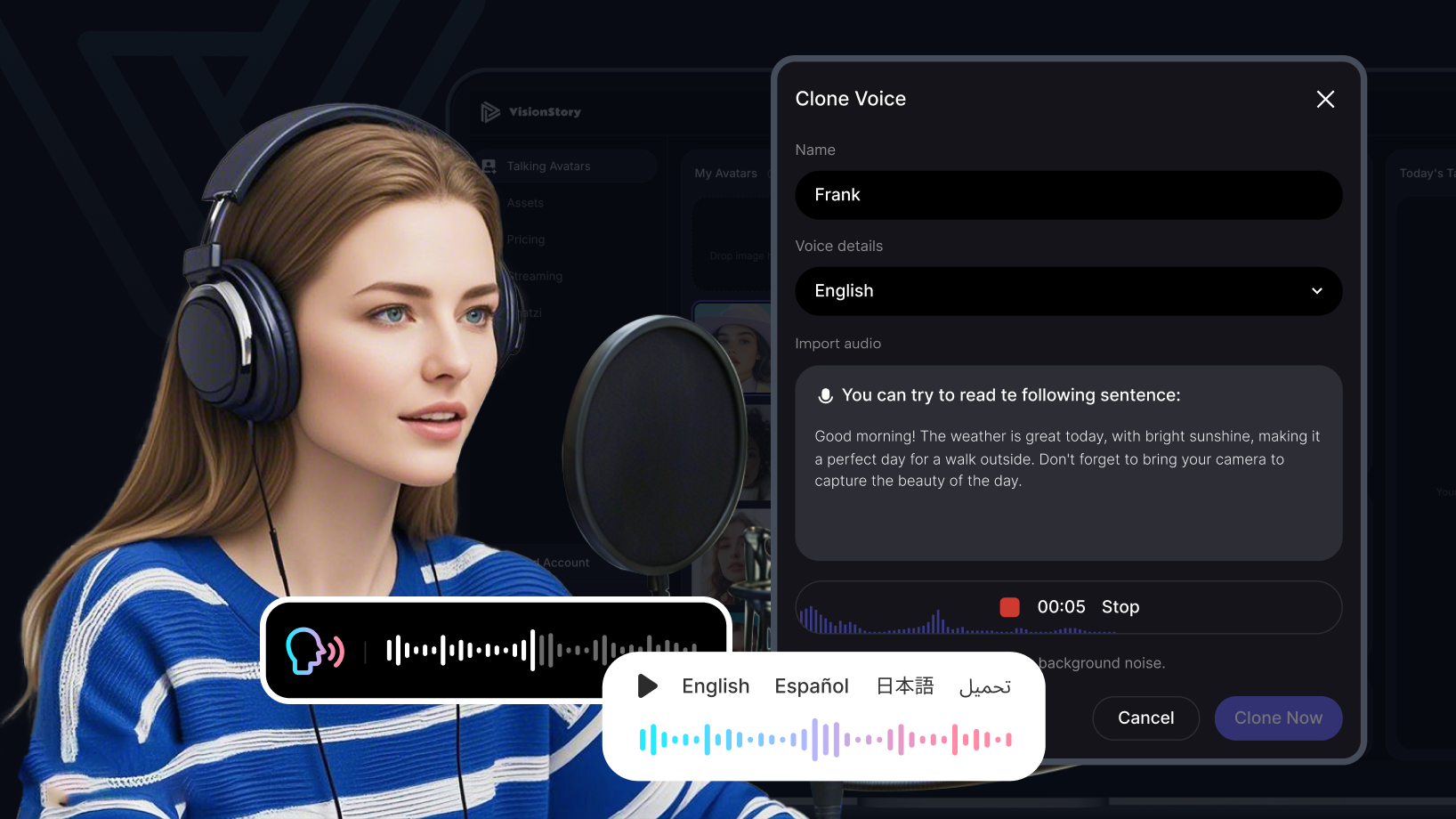
Voice cloning creates a reusable synthetic voice from a real recording. VisionStory analyzes the source sample, prepares the audio, detects its language and vocal traits, creates the clone, and generates a preview you can evaluate before using it in a video.
The upload is only the mechanical part. The source recording determines how close and how stable the result feels. A clean, consistent minute is usually more useful than several minutes recorded on different microphones or in different rooms.
Use voices responsibly. Clone only your own voice or a voice you have clear permission to use. Do not use voice cloning to impersonate someone, bypass consent, or mislead an audience.
- Best source: 1–2 minutes of clean, single-speaker audio.
- Quick recording: up to 15 seconds inside the Clone dialog.
- Availability: Pro and higher subscription plans.
Step 1: Open Voice Clone in AI Video
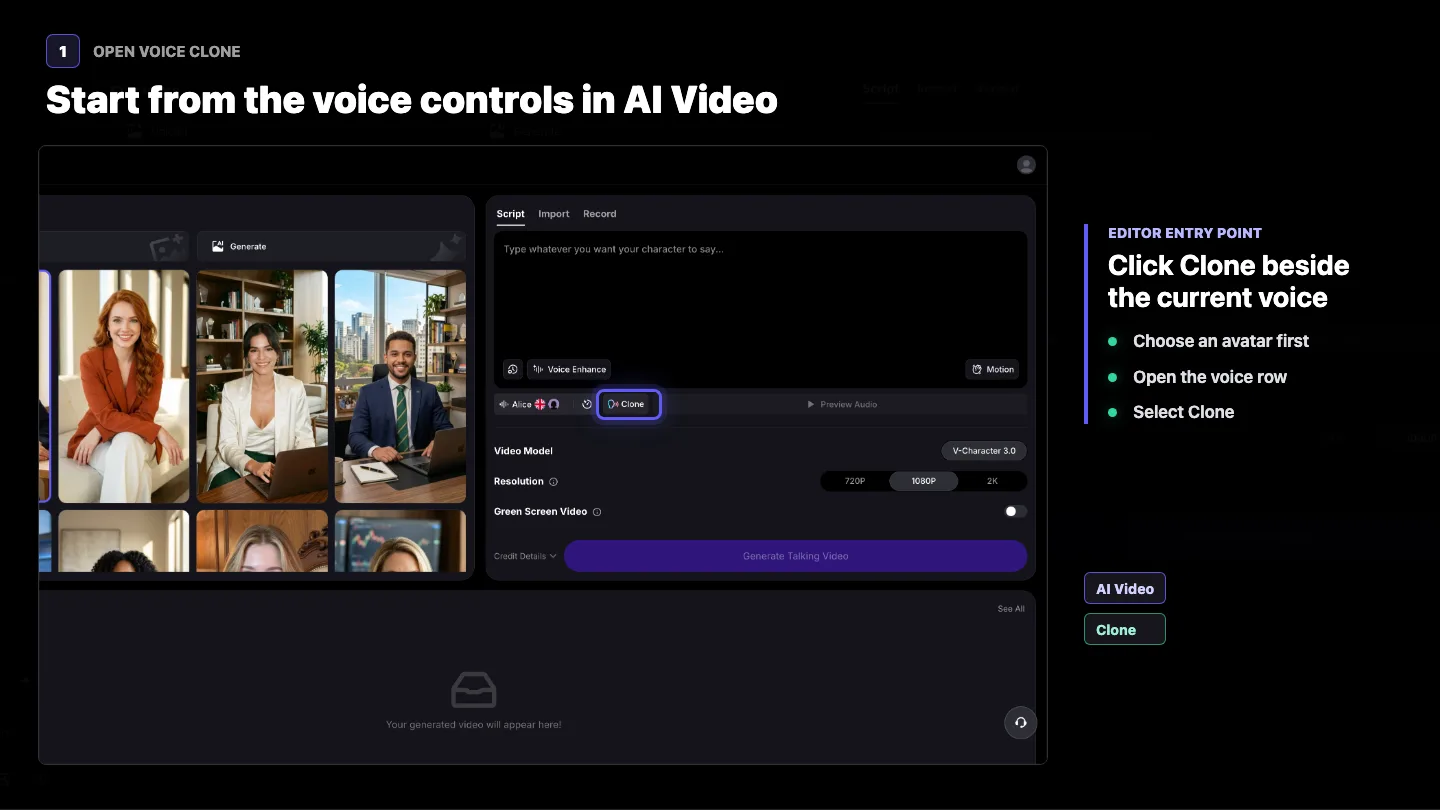
Open AI Video and choose the avatar you plan to use. In the voice row below the Script box, click Clone beside the current voice. The Clone dialog opens without changing the avatar's existing voice.
Step 2: Choose Upload or Record
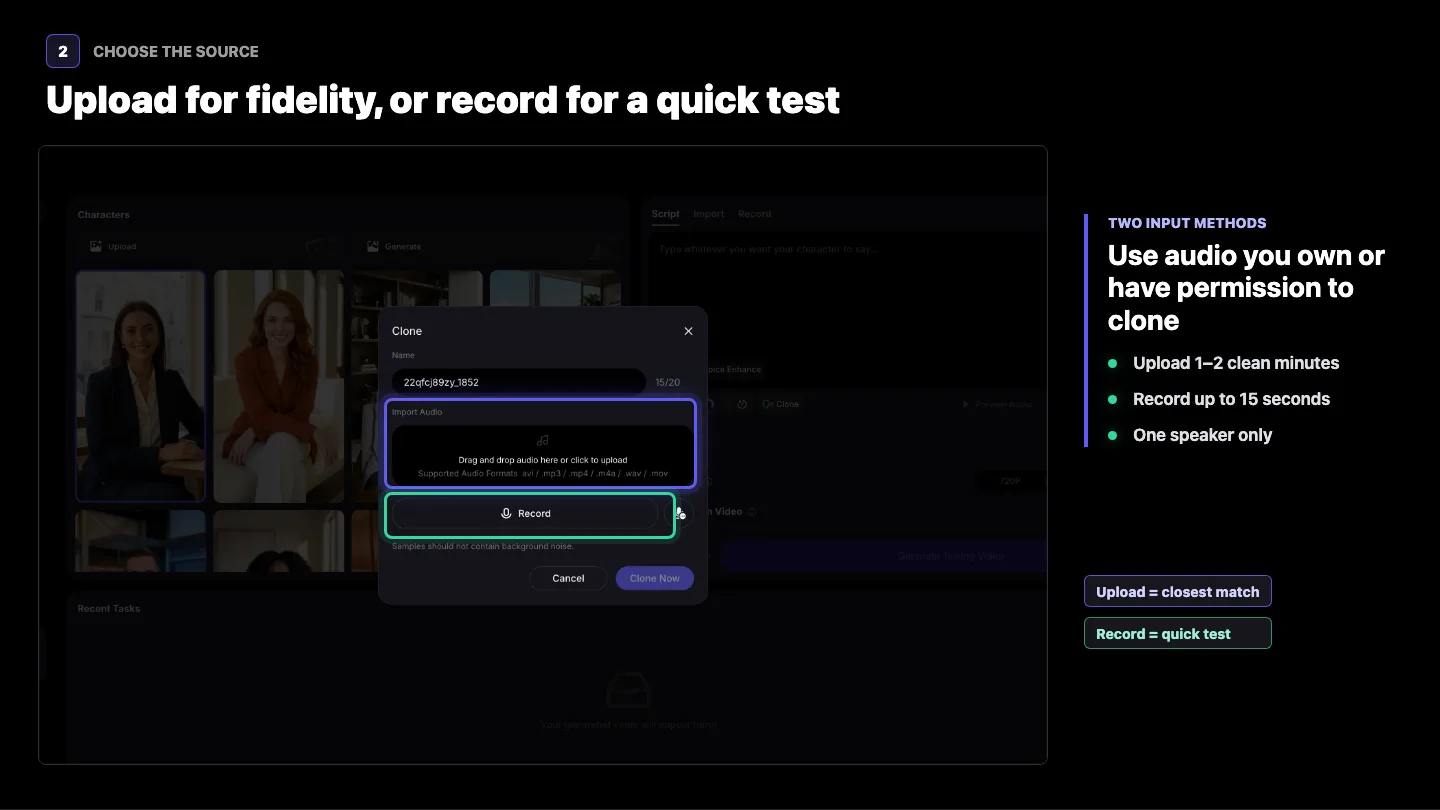
The dialog offers two source methods. Choose based on whether you are testing the workflow or trying to get the closest practical match.
- Upload audio: preferred for quality. Use a clean sample between 1 and 2 minutes when possible.
- Record: useful for a quick test. The in-app recorder currently captures up to 15 seconds.
Uploaded files can use .avi, .mp3, .mp4, .m4a, .wav, or .mov. The selected audio segment must be at least 3 seconds and can be up to 120 seconds.
Step 3: Prepare Audio That Produces a Closer Match
A voice clone copies more than vocal identity. It can also reproduce pace, inflection, breathing, room sound, microphone color, and unwanted artifacts. Record the source in the style you want the clone to use later.
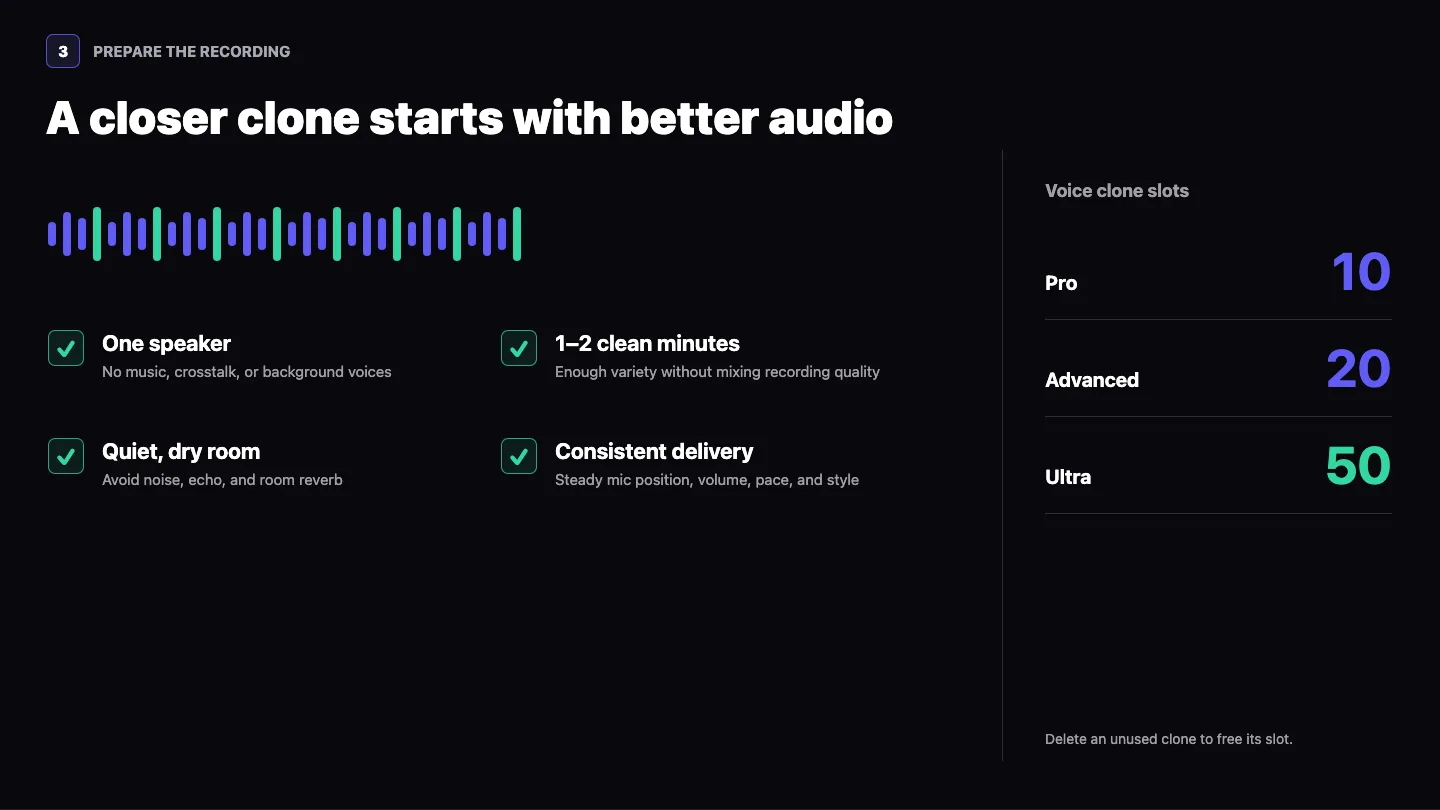
- Use one speaker. Remove music, overlapping voices, and background conversations.
- Record 1–2 clean minutes. Provide enough natural variation without mixing inconsistent sessions.
- Choose a quiet, non-echoing room. Soft furnishings help reduce reverb; avoid fans, traffic, and air-conditioning noise.
- Keep the microphone steady. Maintain the same distance, angle, input level, and room for the whole sample.
- Speak naturally and consistently. Keep accent, loudness, pace, and performance style stable.
- Avoid long silent gaps. Use continuous, useful speech rather than padding the file with silence.
Know-how: if the first clone sounds weak, replace the source with cleaner, more consistent audio before trying a much longer recording. Mixed-quality material often teaches the clone the inconsistencies you wanted to remove.
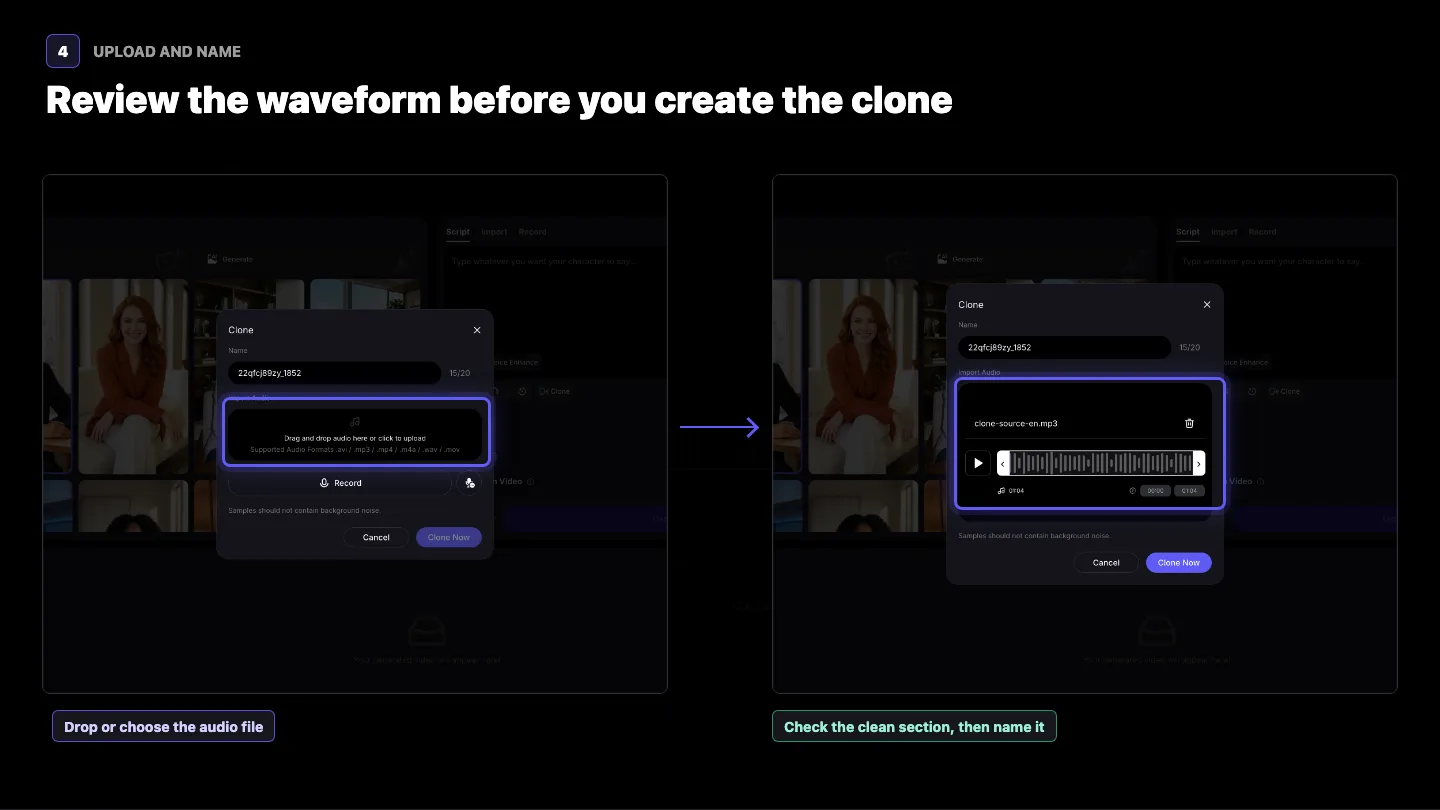
Step 4: Upload, Review, and Name the Sample
Drag the file into Import Audio or click the drop area to choose it. After the waveform appears, play the selected section and listen for another speaker, music, clipping, echo, abrupt edits, or long silence. Replace the source if those problems are obvious.
Enter a descriptive name of up to 20 characters. A locale suffix keeps multiple tutorial or campaign voices easy to distinguish; for example, Tutorial Voice-en.
Step 5: Create the Clone and Let VisionStory Detect the Language
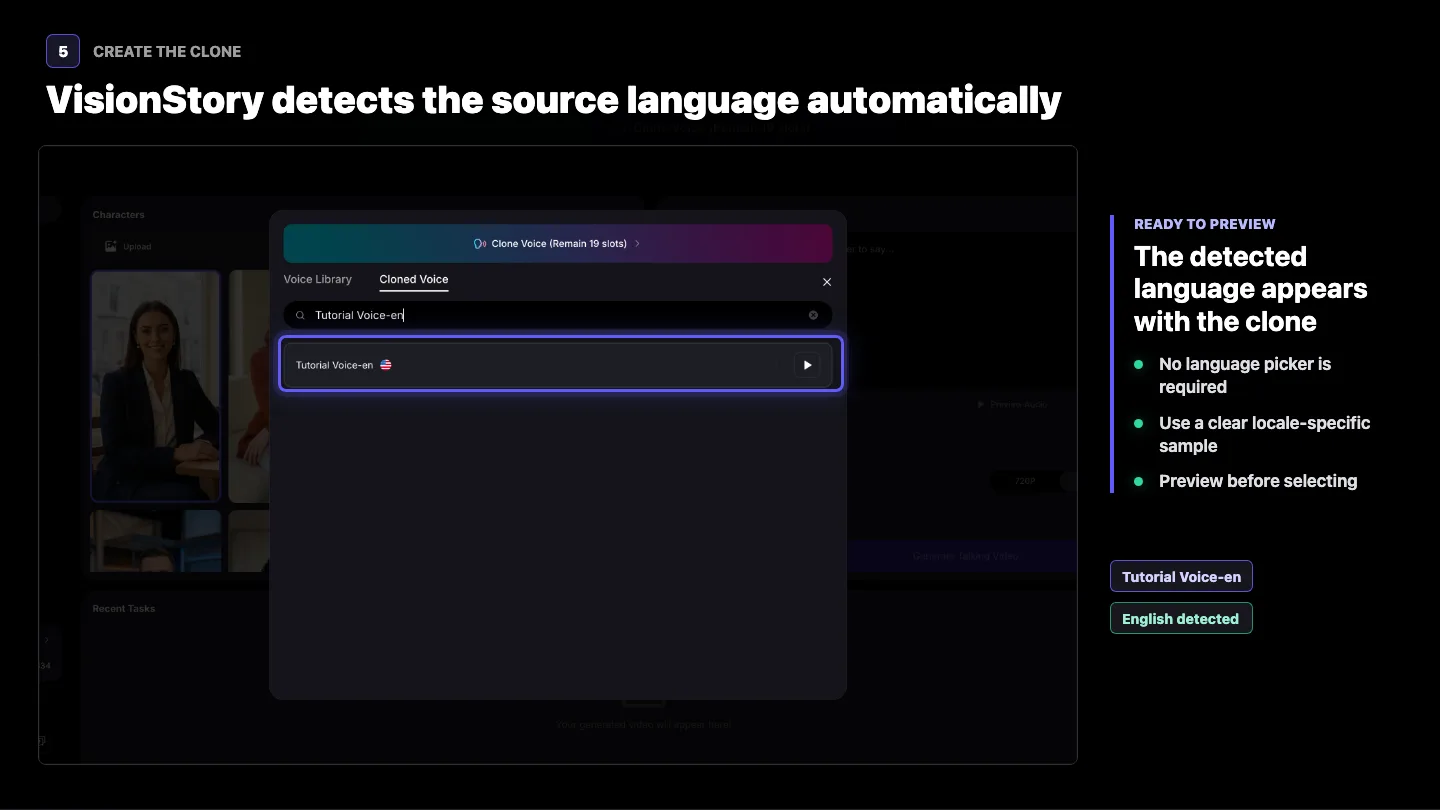
Click Clone Now. VisionStory processes the sample asynchronously and opens the Cloned Voice tab. The item refreshes while processing and becomes playable when the preview is ready.
You do not need to select a source language manually. VisionStory analyzes the recording and assigns the detected language automatically. Use one language consistently in the source sample so the detected locale, accent, and preview are easier to judge.
Step 6: Preview, Select, and Test the Clone
Use the play button on the clone row before selecting it. Listen for vocal identity, accent, pacing, pronunciation, room echo, noise, and unstable changes in tone. If the preview has clear artifacts, improve the source now rather than discovering the problem in a finished video.
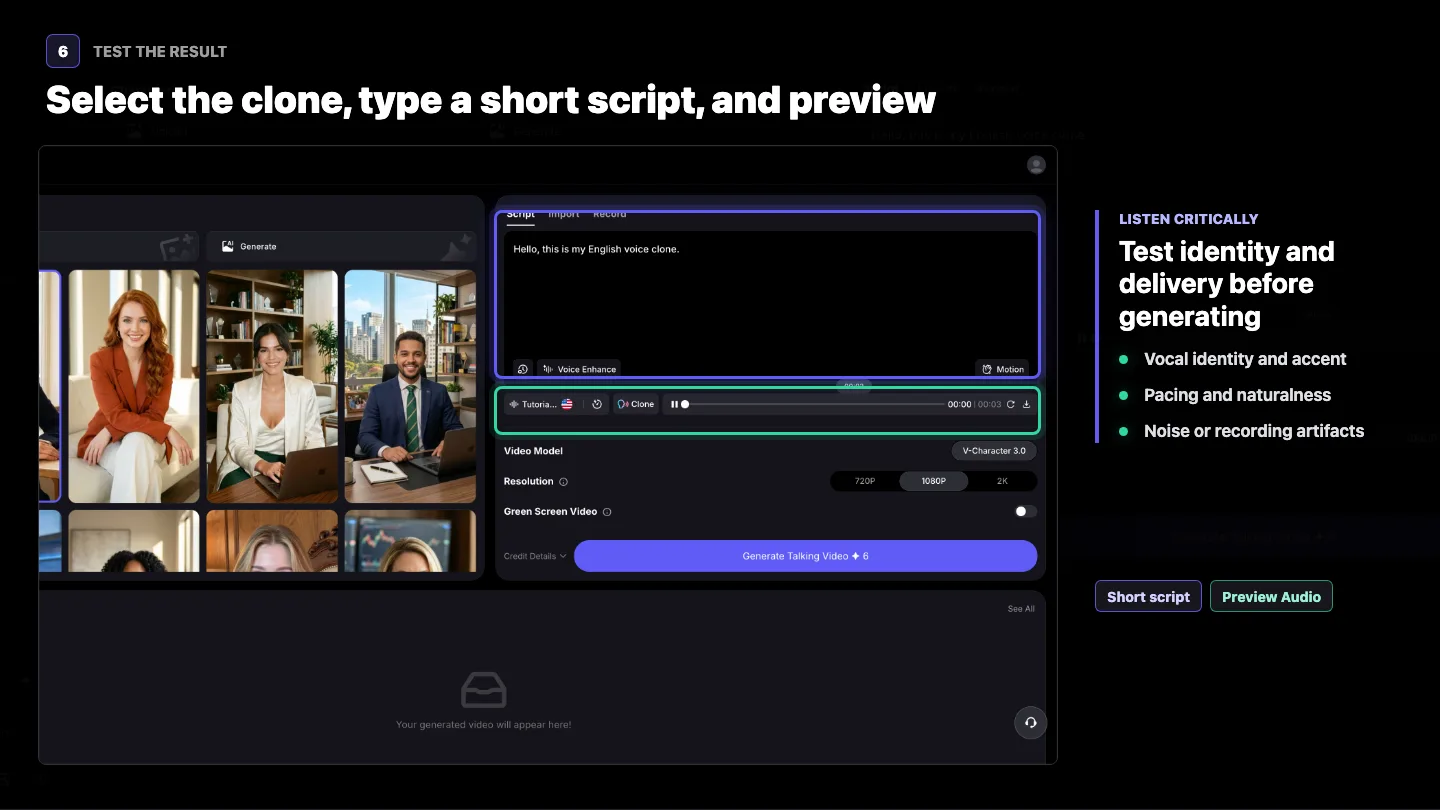
Select the cloned voice, enter one short sentence in the Script box, and click Preview Audio. A short test makes comparison easier and lets you confirm that the clone fits the kind of content you plan to create.
Voice Clone Plans and Slot Limits
Voice Clone is available on Pro and higher plans. Each saved cloned voice occupies one slot until it is deleted.
| Plan | Current voice clone allowance |
|---|---|
| Free | Not included |
| Pro | 10 slots |
| Advanced | 20 slots |
| Ultra | 50 slots |
| Enterprise | Customized |
When you no longer need a clone, open Cloned Voice, delete that voice, and confirm the action. Deleting a clone frees its slot. If the deleted voice was selected in the editor, VisionStory falls back to an available default voice.
88 Supported Languages
88 unique languages. VisionStory automatically detects the language of a clone sample; the available voice options and output characteristics can vary by language. The list below counts one entry per language after merging regional variants and equivalent names.
- 🇿🇦 Afrikaans
- 🇦🇱 Albanian
- 🇪🇹 Amharic
- 🇸🇦 Arabic
- 🇦🇲 Armenian
- 🇮🇳 Assamese
- 🇦🇿 Azerbaijani
- 🇪🇸 Basque
- 🇧🇾 Belarusian
- 🇧🇩 Bengali (Bangla)
- 🇧🇦 Bosnian
- 🇧🇬 Bulgarian
- 🇲🇲 Burmese
- 🇭🇰 Cantonese
- 🇪🇸 Catalan
- 🇵🇭 Cebuano
- 🇲🇼 Chichewa
- 🇨🇳 Chinese (Mandarin)
- 🇭🇷 Croatian
- 🇨🇿 Czech
- 🇩🇰 Danish
- 🇳🇱 Dutch
- 🇬🇧 English
- 🇪🇪 Estonian
- 🇵🇭 Filipino
- 🇫🇮 Finnish
- 🇫🇷 French
- 🇪🇸 Galician
- 🇬🇪 Georgian
- 🇩🇪 German
- 🇬🇷 Greek
- 🇮🇳 Gujarati
- 🇭🇹 Haitian Creole
- 🇳🇬 Hausa
- 🇮🇱 Hebrew
- 🇮🇳 Hindi
- 🇭🇺 Hungarian
- 🇮🇸 Icelandic
- 🇮🇩 Indonesian
- 🇮🇪 Irish
- 🇮🇹 Italian
- 🇯🇵 Japanese
- 🇮🇩 Javanese
- 🇮🇳 Kannada
- 🇰🇿 Kazakh
- 🇮🇳 Konkani
- 🇰🇷 Korean
- 🇰🇬 Kyrgyz
- 🇱🇦 Lao
- 🇻🇦 Latin
- 🇱🇻 Latvian
- 🇨🇩 Lingala
- 🇱🇹 Lithuanian
- 🇱🇺 Luxembourgish
- 🇲🇰 Macedonian
- 🇮🇳 Maithili
- 🇲🇬 Malagasy
- 🇲🇾 Malay
- 🇮🇳 Malayalam
- 🇮🇳 Marathi
- 🇲🇳 Mongolian
- 🇳🇵 Nepali
- 🇳🇴 Norwegian
- 🇮🇳 Odia
- 🇦🇫 Pashto
- 🇮🇷 Persian
- 🇵🇱 Polish
- 🇵🇹 Portuguese
- 🇮🇳 Punjabi
- 🇷🇴 Romanian
- 🇷🇺 Russian
- 🇷🇸 Serbian
- 🇵🇰 Sindhi
- 🇱🇰 Sinhala
- 🇸🇰 Slovak
- 🇸🇮 Slovenian
- 🇸🇴 Somali
- 🇪🇸 Spanish
- 🇰🇪 Swahili
- 🇸🇪 Swedish
- 🇮🇳 Tamil
- 🇮🇳 Telugu
- 🇹🇭 Thai
- 🇹🇷 Turkish
- 🇺🇦 Ukrainian
- 🇵🇰 Urdu
- 🇻🇳 Vietnamese
- 🇬🇧 Welsh
Counting method: one entry per language rather than per locale — for example, English regional variants count once, Norwegian Bokmål and Nynorsk count once, and Bengali/Bangla count once.
Troubleshooting a Voice Clone That Does Not Sound Close Enough
The voice identity feels weak
Replace the source with a cleaner 1-to-2-minute sample from one uninterrupted recording. Keep the microphone, room, pace, and performance consistent.
The clone sounds noisy or metallic
Listen to the source with headphones. Remove background music, echo, fans, traffic, aggressive noise reduction, clipping, and repeated lossy exports. A cleaner original usually helps more than additional processing.
The pace or emotion feels wrong
The clone learned those delivery choices from the sample. Record the source in the tone, energy, pacing, and speaking style you want to hear later.
The language or accent is unexpected
Use one language throughout the sample and avoid switching languages during the cloning recording. For the strongest pronunciation and accent match, clone and test with the language you plan to publish.
Create Your Voice Clone
Prepare one clean source recording, open AI Video, and preview the result before using it in a longer production. See the VisionStory voice cloning feature for more on custom and multilingual voices.