A video podcast used to mean scheduling two people, cameras, microphones, and an editor. With VisionStory's Video Podcast workflow you create the whole thing in your browser: two AI hosts sitting together in one shared scene, a script written from a topic, a web page, a PDF, or your own audio recording, and a shot-by-shot edit you control. The video above walks through the entire flow; the guide below covers each part in detail.
Step 1: Start from a preset or create your own template
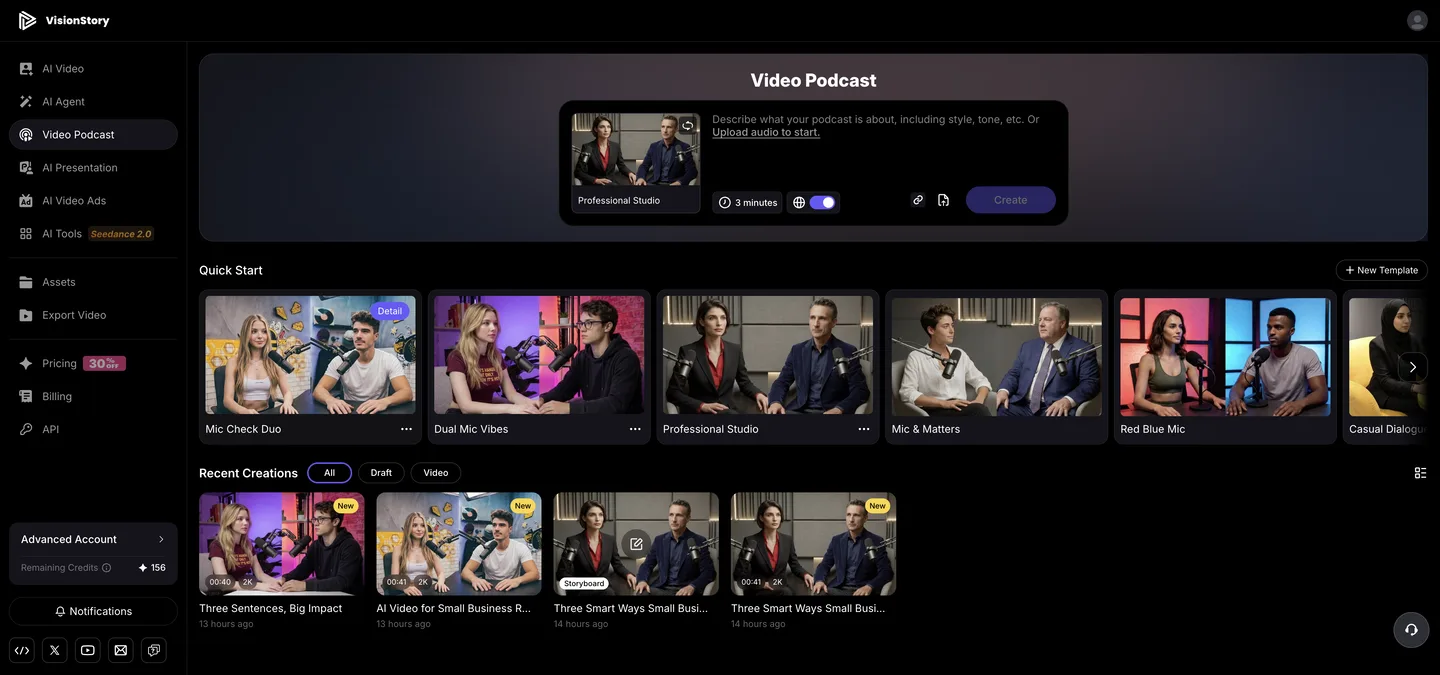
Open Video Podcast. The fastest way in is a ready-made Quick Start template — hover one to preview its hosts and scene, and start from it immediately. For a reusable setup of your own, choose Create Template instead.
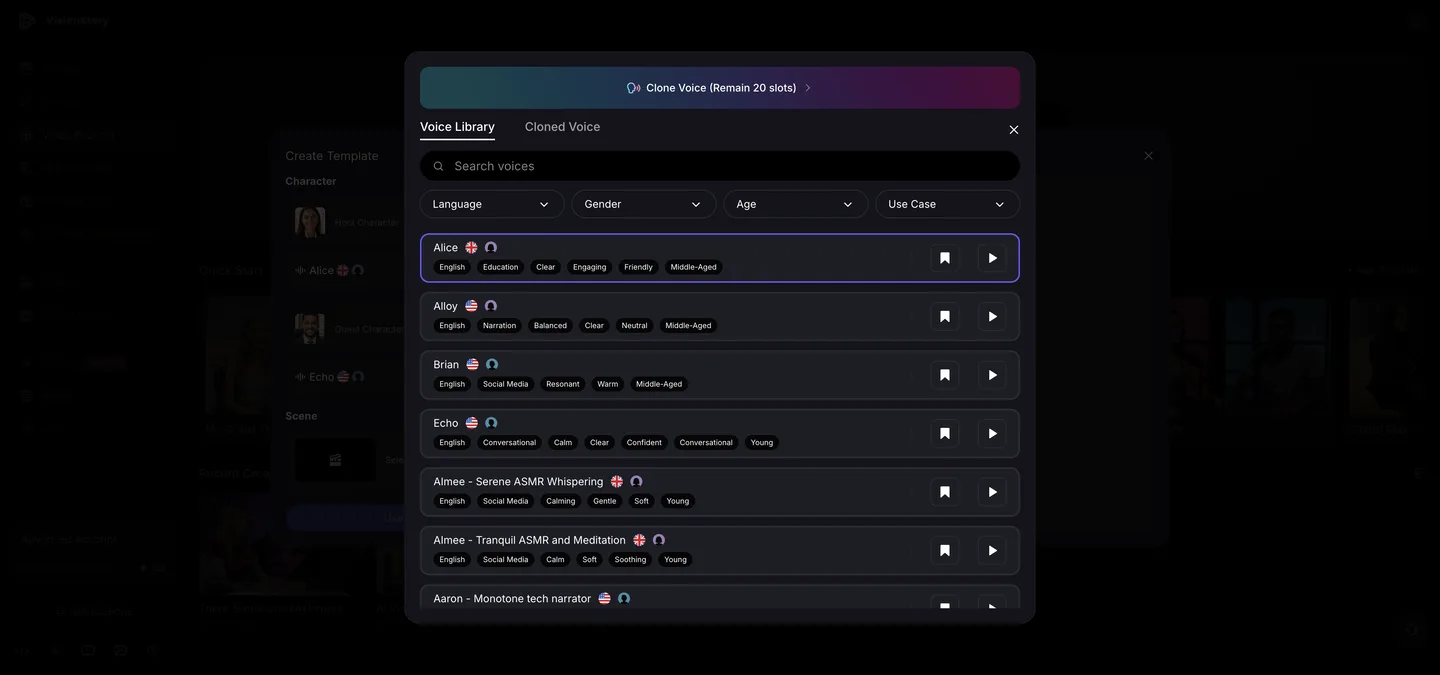
Pick a host character, then open the full voice library to set the host's voice — you can preview any voice before committing. Do the same for the guest, and swap the host and guest positions at any time if the layout reads better the other way around.
Step 2: Place both hosts in one shared scene
Next, pick a scene. This is the heart of the format: VisionStory places your selected host and guest into the chosen scene so they look like they are talking in the same space — regardless of the backgrounds in the original character images. Generate the shot preview to check the framing, then save the template so future episodes start in seconds.

Step 3: Create an episode from a topic, web page, PDF, or live web research
With the template ready, tell VisionStory what the episode is about. All of these starting points work:
- A topic or creative brief typed directly into the prompt box.
- A web page — paste the link and the episode is built from its content.
- A PDF — upload a document and the hosts discuss it.
- Web Search — enable it when the script needs current, up-to-date information.
VisionStory writes the two-host dialogue from your source. Set a target duration as a guide — it is an estimate of the final length, not an exact control.
Step 4: Or start from a two-person audio recording
Already have a conversation recorded? Drag a two-person audio file in. VisionStory detects the speakers, separates the dialogue, and assigns each line to the appropriate host or guest — turning an audio-only interview into a fully staged video podcast with no manual transcription.

Step 5: Edit in Studio — the script and shots are linked
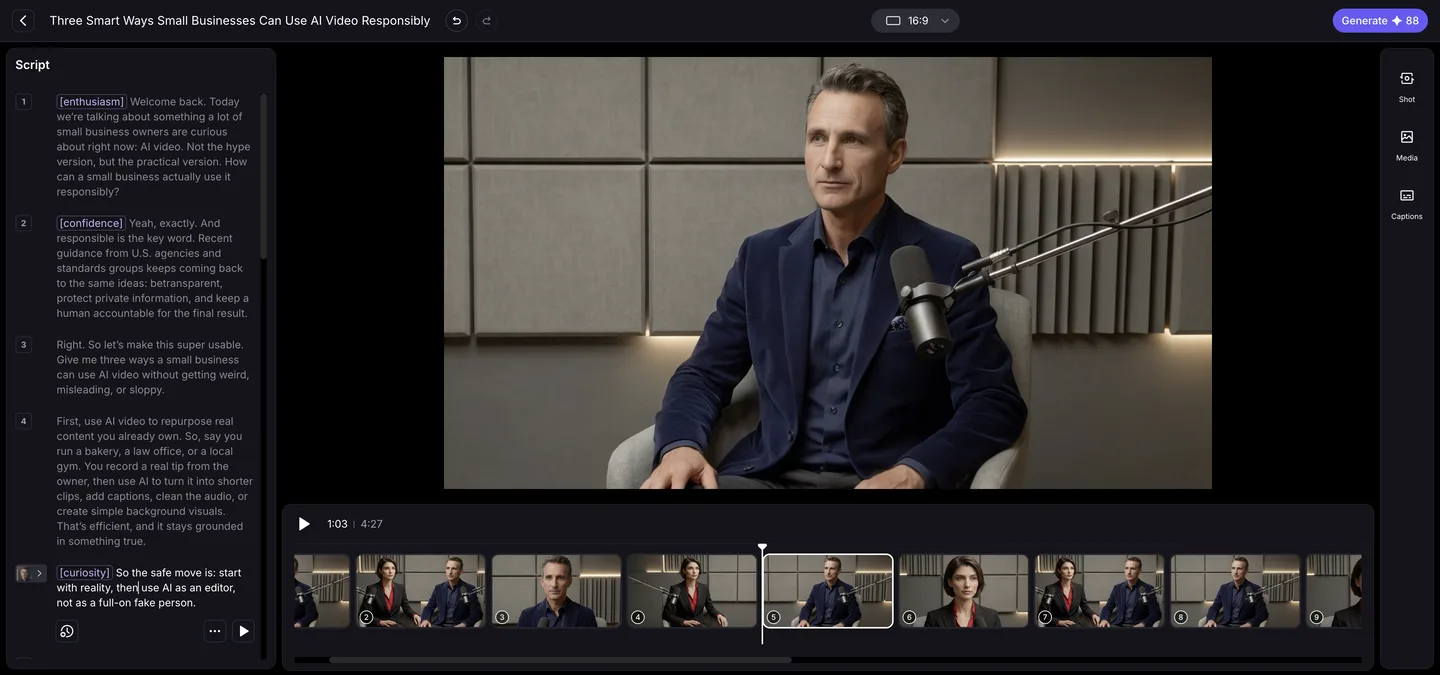
The generated episode opens in Studio, where the text paragraphs, the preview, and the shot timeline are linked in both directions. Click a paragraph and the timeline jumps to its matching shot; click a shot and its paragraph is revealed. Delete a paragraph and its linked shot is removed with it — the script and the video never drift apart.
Step 6: Choose shots and refine the pacing
Every shot can be a host close-up, a guest close-up, a medium composition, or a two-person shot. Click different shot thumbnails to update the main preview and vary the rhythm — close-ups for emphasis, two-person shots for back-and-forth exchanges.

Step 7: Add your logo and style the captions
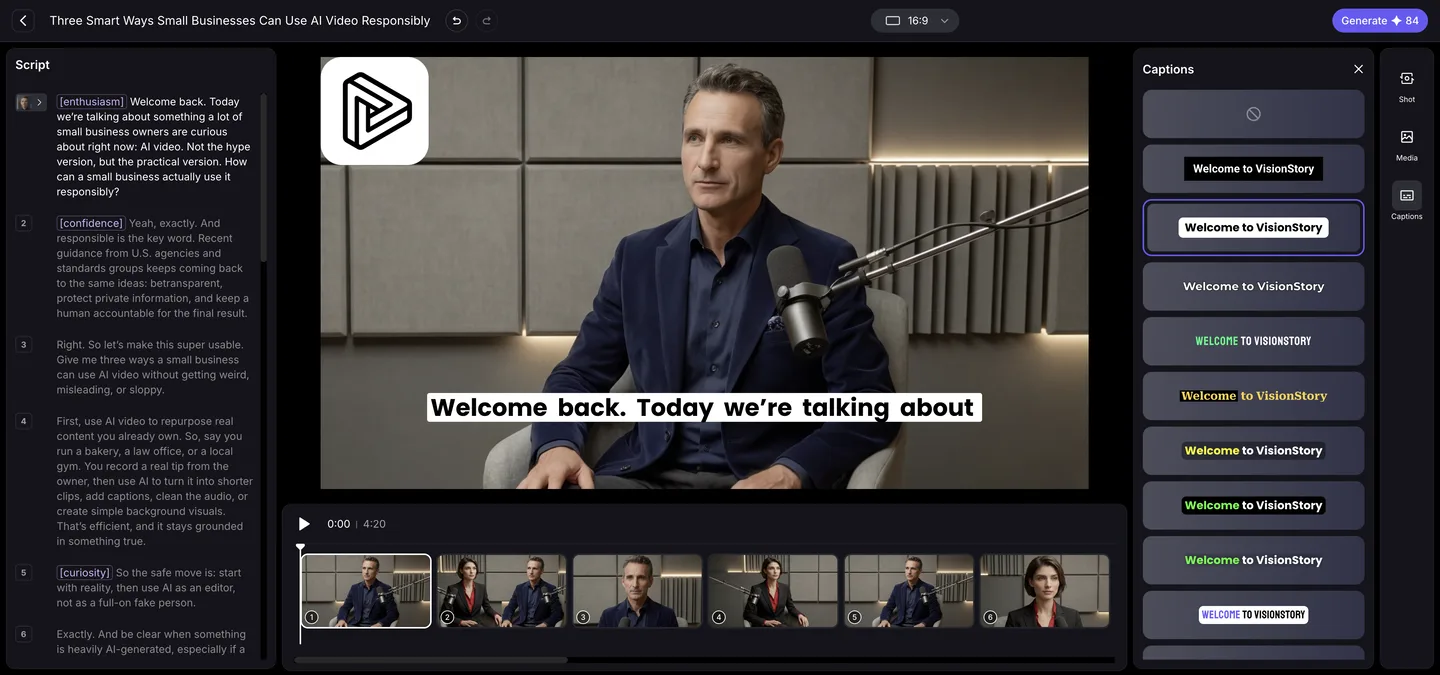
Brand the episode directly on the canvas: add a logo, resize it, move it into a corner (the video uses the upper left), and apply it across the whole podcast. Captions are adjustable too — typography, color, and placement — so the subtitles match your channel's look.
Step 8: Review, then generate
Before rendering, scan the full timeline once:
- Pacing: pauses and scene changes feel intentional.
- Speaker transitions: the correct host appears for every line.
- Shot variety: close-ups, medium views, and shared shots are balanced.
- Branding and captions: size, contrast, and placement stay safe.
When it all reads well, click Generate. The finished result — like the real episode at the end of the video above — is a complete two-host video podcast ready to publish.
Tips for a better episode
- One clear topic per episode. A focused brief or source produces tighter, more natural dialogue than a broad one.
- Use Web Search when currency matters. Turn it on for news-style episodes; leave it off for evergreen topics.
- Vary the shots deliberately. Reaction close-ups and two-person shots make the conversation feel real instead of static.
- Save your template. The next episode reuses your hosts, voices, and scene in a couple of clicks.
That is the whole workflow: set up two hosts in a shared scene, point VisionStory at a topic, page, PDF, or recording, shape the shots in Studio, and generate. Explore the Video Podcast feature to see what it can do for your channel.