Remove Background

Create clean cutouts from images so people, products, and creative assets can be placed into thumbnails, ads, social posts, or video scenes.

  • Clean image cutouts
  • Transparent assets for ads and thumbnails
  • Reuse subjects across campaigns
Get Started for Free

Upload your image

Supported formats: PNG, JPG. You can upload up to 5 images.
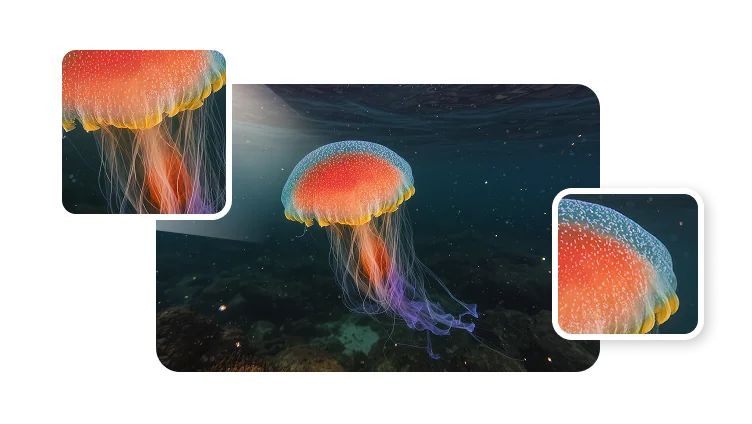
Imagebackground remover
Cleansubject cutouts
Fastcreative prep
Readyfor video scenes

Where clean cutouts help production

Use background removal when the subject needs to move into a cleaner layout, a branded visual, or a later video workflow.

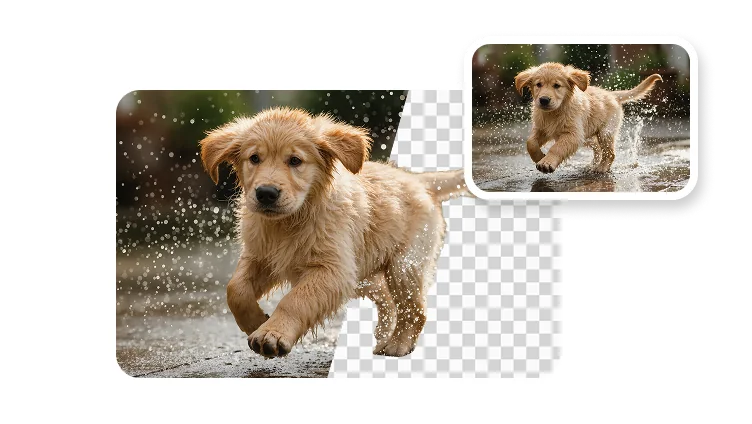
AI background removal for a portrait cutout

Portrait and avatar cutouts

Remove the scene behind a person so the subject can sit cleanly in profile images, thumbnails, and avatar concepts.

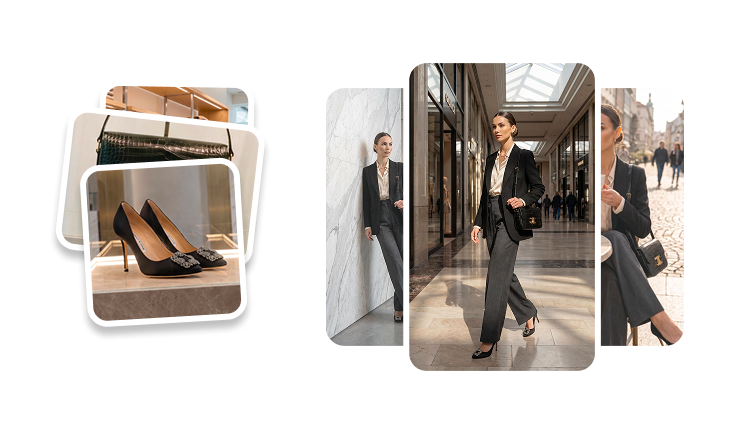
AI image cutout prepared for campaign design

Campaign image prep

Prepare product or creator assets before building ads, social visuals, landing page images, or presentation graphics.

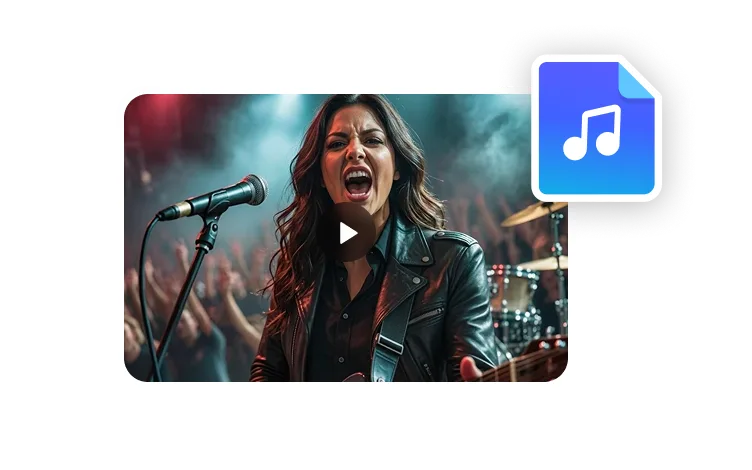
Background removed subject placed into a video scene

Scene compositing

Move a subject from the original image into a branded background, video scene, or post-production layout.

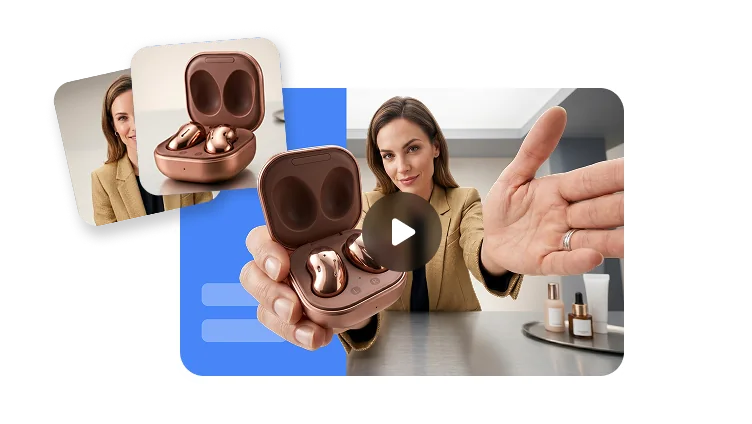
Preview a background removal workflow

Start with a subject photo, remove the surrounding scene, then reuse the clean cutout wherever the creative needs to go next.

Preview a background removal workflow

Asset cleanup

Make image assets easier to reuse

Background removal is a production step: it gives designers and creators a cleaner subject to place into the next format.

PNG

Transparent-ready output

Use cutouts in design tools, social posts, thumbnails, and video layouts.

Edge

Cleaner subject focus

Remove visual clutter so the person, product, or object becomes the primary focus.

Reuse

One subject, many scenes

Drop the same cutout into multiple backgrounds, campaigns, and aspect ratios.

Production flow

From source image to reusable cutout

Use background removal as the first step before designing thumbnails, campaign images, or video-ready assets.

01

Choose a clear source image

Use a photo where the subject is visible and separated enough for a clean cutout.

02

Remove the background

Isolate the person, product, or object from the original scene.

03

Place the cutout

Move the subject into a branded layout, thumbnail, product visual, or video scene.

04

Publish or continue editing

Use the cleaned asset directly or combine it with image generation, avatars, and video production.

Frequently asked questions

  • What is an AI background remover?

    An AI background remover detects the main subject in an image and separates it from the original background so the subject can be reused in another design, scene, or creative workflow.

  • What images work best for background removal?

  • Can I use cutouts in video projects?

  • How is this different from green screen video?