Make the person in a photo move using a video performance. This tutorial uses one 8-second motion clip and a courtyard portrait to show which details come from each input.
Use photos and videos you own or are authorized to edit, with permission to use the person’s likeness.
Open Motion Control
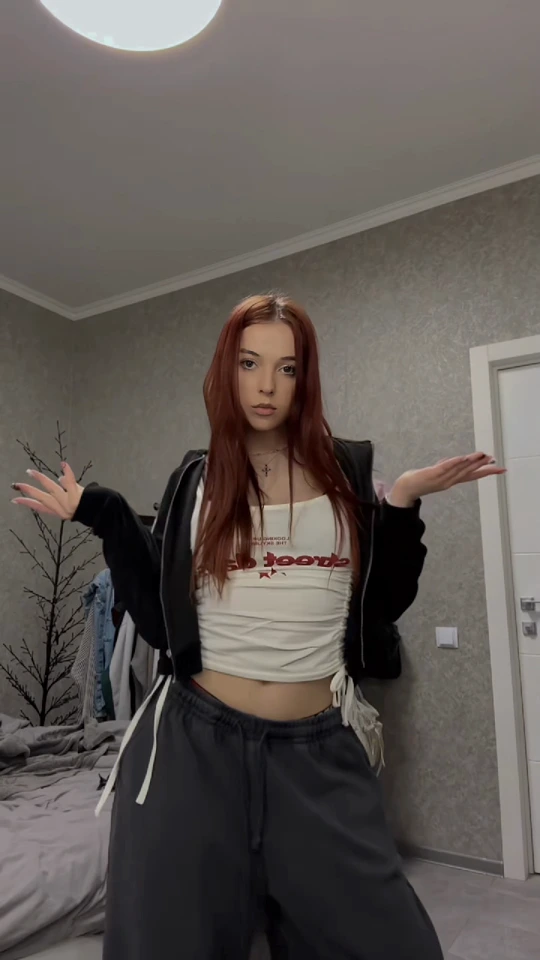
Open Face Swap, choose the Video tab, and select Motion control. Your reference photo supplies the person and setting; a motion video supplies the actions and expressions.

Add a Motion Video
Upload or drag in a clip from your device, choose a video from Assets, or hover over a Trending Template to preview it. This example uses an official template.
Start with a short clip featuring one clearly visible main subject and the movements you want to transfer. The current workflow accepts videos from 4 to 180 seconds, up to 200 MB. MP4 is recommended.
- Upload
- A clip from your device
- Assets
- A video already in your library
- Trending Templates
- Preview a sample and choose it


Choose Your Reference Photo
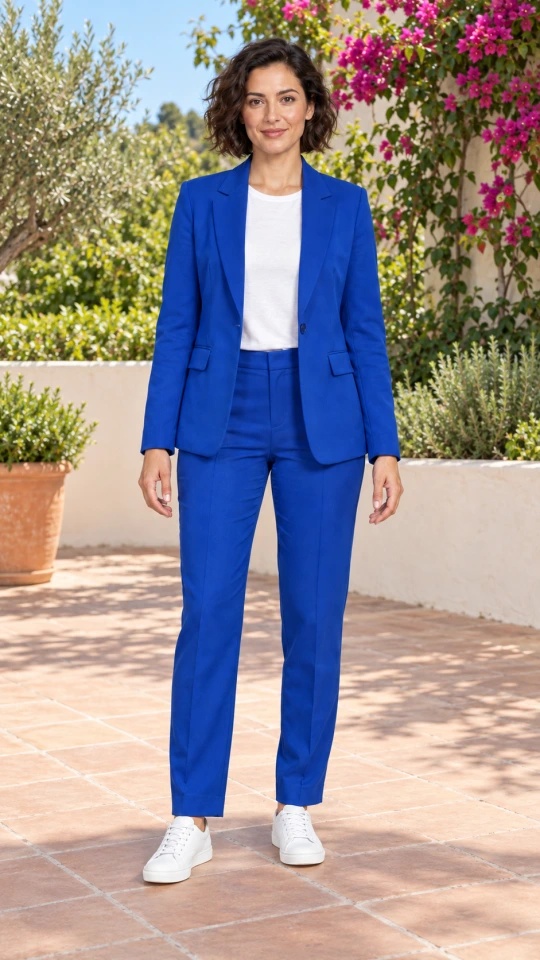
Under Reference Image, choose Upload, Assets, or Avatar Library. Pick a sharp photo with an unobstructed face. For full-body movement, show the complete person and outfit, keep the hands clear, and leave room around the subject.
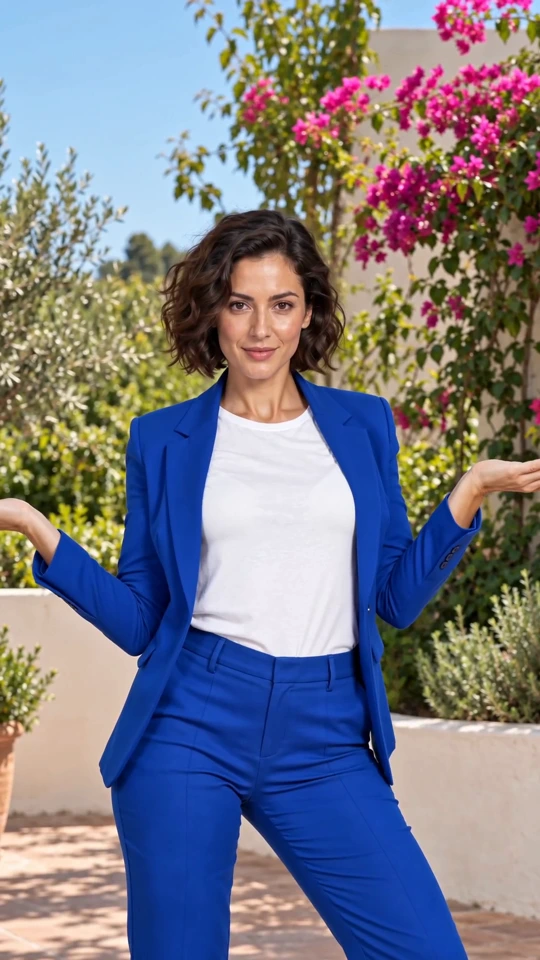
Here, the reference is a person in a blue suit standing in a sunny courtyard. The courtyard will supply the result’s setting.
- Face
- Clear, sharp, and unobstructed
- Outfit
- Full person visible, with hands clear
- Background
- The scene you want in the final video
Understand What Comes from Each Input
The photo provides the person, clothing, and background. The video provides the actions and expressions. This differs from Full body, which uses the source video’s scene.
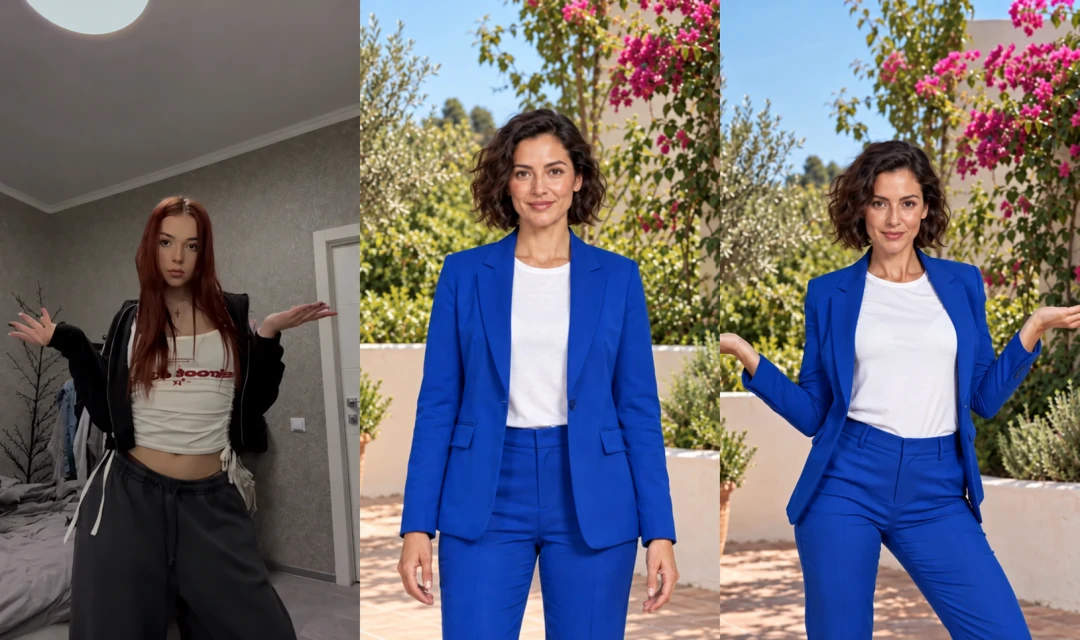
Actions and expressions
Person, outfit, and setting
The performance in the photo’s scene
The output aspect ratio follows the reference photo within the supported formats. This portrait photo produces a vertical result. The performance can change the person’s size and framing; it does not preserve every pixel of the photo.
To keep the original video scene instead, see the Face only and Full body tutorial.
Set the Resolution and Check the Cost
Choose 720p or 1080p. At the time of this tutorial, 720p costs 4 credits per second and 1080p costs 6 credits per second, with partial seconds rounded up.
Check the estimate beside the generate arrow before submitting. This 8-second clip at 1080p costs 8 × 6 = 48 credits for one generation.
- 720p
- 4 credits / second
- 1080p
- 6 credits / second
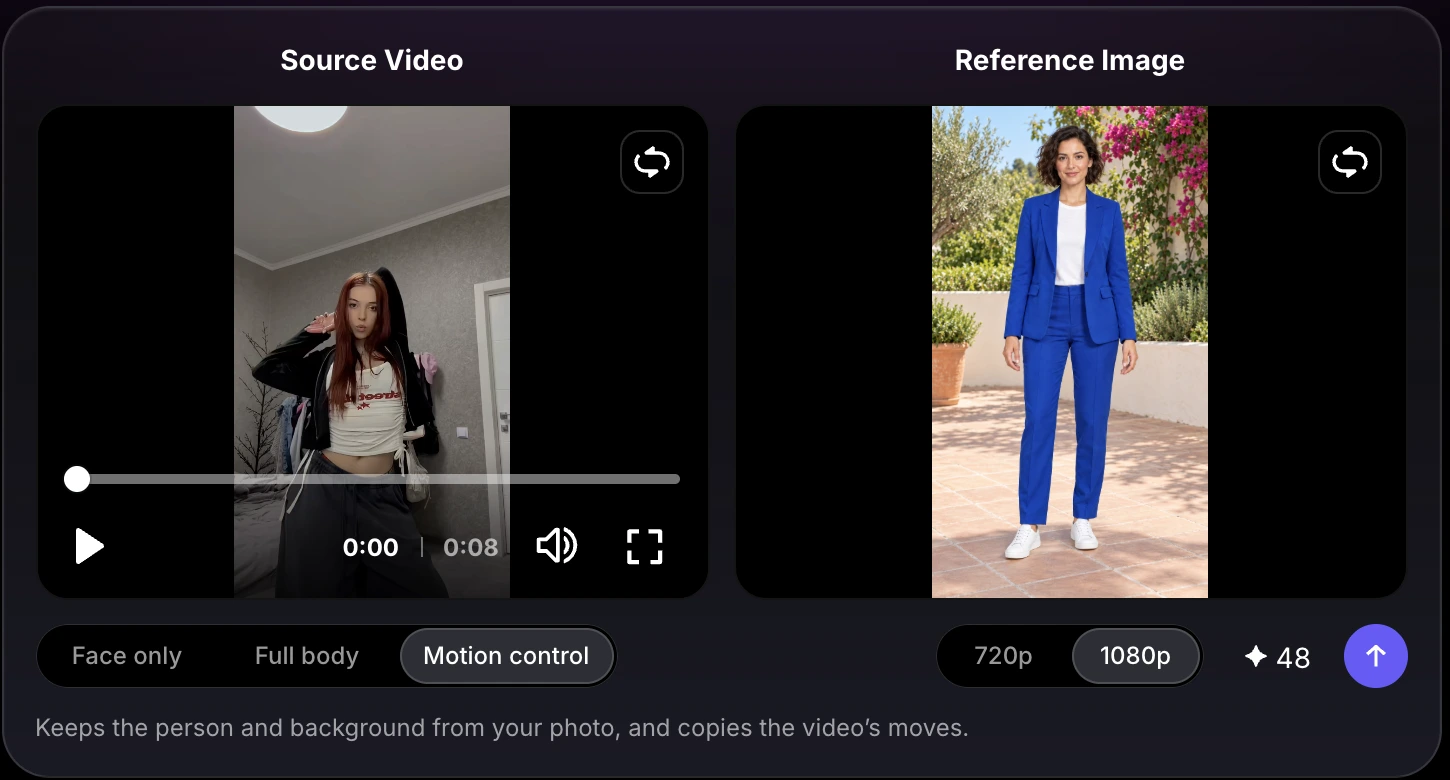
Resolution, credit estimate, then the generate arrow.
Generate, Review, and Download
Click the generate arrow. When the result is ready, open its card in Videos below the form. Compare the face, hands, movement, outfit, and scene with your inputs throughout the clip.
The original video audio is preserved. This workflow does not clone or replace the speaker’s voice.
- Open the completed card in Videos.
- Play the full clip. Check the face, hands, movement, and scene.
- Use the download icon below the title.
Adjust and Generate Again
Click Re-generate to bring your inputs and settings back into the form. Change what you need, check the updated estimate, and submit a new generation. Submitting again is a new paid generation, not a free retry.
Try It with Your Own Photo
Choose a photo with the person and setting you want, then pair it with a clear motion video. Use the Try Motion Control button above to open the right mode.
For dance-focused examples, explore the AI Dance tool page.