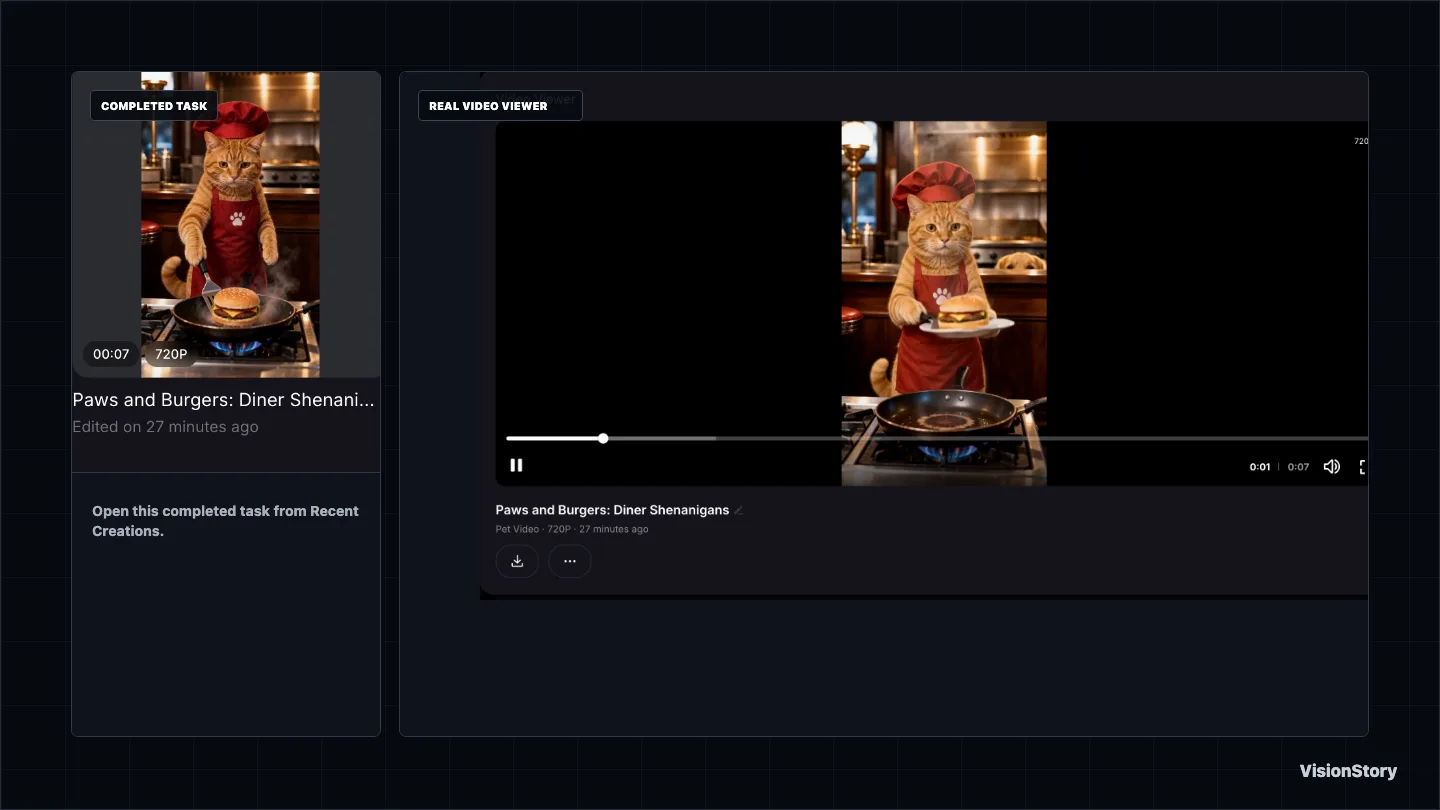
What Pet Video Does
VisionStory Pet Video turns pet reference photos and a written scene into a short generated performance. A single pet can carry the scene, or you can add a second reference and write an interaction between them.
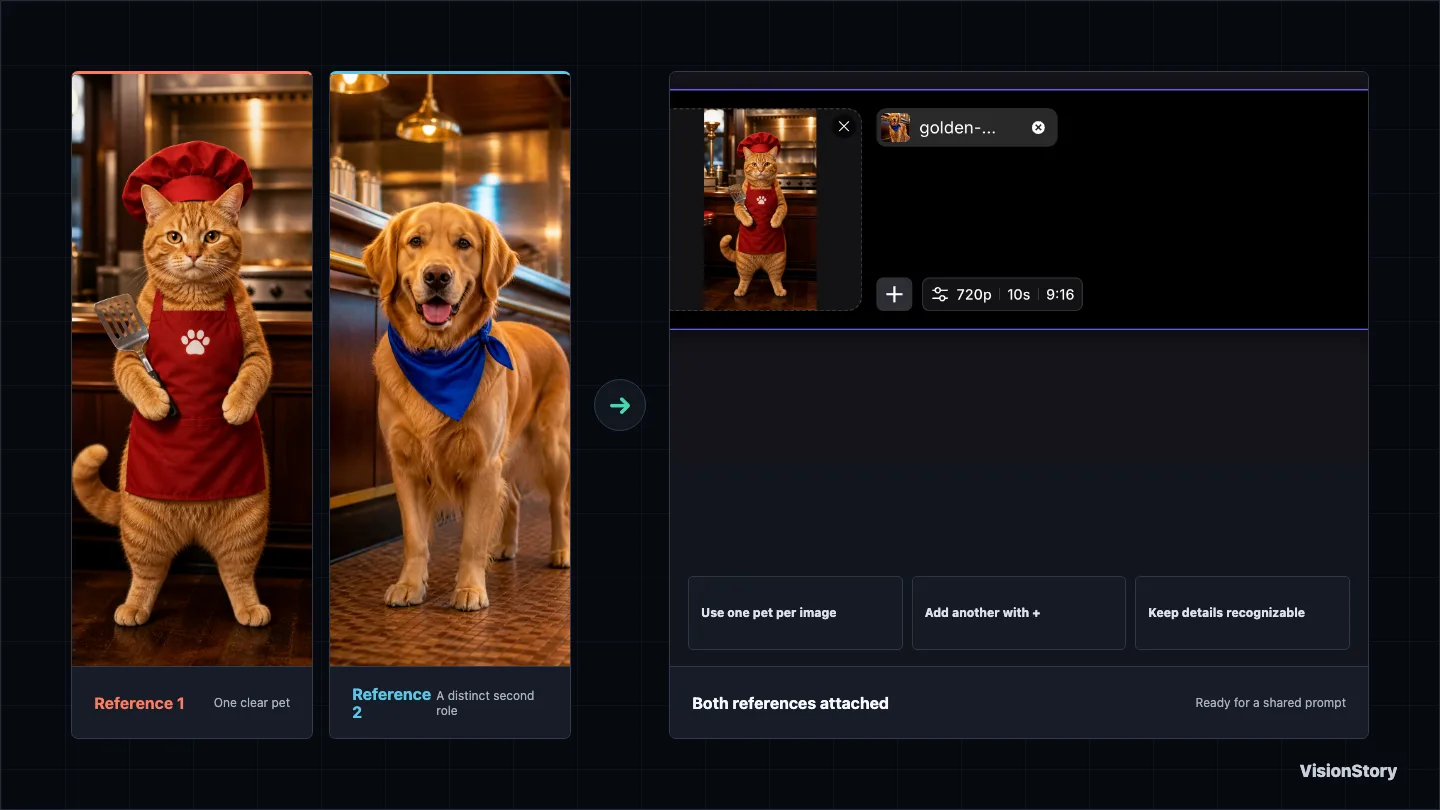
The example in this tutorial uses an orange tabby chef and a golden retriever sidekick. Their red chef outfit and blue bandana give the model simple visual anchors while the prompt moves through setup, action, and reaction.
Before You Begin
Browse Explore or Start Your Own Scene
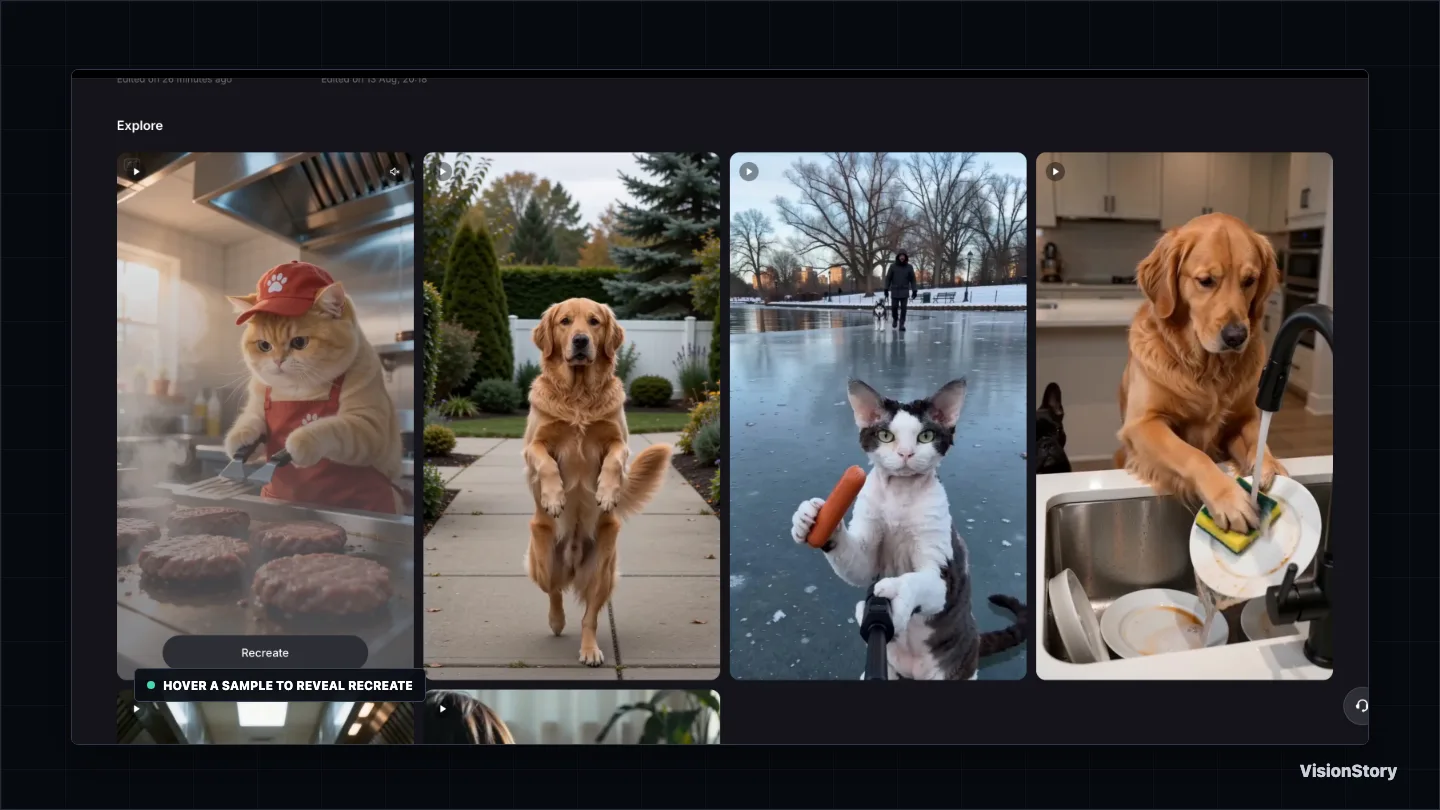
Open AI Tools → Pet Video. The Explore gallery is useful for understanding the kinds of actions, camera framing, and comic beats the tool can create. Hover a sample to reveal Recreate.
Recreate loads that example's reference, prompt, and settings into the composer. Treat it as a starting structure: replace the source media and rewrite the scene so the result belongs to your pets.
Use One Clear Image per Pet
Add the first pet photo to the composer. To build a shared scene, click the + button and attach the second pet as another reference.
Choose images where each pet is easy to identify. A front-facing or three-quarter view usually gives the model more useful facial and body information than a distant, blurry, or heavily cropped shot.
Write Every Pet's Action in Order
A multi-pet prompt works best when it reads like a short shot list. Name the shared location, identify each pet, then describe one action at a time in the order the viewer should see it.
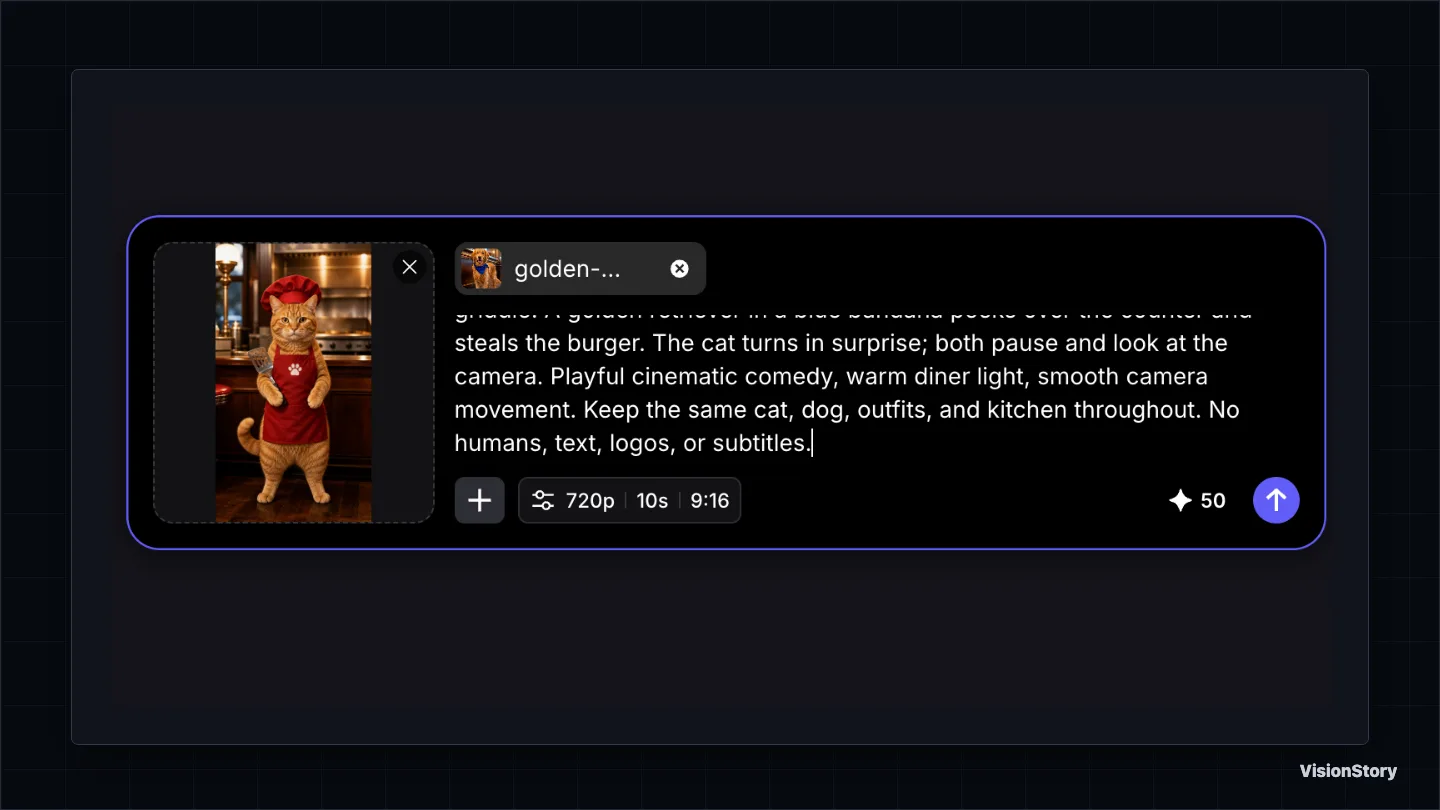
Keep the action achievable within a few seconds. A focused scene gives the model more room to establish the characters, complete the action, and land the reaction.
Choose Duration, Frame, and Review the Estimate
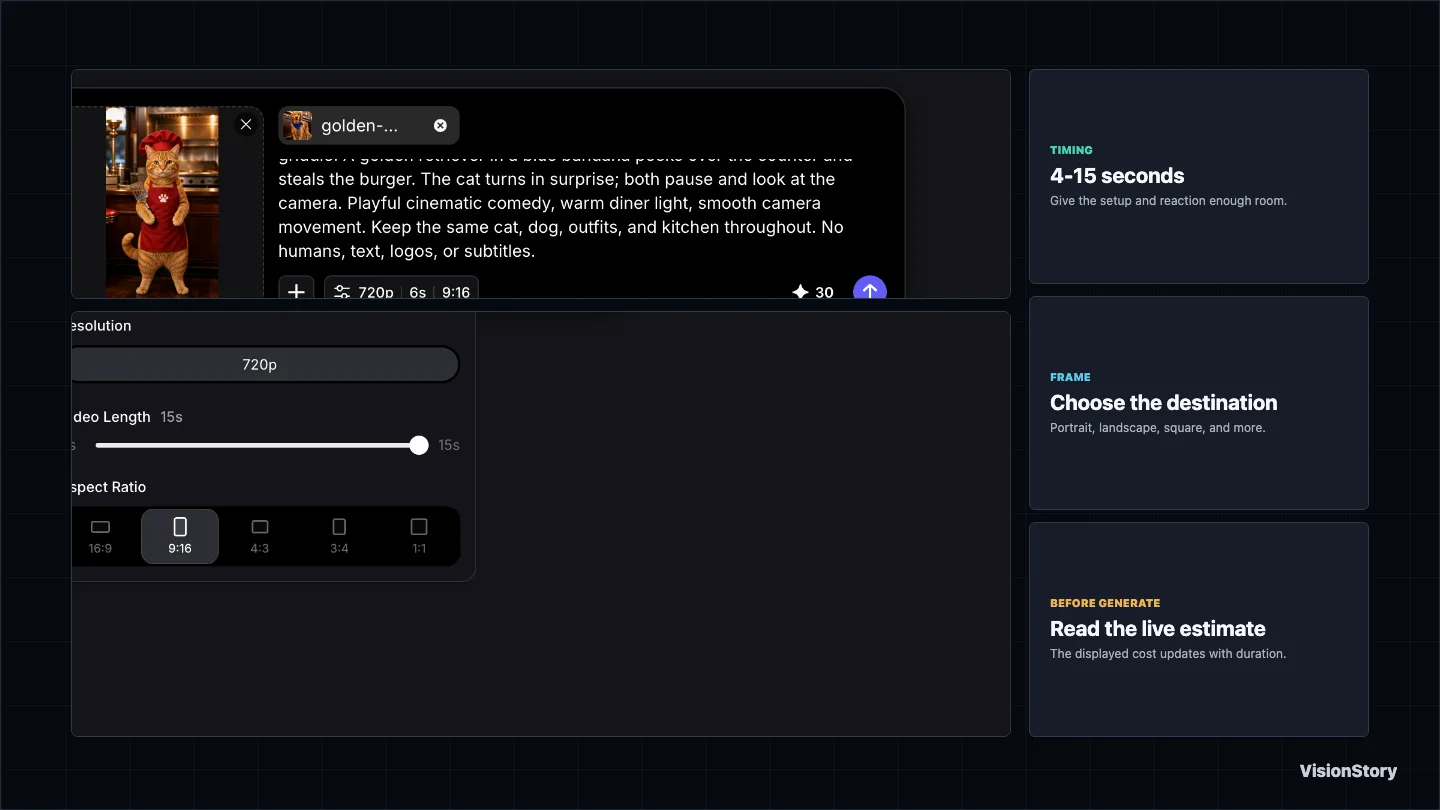
Open the output settings beneath the prompt. Pet Video currently supports clips from 4 to 15 seconds. Use a shorter duration for one simple action; give a setup-and-reaction scene a little more room.
Choose the frame that matches where the video will live. The current panel includes landscape, portrait, square, and intermediate aspect ratios. In this tutorial, a six-second 9:16 result keeps both pets prominent for vertical playback.
Open the Finished Clip and Check the Story
After confirming the references, prompt, duration, frame, and current estimate, click Generate. The completed task appears in Recent Creations.
Open the task in Video Viewer and watch it from beginning to end. Check that the pets remain visually distinct, the assigned roles do not switch, and the action order matches the prompt.