An AI voice changer is for the moment when the performance is right but the voice is not. You already have a recording — a scratch narration, a character read, a spokesperson track — and you need a different vocal identity without re-recording a single line. VisionStory converts the performance to a target voice and drives a talking avatar with it in the same run.
This tutorial imports a 10-second English product narration, converts it to Anika – Sweet and Lively, and renders a 16:9, 1080p spokesperson video. Before you start, confirm you have the rights to the recording, the video, the character image, and the target voice you plan to use.
Step 1: Pick the avatar, then switch to Import
Open the AI Video workspace and choose a digital presenter that matches the finished video — from the character library, or by uploading a photo you have rights to. Then switch to the Import tab on the right to bring in a recording or a video's audio track.
VisionStory currently imports AVI, MP3, MP4, M4A, WAV, and MOV. If the goal is only to replace a narration voice, a clean audio file is the better source; if the voice lives inside an existing video, import the video directly in a supported format.
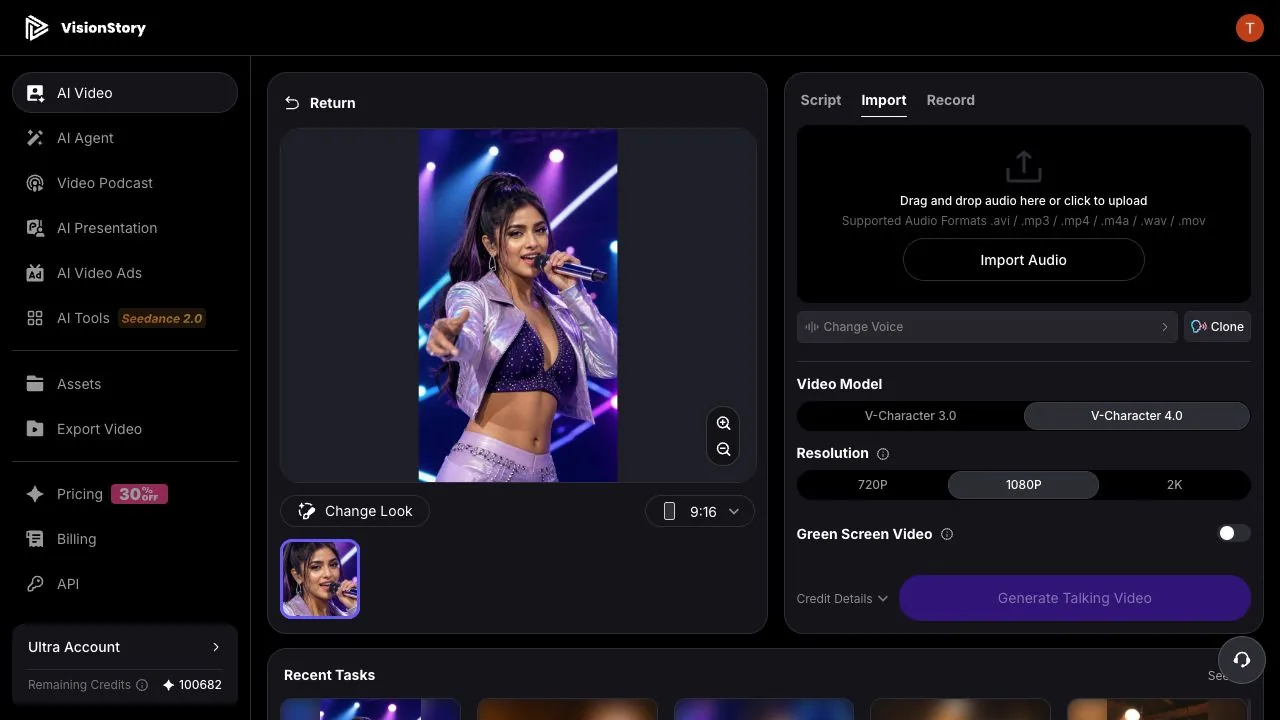
Step 2: Import the recording and check the usable segment
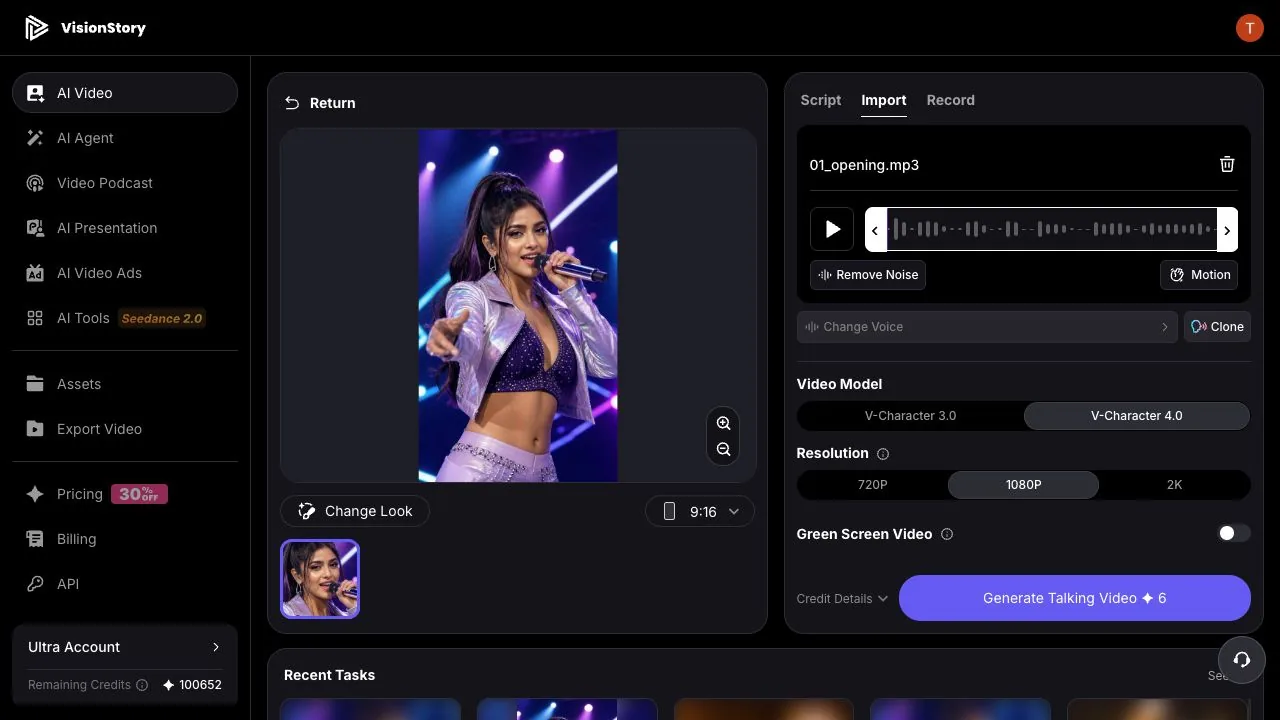
Click the upload area and import the source recording or video. The panel shows the waveform, total length, and the selected range — here the full 00:00–00:10 of a 10-second narration.
Listen to the original once and confirm the head and tail are not clipped. If there is obvious room noise, enable Remove Noise — but do not chase absolute silence; over-denoising strips the breaths, soft syllables, and emotional detail that make the converted voice sound human.
Step 3: Choose the target voice from the Voice Library
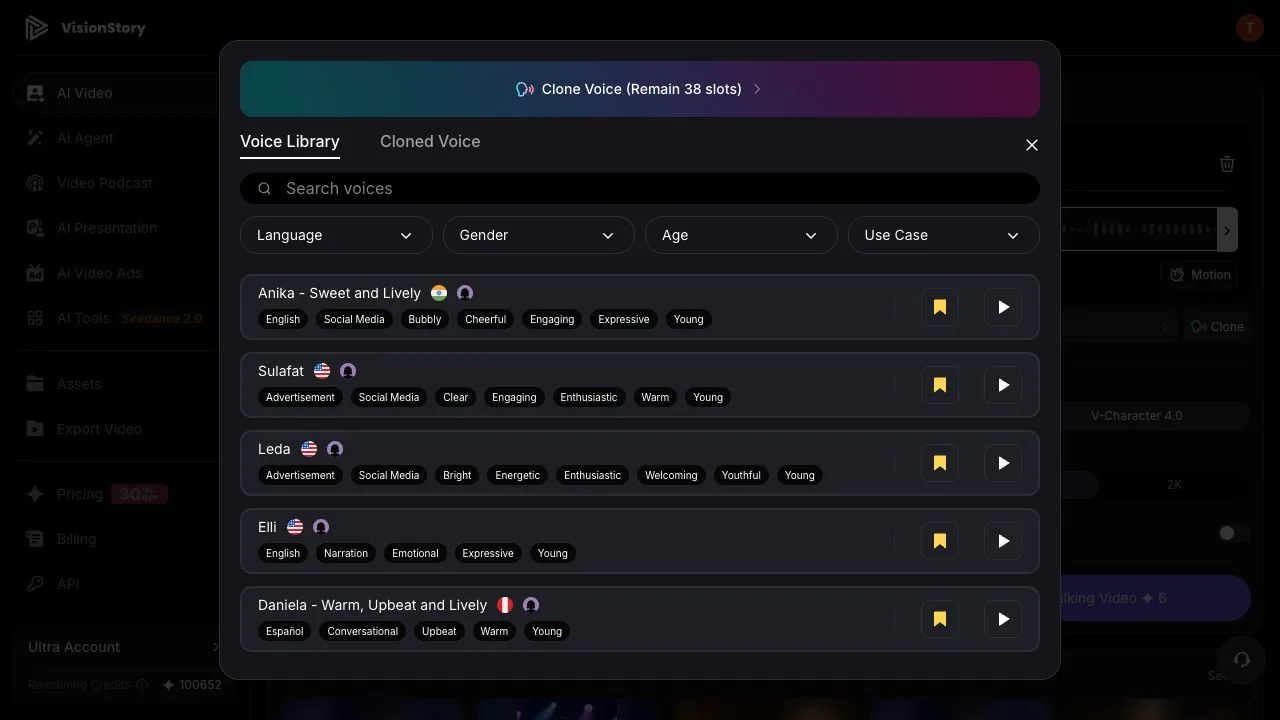
Click Change Voice to open the Voice Library. Filter by Language, Gender, Age, and Use Case, and preview candidates with the play button on each voice card.
The example picks Anika to turn a flat product narration into a brighter, social-ready female voice. Ads, training, character stories, and explainers each weigh clarity, energy, and age differently — choose for the content's job, not just for which sample sounds pleasant. The full selection method is in how to choose an AI voice.
Step 4: Confirm the target voice and the output settings
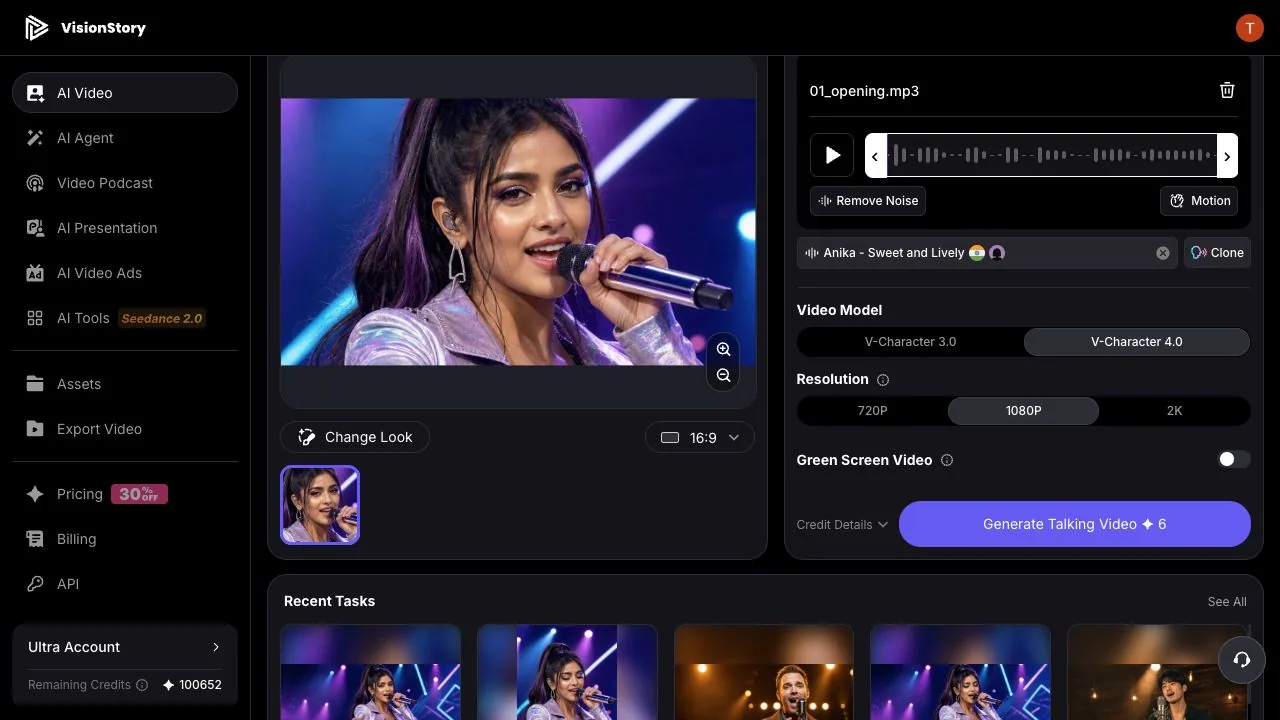
Back on the creation page, the Change Voice control now shows the selected target voice. Work through the rest of the setup: the avatar, the aspect ratio, the video model, and the resolution. The example switches to 16:9 with V-Character 4.0 at 1080p — right for a landscape product explainer or YouTube.
A voice changer swaps the vocal identity; it does not pick the right presenter or framing for you. Before generating, check the target voice against the avatar's apparent age, gender expression, and the content's tone — if they clash, go back to the voice library or the character library.
Step 5: Generate, then review the voice-changed video
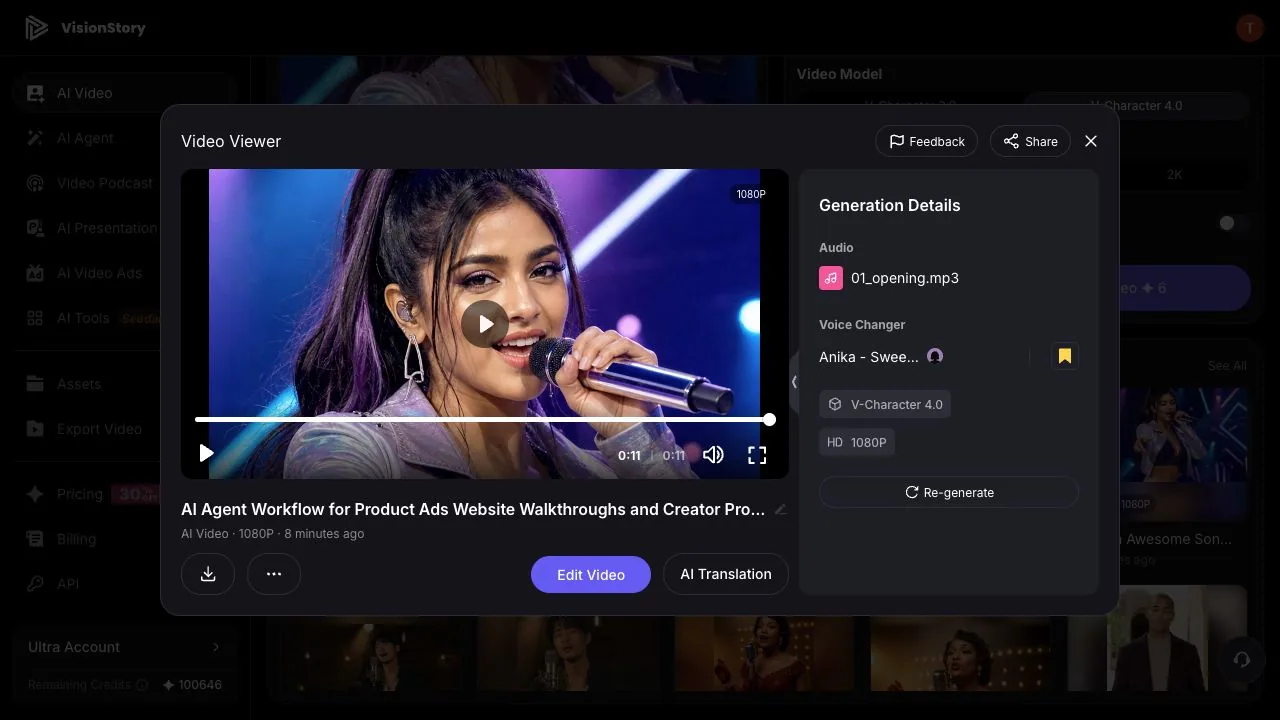
Click Generate Talking Video. VisionStory converts the original performance to the target voice and drives the avatar's lip sync and expressions with it. When the render lands, play it in full.
Listen for proper nouns, soft syllables, pauses, and end-of-sentence emotion, and watch the mouth on fast passages. If the voice fights the character or the content, go back and change the target voice. If the problem is noise or a bad trim, fix the source audio — voice conversion cannot rescue broken material.
Common problems and how to fix them
- The converted voice sounds muddy or noisy. Check the source for background noise, clipping, and low volume; enable Remove Noise or re-record cleaner. Conversion cannot repair badly distorted material.
- The voice is natural but wrong for the avatar. Re-choose a voice closer to the character's age, gender expression, and energy — or change the avatar. Voice and character are reviewed as one unit.
- The emotion differs from the original recording. Conversion keeps the performance's pacing and emotional cues, but voices differ in timbre and expressive range. Compare several candidates; re-record a clearer performance if needed.
- Lip-sync loosens on fast lines. Check the source for rushed, slurred, or run-together words. Shorter sentences and a cleaner take beat cycling through more voices.
A usable voice-changed video is never just voice A swapped for voice B. It comes from a clean source performance, a fitting target voice, a matching avatar, and a full review of the finished video. Lock the performance first, choose the voice second, and audit lip-sync and character last — that order saves the most re-recording. To build a reusable voice of your own instead, see cloning your voice with AI.