Every AI video starts with a script, but the voice decides how that script actually lands. It sets the accent, the age, the texture, the energy, and the personality of your presenter — and speed, pauses, and delivery cues decide whether the result sounds like a person or like a machine reading a page.
The short version: choose an AI voice by matching the language and regional accent to your audience, using the profile tags to build a shortlist, previewing each candidate with your own script, and then shaping the delivery with speed and pauses before you generate. The rest of this guide walks through that process step by step in VisionStory, whose AI voice library holds more than 1,000 voices across 88 languages.
What this guide covers: the public Voice Library and the delivery controls around it. Building a voice from your own recording is a separate workflow — see how to clone your voice with AI.
Step 1: Open the Voice Library and read the voice row
Open AI Video, select the avatar you want to use, and click the current voice below the Script box. The Voice Library opens over the editor.
Every row carries four signals that let you predict how a speaker will sound before you press play:
- Language tag — the language the voice speaks.
- Flag — the regional accent, not a second language. English voices can carry US, UK, Canadian, and other flags.
- Gender and age — the perceived identity of the speaker.
- Traits and use case — descriptions such as clear, warm, conversational, narration, education, or social media.
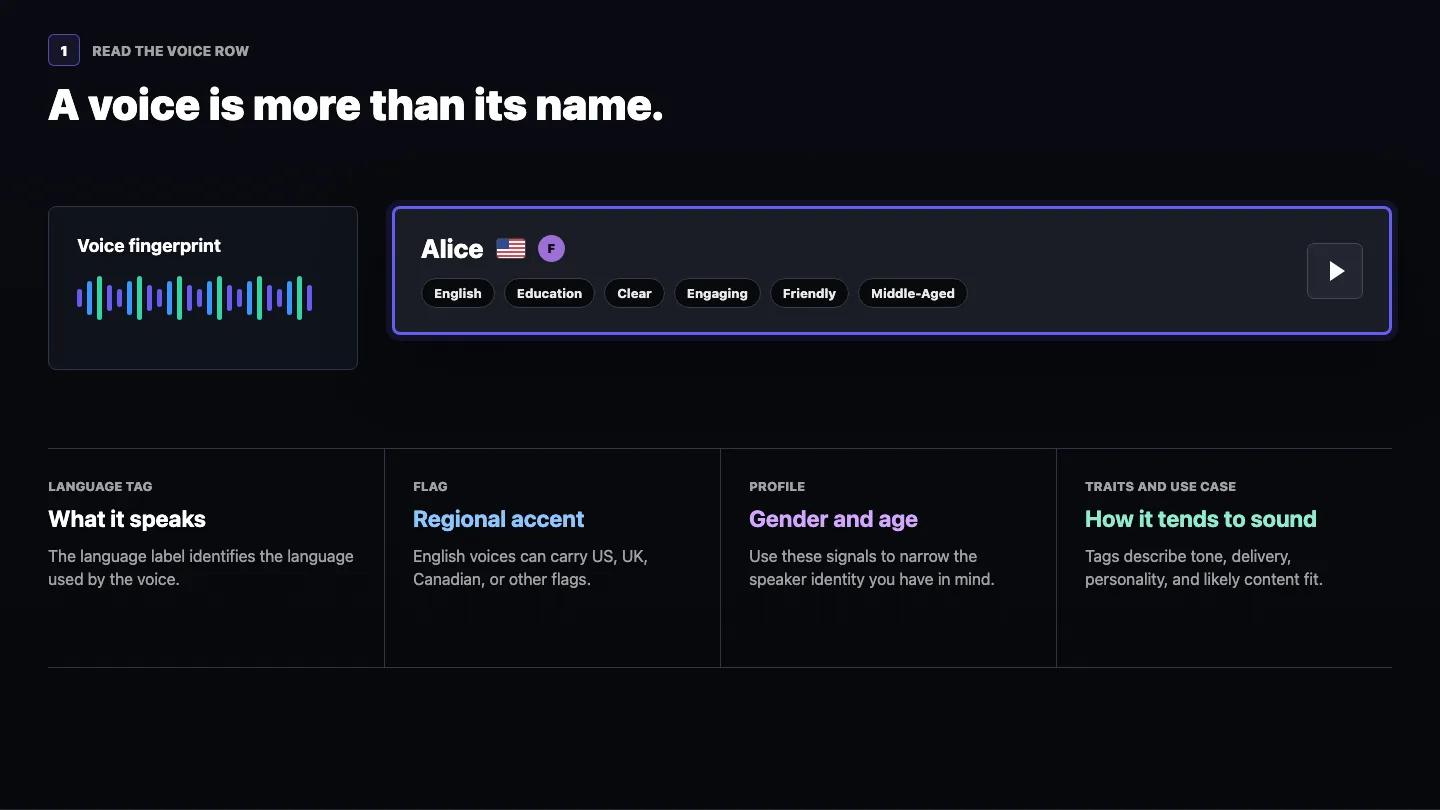
Use the labels to build a shortlist, not to make the final call. Two voices with nearly identical tags can still differ a lot in pacing, texture, and energy.
Step 2: Filter, search, and preview a shortlist
Start wide enough to hear real differences, then narrow down. Use the Language, Gender, Age, Use Case, and Provider filters while you are still exploring. If you already know a voice by name, type it into the search field instead.
Provider, the last filter in the row, is the speech engine behind a voice. VisionStory runs several of them, and each is strongest at something different. Leave it on All for your first pass — you want the best voice for this script, whichever engine produced it. Reach for the filter only when you already know what you need, such as a Cantonese read or one voice that has to carry several languages. Step 3 covers which engine to pick for those cases.
- Build a shortlist. Filter or search until you have a handful of candidates rather than a full catalog.
- Listen across the shortlist. Click the play button at the right of a voice row to hear its sample.
- Pause and compare. Click the same button again to stop before you start the next one.
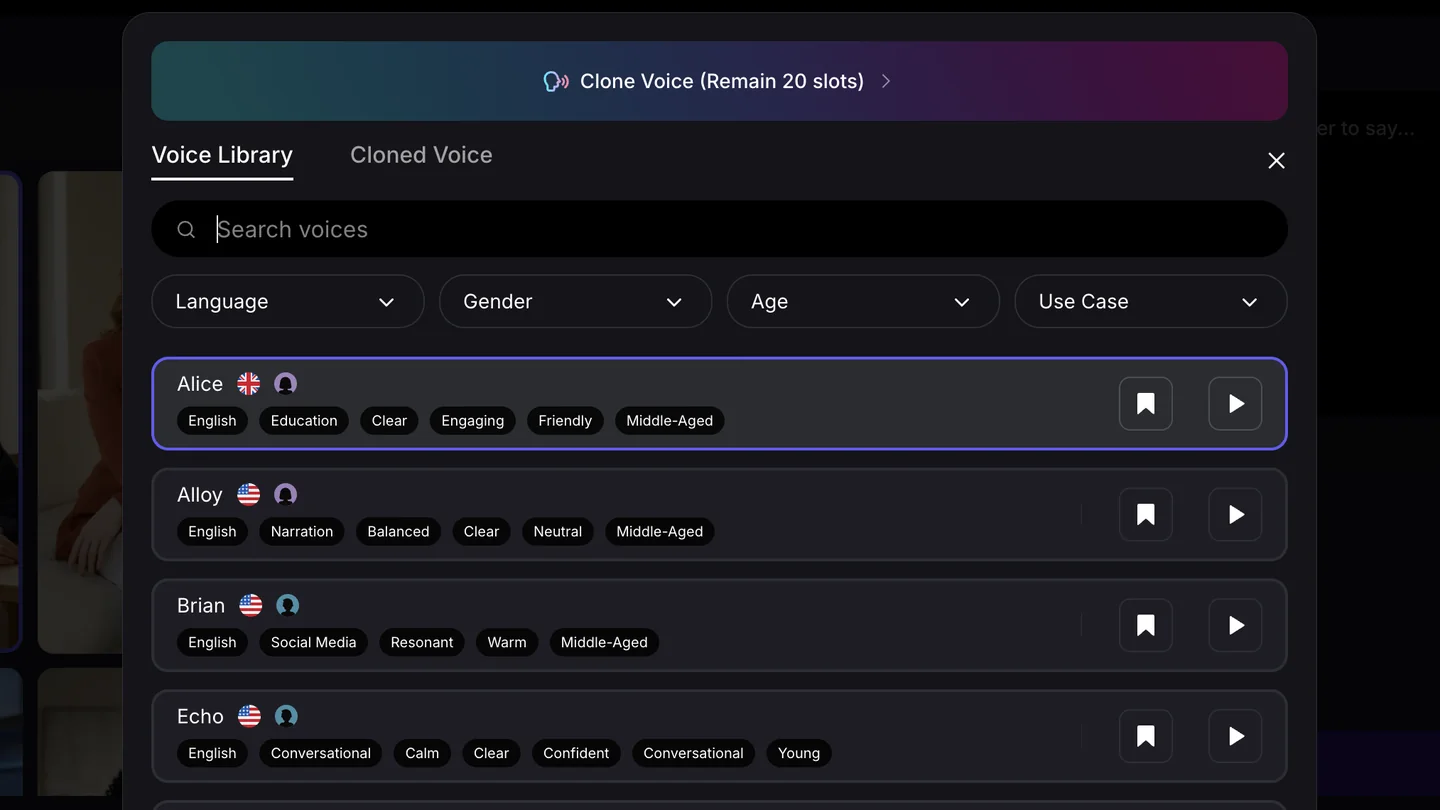
Listen for what your video actually needs: regional accent, clarity, energy, warmth, authority, and how quickly the voice moves through a sentence. A voice that sounds great in isolation can still be wrong for an instructional, sales, news, or character-driven script.
Step 3: Match the voice to your content and audience
Most disappointing AI voiceovers are not a quality problem, they are a fit problem. Before you commit, decide what this voice has to do for this specific video.
| If you are making | Look for | Avoid |
|---|---|---|
| Tutorials, explainers, courses | Clear articulation, steady pace, neutral warmth | High-energy promo reads that rush technical terms |
| Ads, promos, short social clips | Energy, punch, a confident and younger profile | Slow, measured narration that drops the hook |
| News, corporate, product updates | Authority, even pacing, minimal vocal texture | Casual or heavily character-styled voices |
| Storytelling, interviews, podcasts | Personality and expressive range | Flat announcer reads with no dynamics |
| Localized versions of one video | A native regional accent for each market | One English voice reading translated copy |
| One video, several language versions, same presenter | A multilingual voice, so every version keeps the same voice identity | A different voice per language, which sounds like a different person each time |
Accent is the setting people get wrong most often. If your audience is in London and your presenter carries a US flag, listeners notice — even when every word is correct. Pick the flag for the audience, not just the language.
The last two rows pull in opposite directions, and both are right — you are choosing between local credibility and a consistent presenter. Pick a native accent per market when each version should feel local; pick one multilingual voice when the videos are clearly the same person speaking to different audiences.
Chinese is where accent matters most, because “Chinese” is three different audiences. Mandarin for the mainland. Taiwanese Mandarin for Taiwan — the written language is shared, but the intonation and word choice give a mainland read away immediately. And Cantonese for Hong Kong and Guangdong, which is a separate spoken language rather than an accent, so a Mandarin voice will not do. Set the Language filter to the one your viewers actually speak, then preview: a Taipei viewer hears a mainland Mandarin voice the same way a London viewer hears a US one.
Picking by voice engine
The Provider filter from Step 2 groups the library by the engine that generates each voice. You will not need it often, but when one of these is your situation it saves a lot of scrolling.
- ElevenLabs — the largest library and the widest emotional range. Start here for English narration, character work, and any script that has to act rather than announce.
- Gemini — the multilingual voices. One voice keeps its identity across languages, so this is where to look when the same video ships in several languages and you want the same presenter in all of them. These voices show up whichever Language you filter by.
- MiniMax — the most natural Cantonese. Reach for it for Hong Kong and Guangdong audiences.
- Seed — native-level Chinese, including Taiwanese Mandarin, plus native Japanese, Korean, Spanish, Portuguese, and Indonesian voices. Try it when a fluent-but-foreign read is not good enough for the market.
If none of that describes your video, leave Provider on All and let the preview decide. Fit matters far more than which engine produced the voice.
Step 4: Set the speaking speed, then add pauses
Click a voice row to apply it to the current setup. Then open the speed menu beside the selected voice and choose Slow, Normal, or Fast.
- Slow suits reflective explanations and any content where comprehension matters more than urgency.
- Normal is the safe baseline for most tutorials, presentations, and talking-avatar videos.
- Fast adds energy to short promos and social clips, but dense scripts become harder to follow.
Speed sets the tempo for the whole performance. For control inside a sentence, put the cursor where the beat belongs and click the Pause control. Each click adds 0.5 seconds; click again for a longer beat.
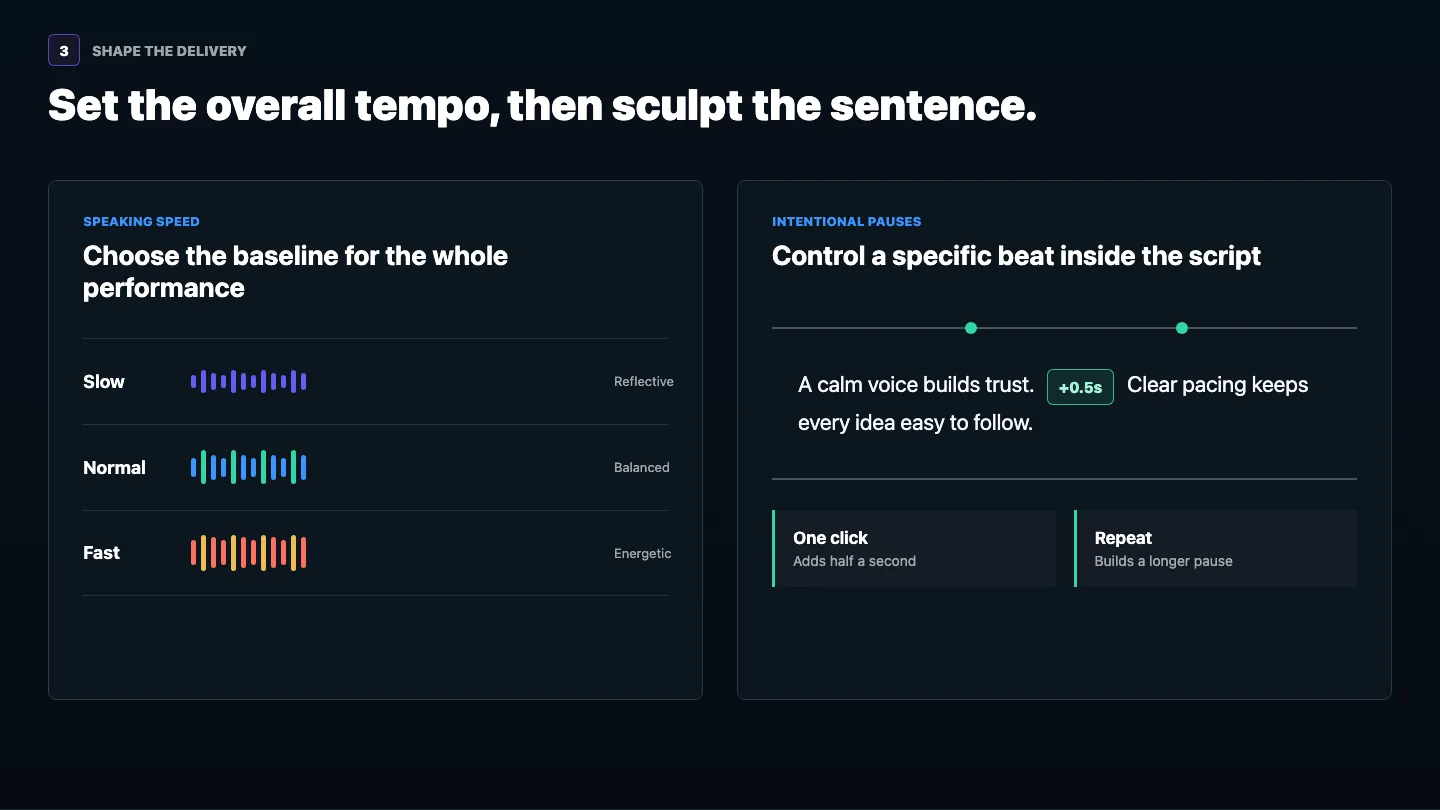
Know-how: add pauses where a real presenter would breathe, change ideas, or let a claim land. Too many pauses fragment the delivery, so preview the whole sentence after editing, not just the part you changed.
Step 5: Direct the delivery with Voice Enhance
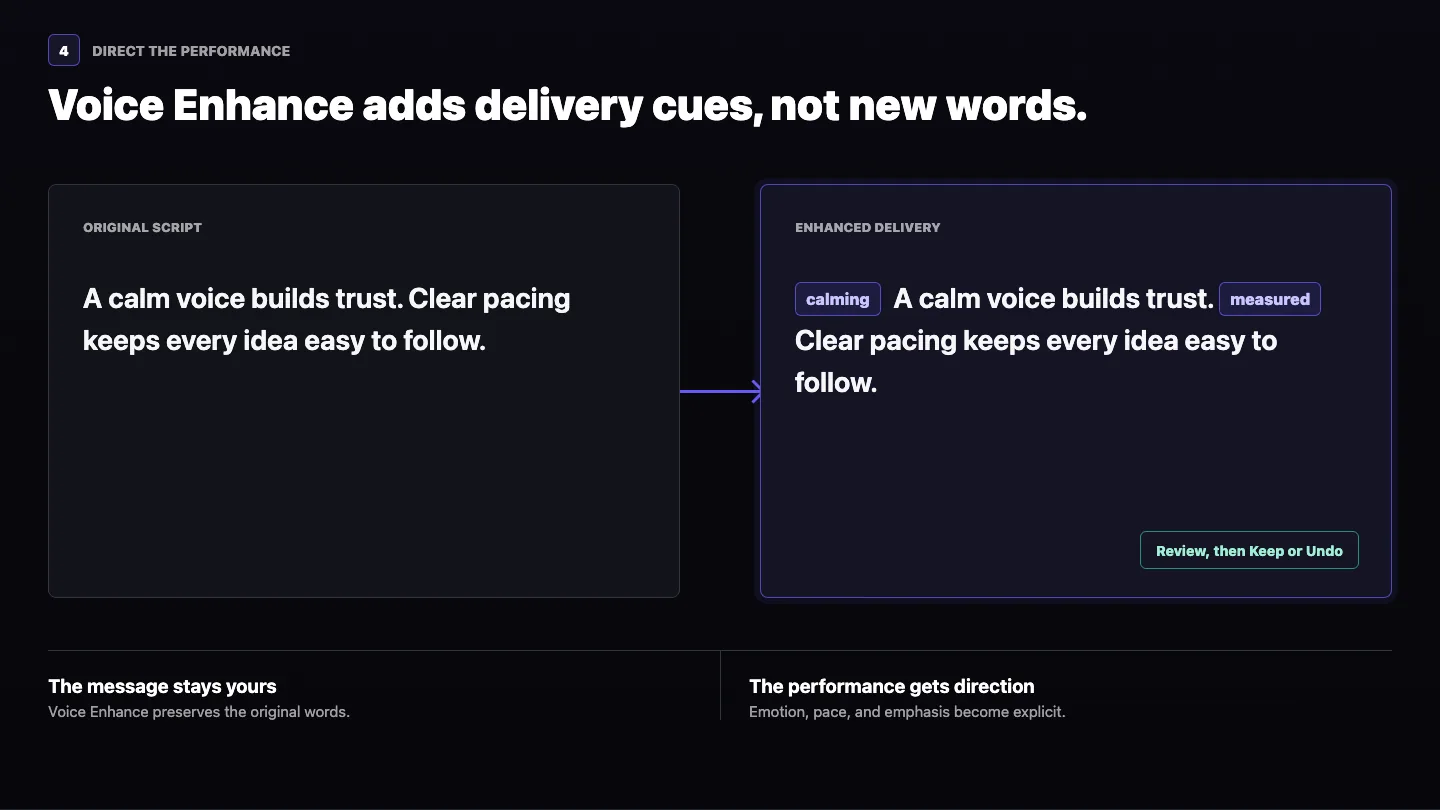
Click Voice Enhance when the words are right but the intended performance is not yet explicit. VisionStory adds delivery cues for emotion, pacing, and emphasis while keeping your original wording.
Review the enhanced script before you continue. Choose Keep when the cues match your intent, or Undo to return to the original. It earns its place when a script needs clear emotional direction but should not be reworded.
Step 6: Preview your real script before you generate
Click Preview Audio once the voice, speed, pauses, and any enhancement cues are in place. Listen to the whole take instead of judging the first few words, and check pronunciation, accent, rhythm, sentence endings, pauses, and emotional fit.
When you are still comparing candidates, start with one short representative sentence. Once the shortlist is down to two or three, preview a passage containing the names, numbers, technical terms, or emotional beats that matter most in the finished video — that is where voices separate.
Preview allowance: audio preview includes a free character allowance that refreshes on a rolling 24-hour cycle. After that allowance is used, preview generation costs 1 credit per 500 characters. See how VisionStory credits work for the full picture.
Step 7: Generate once so the avatar remembers the voice
Selecting a voice changes the current editor setup, but selection alone does not store that voice on the avatar. Generate one video with the voice you picked. VisionStory then remembers the pairing and restores it the next time you use the same avatar.
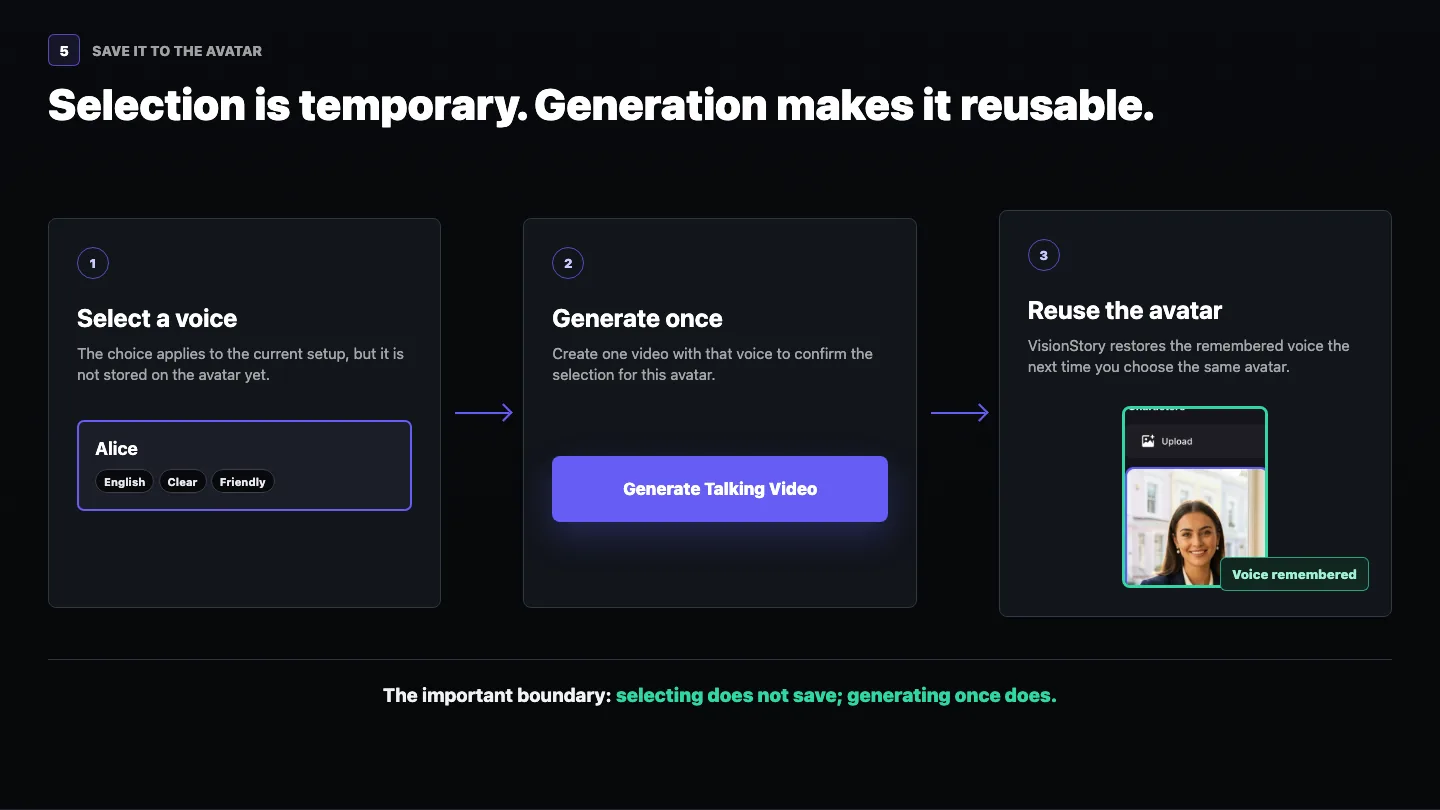
That is why the choice is worth making carefully. Once an avatar and a voice are paired, every future video starts from a consistent presenter instead of a fresh decision.
Why AI voices sound robotic — and how to fix it
When a generated voiceover feels synthetic, it is usually one of five fixable causes rather than the voice model itself.
- Wrong voice for the script. A narration voice reading ad copy sounds flat. Re-shortlist by use case before you blame the quality.
- No pauses. Real speakers breathe. A wall of text with no beats reads as a machine, so add half-second pauses at the idea boundaries.
- Speed set once and forgotten. Fast makes dense sentences mushy; slow makes a short promo drag. Match the tempo to the content type.
- Ambiguous punctuation. Run-on sentences, missing commas, and unexpanded abbreviations all push a voice toward monotone. Clean the script first.
- No emotional direction. If the intent is not in the text, the voice cannot infer it — which is exactly what Voice Enhance is for.
Fix those five and most complaints about robotic AI voices disappear without changing the voice at all.
If a provider retires a voice you use
VisionStory sources voices from several providers, and a provider can remove a voice from its own catalog. When that happens, the voice cannot be restored to the public Voice Library.
If a voice you relied on is gone, find a clean passage from an earlier video that contains only that voice, and use it as source audio in Voice Clone. The clone can produce a close replacement, although it should not be expected to sound identical.
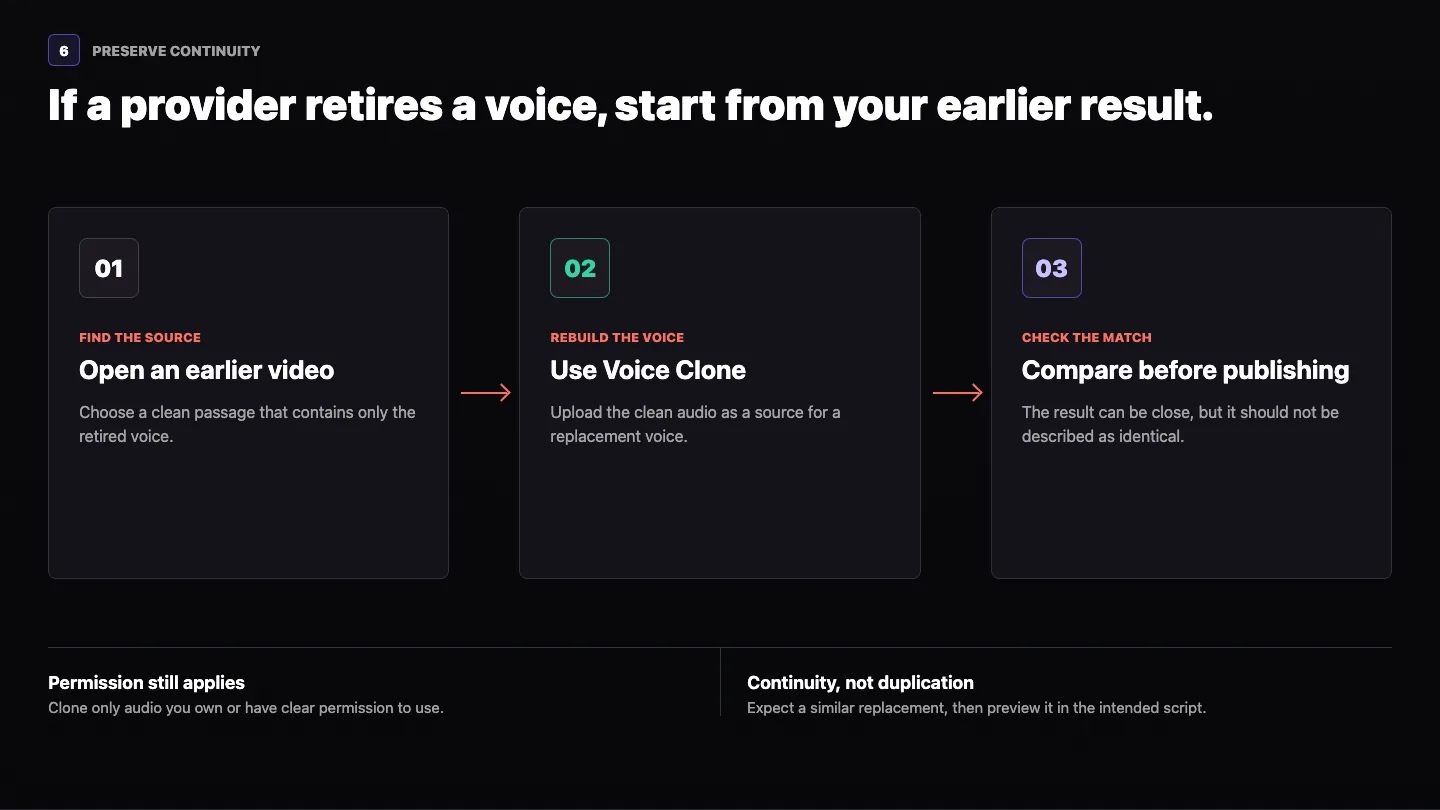
Permission required: clone only audio you own or have clear permission to use, and preview the replacement with your intended script before you publish.
Your AI voice checklist before you generate
- Pick the regional accent for the audience, not only the language.
- Use the profile tags to shortlist, then let your ears make the call.
- Preview the names, numbers, and difficult terms from your real script.
- Set the overall speed before you add local pauses.
- Use Voice Enhance only when the delivery needs clearer direction.
- Listen to a complete preview, not just the first sentence.
- Generate once when you want the avatar to remember the voice.
- Write the chosen voice name into your brand or campaign notes.
Once the voice is locked, the rest is fast. Take the same setup through to a finished video with how to create an AI talking avatar, or open text to speech when you only need the audio side.