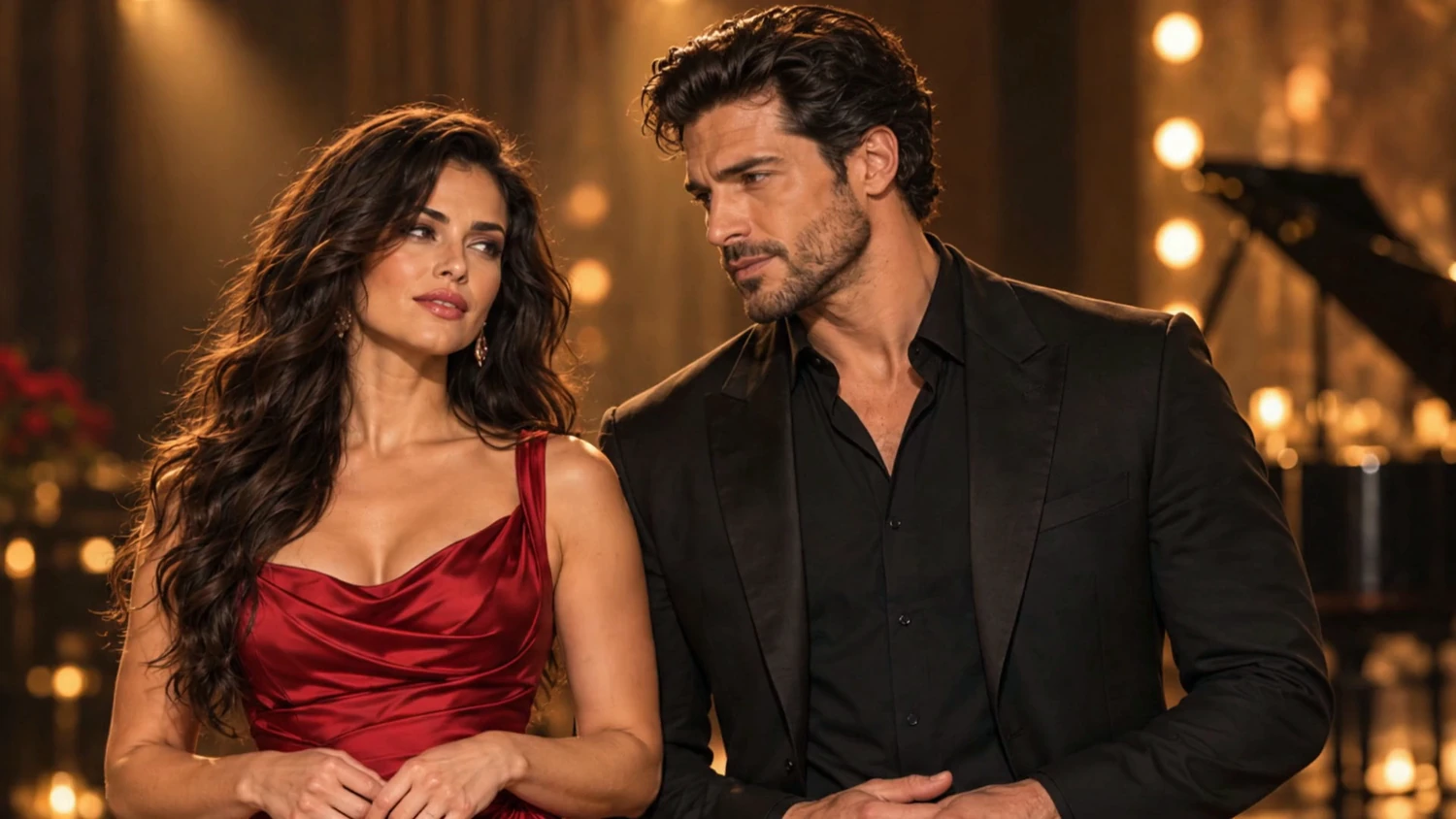
Turn a photo of two performers into an AI duet music video using a song that already contains both singers. VisionStory uses the track for the vocals and accompaniment, and the photo for the performers’ appearance. Follow this example to select your song section, review the storyboard, and choose close-ups or shared shots before generating the finished video.
Before You Begin
Have these two inputs ready before opening Viral Music.
- One song with two singers. Use a mixed track containing both voices and the backing music. Choose a passage where you can hear each singer’s part.
- One photo of two performers. Both people’s heads and mouths should be clearly visible. Their appearance, outfits, and surroundings guide the visual direction.
Use music and images you have permission to use. Working with a single performer? Follow the AI music video tutorial for the Solo workflow.
Step 1: Select Duet and Choose Your Song Section
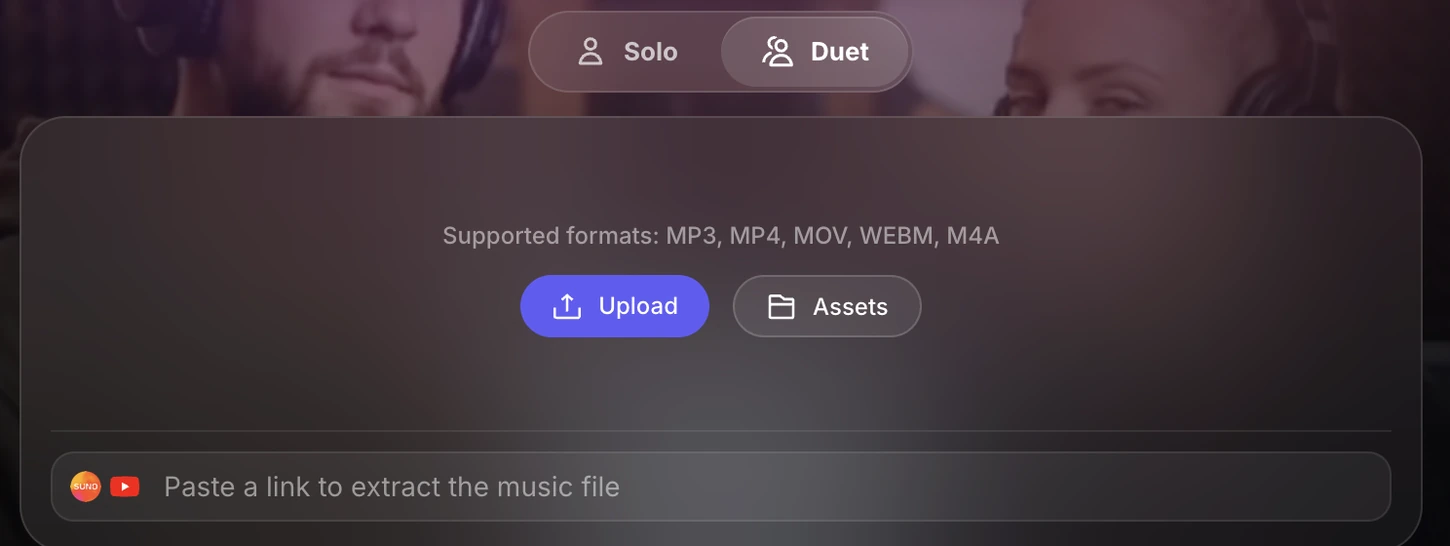
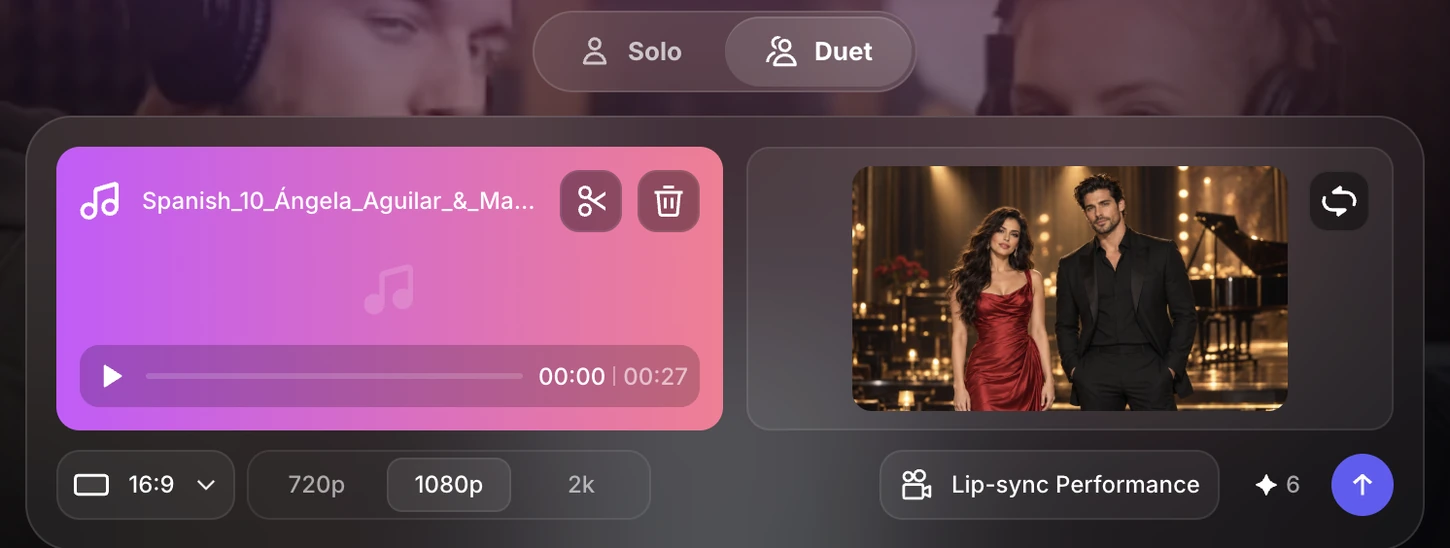
Open Viral Music and select Duet beside Solo. Start with a finished duet recording containing both singers. Upload an audio file, upload a video to use its soundtrack, or choose an existing track from Assets.
You can also paste a supported public Suno or YouTube link into the link field to extract the music. The imported track supplies the vocals and accompaniment, while your two-person photo supplies the performers and visual direction.
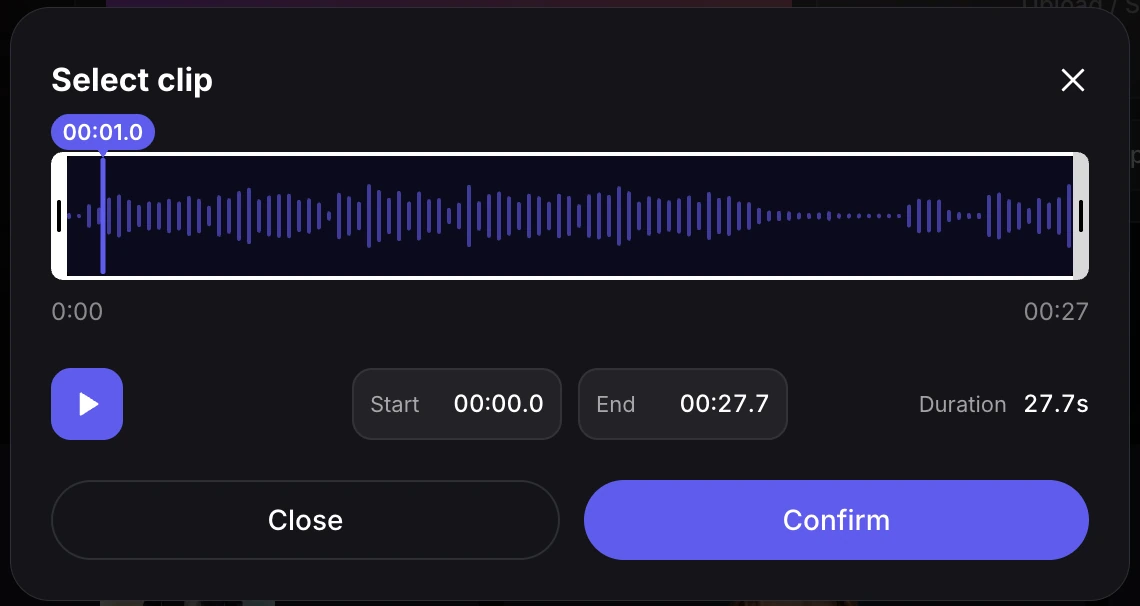
In Select clip, choose a continuous passage from 15 seconds to 10 minutes. Drag the start and end handles to adjust its length. To choose another passage of the same length, drag the entire selected range along the waveform.
Play the selected passage and listen for where the first singer stops and the second begins, as well as any phrase they sing together. If one singer enters just beyond the selection, extend the range before clicking Confirm.
Choose a clean musical opening and ending. A complete exchange or chorus gives the duet a clearer shape than a cut halfway through a word.
Step 2: Add a Photo of Both Performers
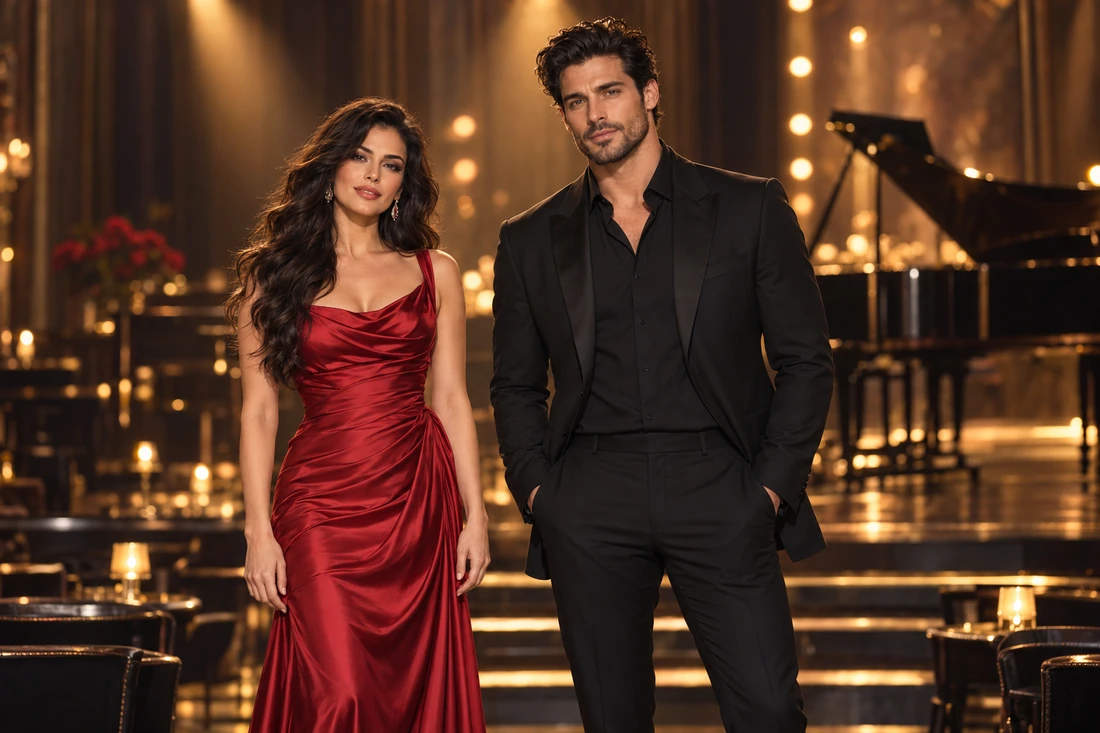
Open the performer selector and choose a single photo containing exactly two people. Use distinct, unobstructed faces so each performer is easy to recognize. Include the clothing and setting you want the video to draw from.
The example pairs a woman in red with a man in black in a studio. Check that the correct image appears beside your track before continuing.
Step 3: Prepare Your Storyboard
Choose 9:16 for vertical short-form feeds or 16:9 for a landscape video. This example uses 16:9, with Lip-sync Performance shown as the performance mode.
Review the credit estimate beside the arrow, then click the arrow to prepare the storyboard. This creates the sequence you will inspect before rendering the performance.
Two separately billed stages. Preparing the storyboard uses credits. Review the estimate before continuing. This charge covers storyboard preparation; final video generation is charged separately.
Step 4: Choose Close-ups and Shared Shots
Open the prepared storyboard and select each clip in the timeline to inspect its starting image. Check how the framing moves between the performers and whether their faces and clothing remain recognizable.
To change the framing, click Select a shot. In the Select a clip window, choose a solo close-up or a composition showing both performers.
- Solo close-up. Give an individual line or response a clear visual focus.
- Shared shot. Show both singers for a shared phrase, a handoff, or the interaction between them. The A+B group contains compositions with both performers.
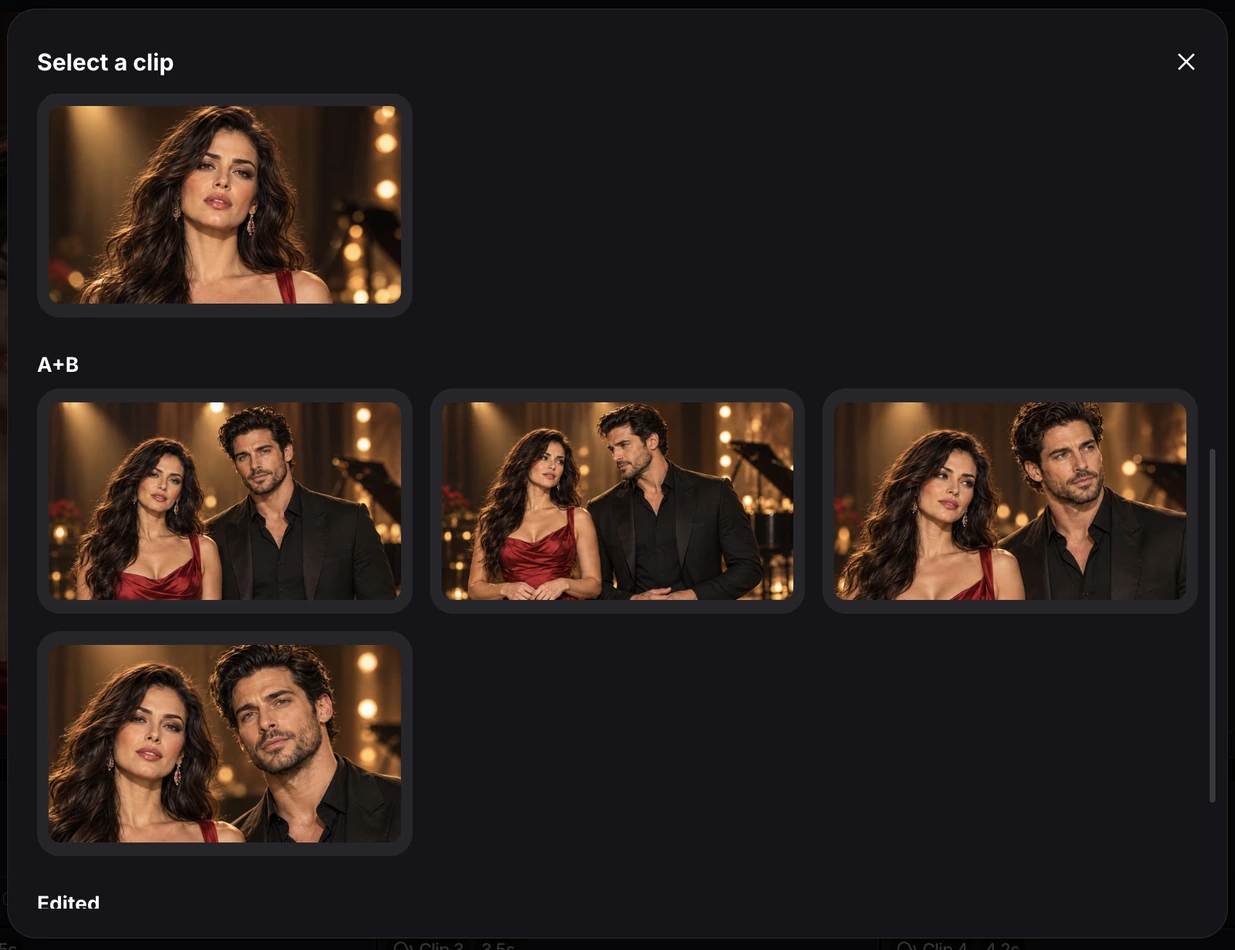
Review the sequence as a whole before generating. Alternating close-ups can emphasize a back-and-forth exchange, while shared shots give the audience a sense of both performers occupying the same scene. The song remains the source of the vocals.
Step 5: Generate and Review Your Duet Video
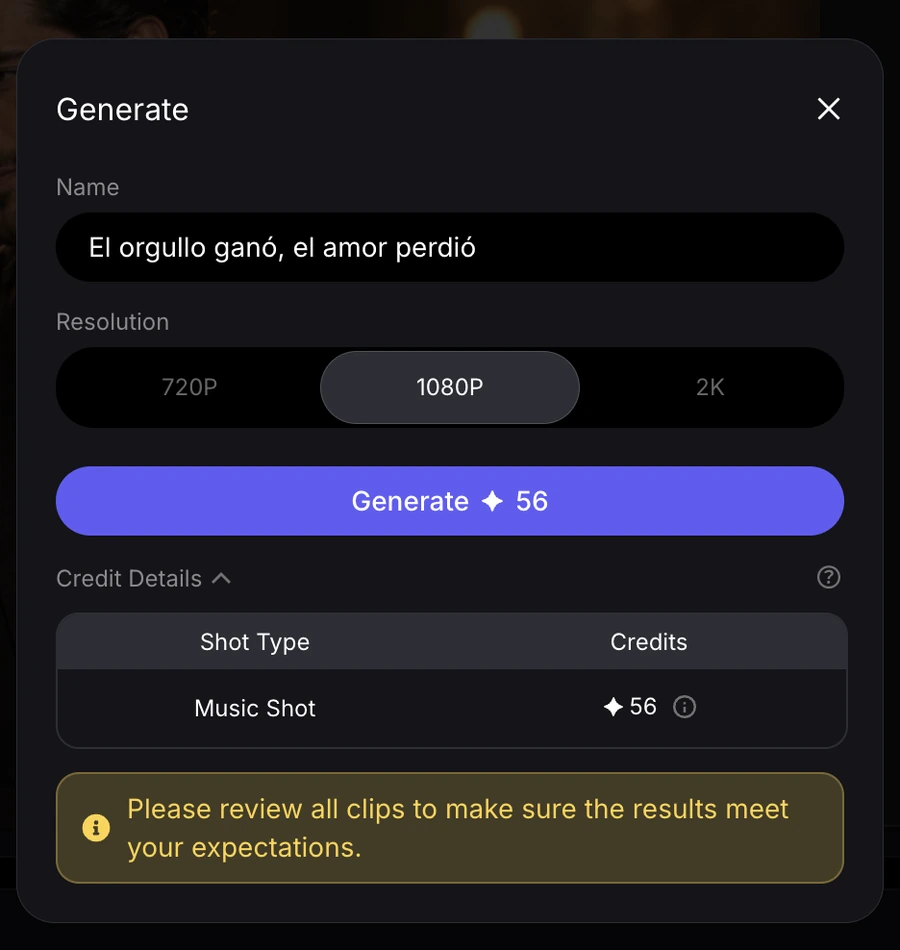
Click Generate in the editor and choose 720P, 1080P, or 2K for the output resolution. Higher resolutions provide more detail and change the credit estimate. Expand Credit Details to review the amount for your selected resolution. This is a separate charge from storyboard preparation. When your shots and settings are ready, click the final Generate button.
Open the completed video in Videos and play it through with the sound on. Check these details before sharing it.
- Vocal handoffs. Watch who is on screen when each singer enters, including any overlapping lines.
- Two-person lip sync. Compare mouth movements with the audible singing throughout the clip.
- Performer consistency. Check faces and clothing across close-ups and shared shots.
- Framing and pacing. Make sure the camera changes support the exchange and the ending feels complete.
For more on credit balances and usage, see how VisionStory credits work. If your track comes from Suno, the Suno music video guide explains how to bring a finished song into VisionStory.
